How to Sign a Document on an Android Phone or Tablet
To sign a document on an Android phone or tablet, open the file in a mobile signing app, create your electronic signature, and place it where required. You can sign Word documents (DOC or DOCX), email attachments, and other common file types directly from your Android device without printing or scanning.
The basic steps are:
- Upload or open your document on your Android phone.
- Select the Sign tool.
- Draw, type, or upload your signature.
- Place the signature in the required field.
- Save or send the signed document.
Below, we’ll walk through each method in detail — including how to sign Word files, documents sent by email, and how to request signatures from others.
For a complete overview of all signing methods, see our guide on how to sign a document.
How to Sign a Document Using an Android eSignature App
If you need to sign a contract, form, or agreement securely, using a dedicated eSignature app on Android provides the most flexibility and control.
Follow these steps to sign a document using an eSignature app like Fill:
1. Download and install the Fill app from the Google Play Store.
2. Open the app and tap the “+” icon to upload or create a document.
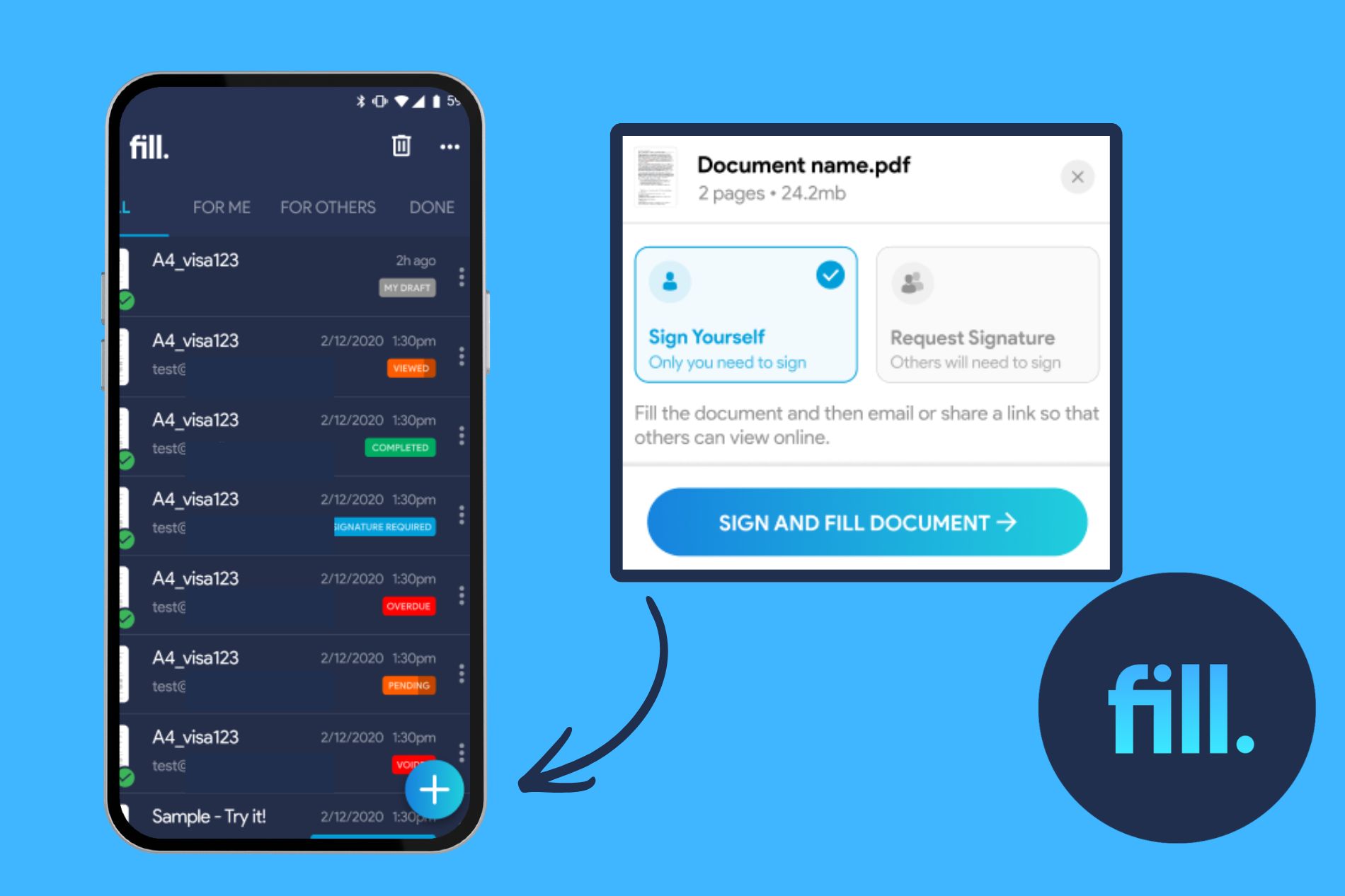
3. Import your file from Google Drive, your device storage, Dropbox, or OneDrive.
4. Select Sign Yourself and tap the Sign tool.
5. Create your digital signature by drawing, typing, or uploading an image.
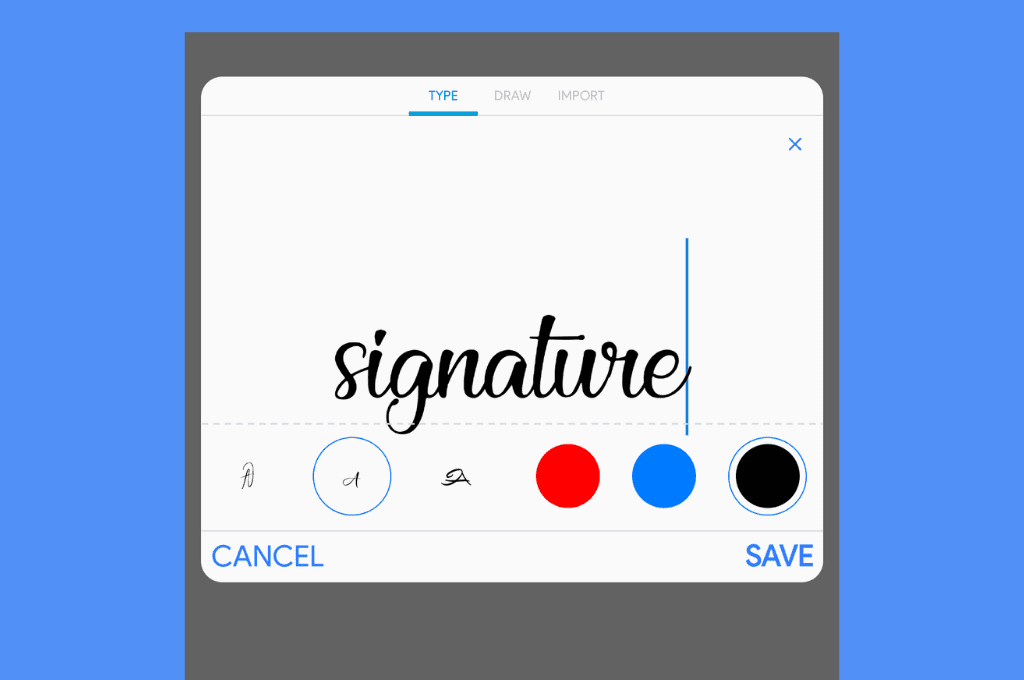
6. Drag and resize your signature into place.
7. Tap Done to save and export your signed document.
After signing, you can download the file, email it, or share it directly from your Android phone.
Once signed, you can no longer make changes to your document. If you preview the document, you can also see a string of characters at the bottom of every page. This string of characters represents a hash. Any change in the hash code means that your document has been modified, which nullifies the validity of the electronic signature you attached.

How to Sign a PDF on Android
You can sign a PDF on your Android phone by opening the file in a signing app, adding your signature, and saving the document.
For a detailed walkthrough, see our complete guide on how to sign a PDF on Android.
How to Sign a Word Document on Android
To sign a Word document on Android, open the DOC or DOCX file in Microsoft Word, save it to your device, and import it into a signing app to add your signature.
Follow these steps:
- Open the Word document on your Android phone.
- Tap File and save the document to your device.
- Open your signing app and upload the saved DOC or DOCX file.
- Select the Sign tool and create your signature.
- Place your signature in the required location.
- Tap Done to save the signed file.
If preferred, you can convert the Word document to PDF before signing.
You can read detailed steps on our how to sign a Word document guide.

How to Sign Documents Sent to Your Phone by Email
If someone emails you a document to sign:
- Download the attachment from Gmail or your email app.
- Open it in your signing app.
- Add your signature using the Sign tool.
- Save the file and reply with the signed document.
Many signing apps integrate directly with email and cloud storage services, making the process faster and more convenient.
How to Sign a Google Docs File on Android
If your document is stored in Google Docs, you can sign it on your Android phone by exporting or opening the file in a signing app.
Follow these steps:
- Open the document in Google Docs.
- Make any final edits.
- Save or export the file to Google Drive.
- Open the file in your signing app.
- Add your signature and save the completed document.
For a more detailed walkthrough specific to Google Docs, see our guide on how to sign a document in Google Docs.
Can You Send a Document for Signature From an Android Phone?
Yes. You can send documents for electronic signature directly from your Android phone using a mobile signing app.
To request signatures:
- Upload the document to your signing app.
- Add the names and email addresses of recipients.
- Drag and place signature fields where needed.
- Tap Send to request signatures.
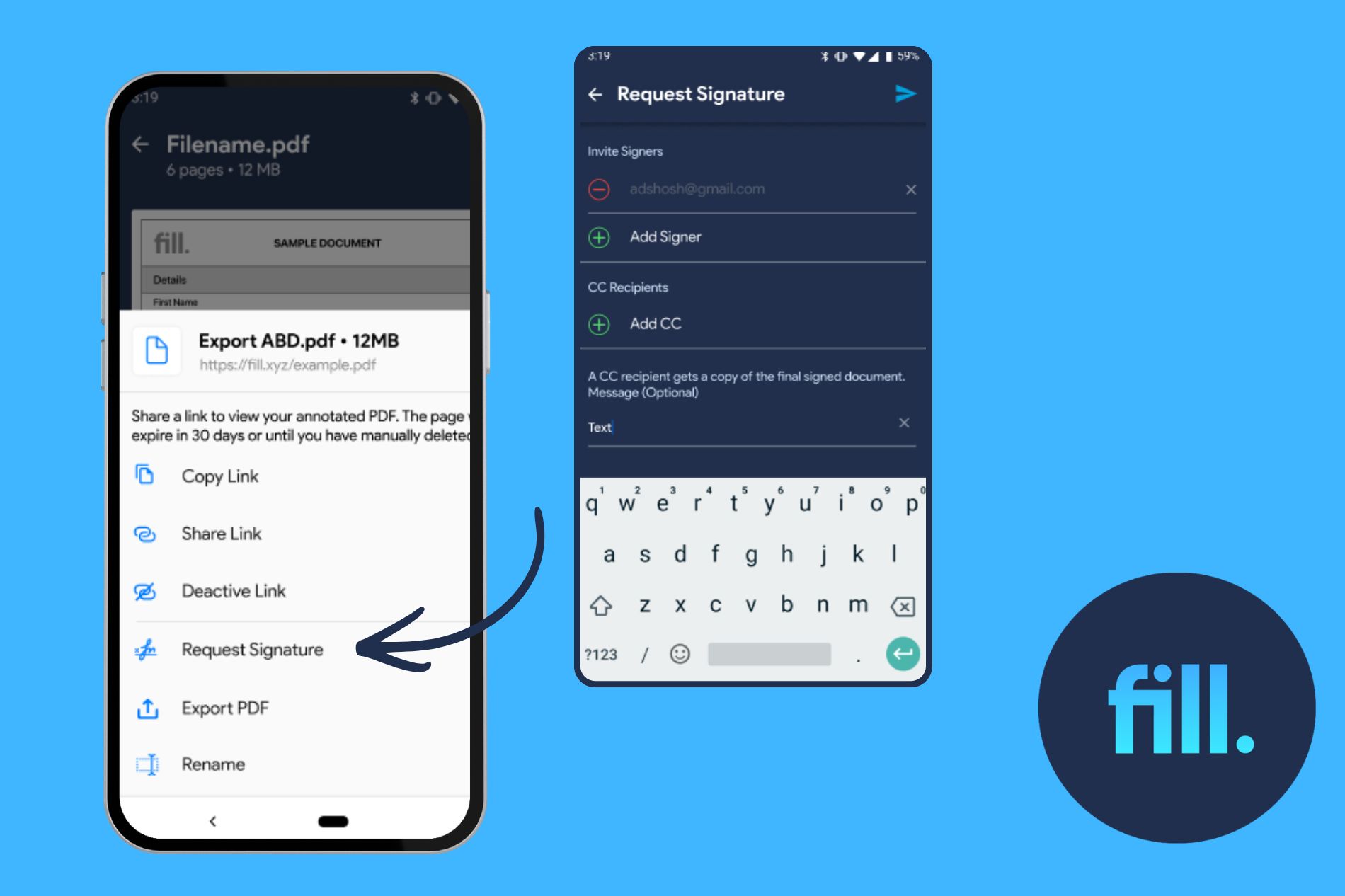
You can track signing progress and receive notifications once recipients complete their signatures.
Can You Sign Documents on Any Phone?
Yes. While the steps above apply to Android devices, the process of signing a document on your phone is similar across most smartphones.
If you’re using an iPhone, you can download Fill for iOS and read our complete guide here:
👉 How to sign documents on an iPhone
Frequently Asked Questions
How do I sign a document on my Android phone without printing?
You can sign a document directly on your Android phone using a mobile signing app. Upload the file, create your electronic signature, place it where required, and save the signed copy — no printing or scanning needed.
How can I sign a document on my phone for free?
Many mobile signing apps offer free plans that allow you to upload a document, add your signature, and download the signed file. Check the features and limits of each app before choosing one.
Can I sign a Word document on Android?
Yes. Open the DOC or DOCX file, save it to your device, and import it into a signing app to apply your electronic signature.
How do I sign a document sent by email on Android?
Download the attachment, open it in a signing app, add your signature, and send the signed file back via email.
Can I sign documents on an Android tablet?
Yes. The process is the same on an Android tablet as on a phone. Upload your document, add your signature, and save the signed file.
Sign Documents on Your Android Phone Anytime, Anywhere
Now you know how to sign a document on an Android phone or tablet — whether it’s a Word file, email attachment, or other document type. With the right tools, you can add a legally binding electronic signature in just a few minutes without using a computer.
Signing documents on your Android device helps you stay productive while traveling, working remotely, or handling urgent paperwork. It also reduces paper usage and speeds up approvals when multiple people need to sign.
If you regularly sign contracts, forms, or agreements on your mobile device, using a secure eSignature app like Fill can make the process faster and more reliable. Fill allows you to upload documents, create legally binding signatures, and send signature requests directly from your Android phone.
You can download Fill for Android from the Google Play Store and start signing documents in minutes.


View our Privacy Policy for more info.