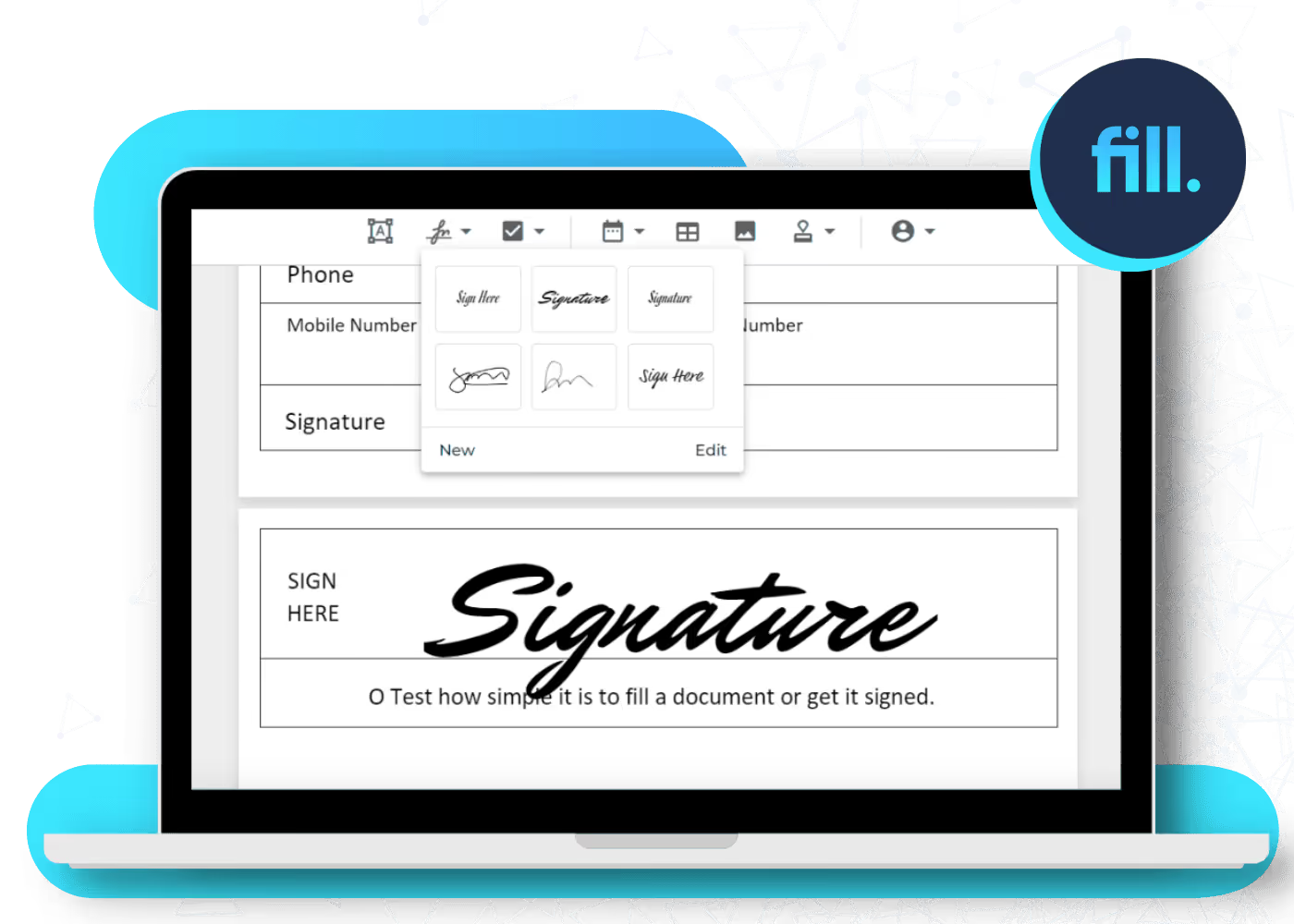
A secure and cost-effective way to sign documents on any computer
Fill’s electronic signature app for Windows lets you create signatures and sign documents on your laptop or desktop computer. It takes the hassle out of document signing so you can carry out transactions quickly and securely.
Download Fill for desktop.


Save time and money

Fill and sign PDF forms easily

Collaborate securely

Strengthen compliance

Simplify complex workflows

A full-fledged digital workspace that lets you sign and track documents on the go
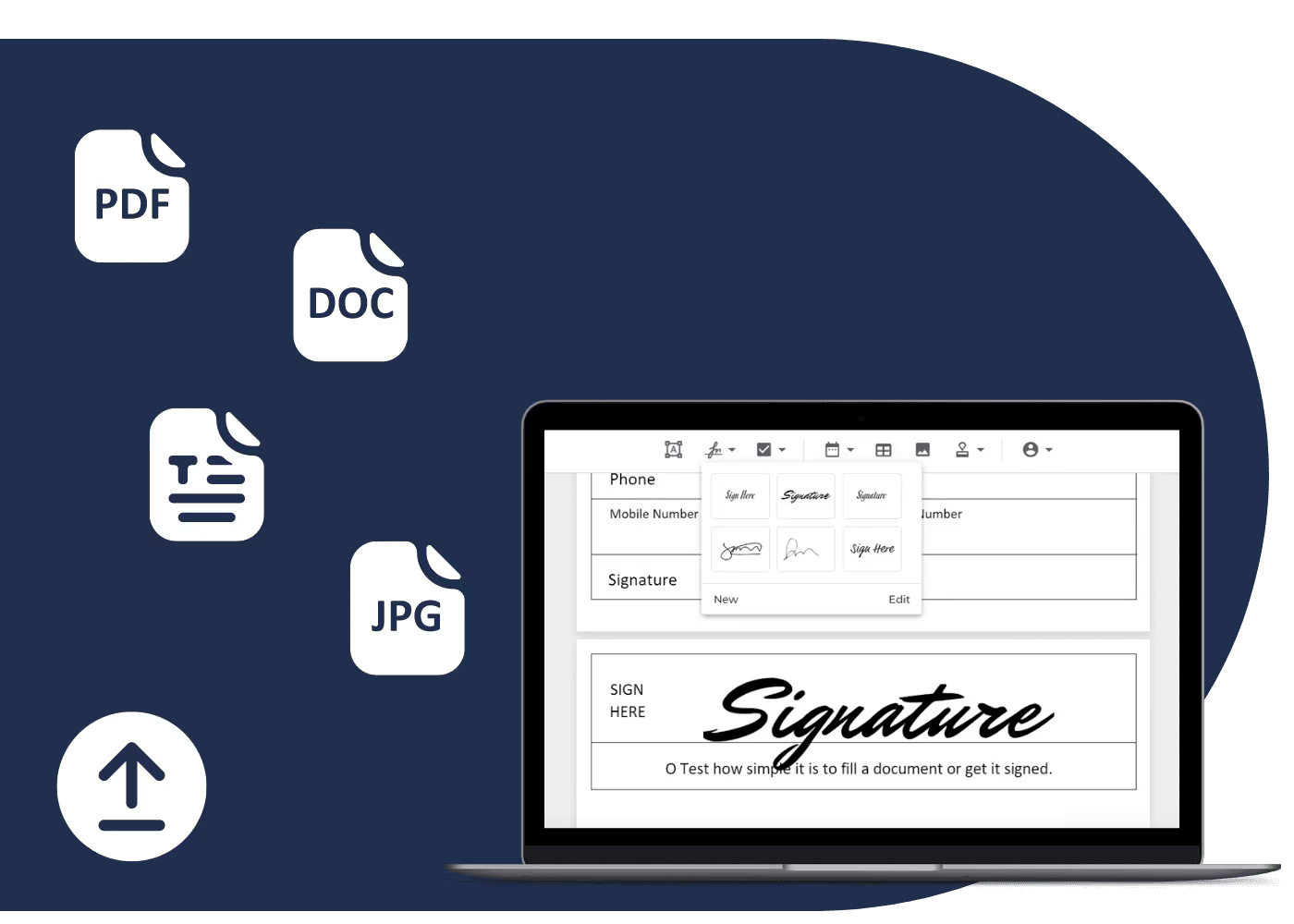
Upload and sign documents on any PC or laptop
Fill supports multiple file formats, including PDF, DOC, DOCX, TXT, PNG, and JPG. You can directly import these files from your cloud storage or local folder. Once uploaded, these files will sync automatically across all of your devices, making it possible to view and sign them from anywhere. It’s a secure and convenient way to stay on top of your paperwork.
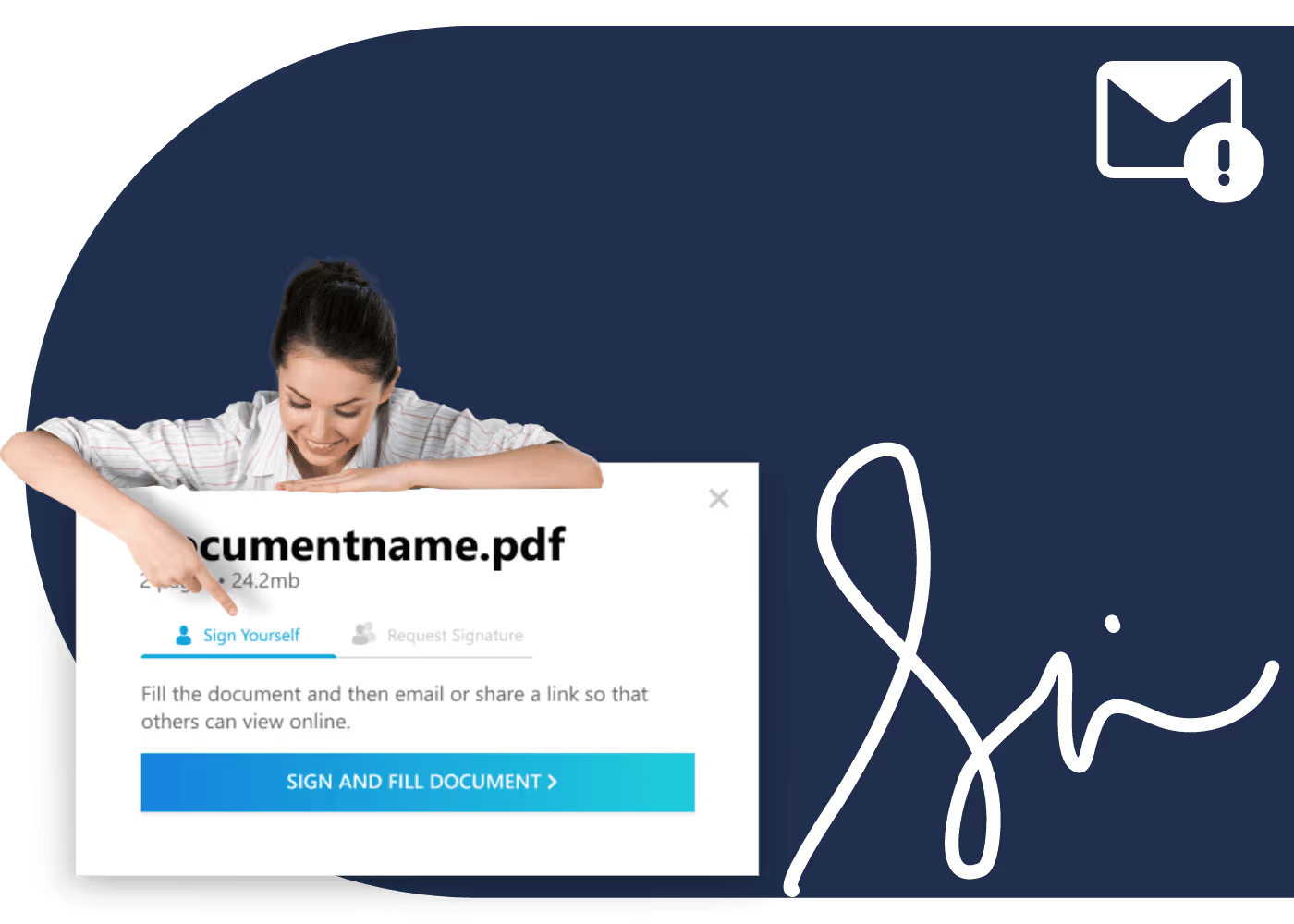
Send unlimited esignature requests
Aside from using Fill to sign documents on your computer, you can send unlimited requests for esignatures and monitor their progress in real time. Anyone can receive and sign your request without having to sign up for a Fill account. You can also have multiple people sign your documents simultaneously, even if they’re on different devices and platforms.

Create reusable templates and fillable PDFs
Harness the power of automation and speed up your data collection with error-free online forms. Our desktop app lets you create reusable templates that you can autopopulate to avoid manual encoding and spelling mistakes. Create fillable PDF forms that you can share by direct link or email.
What our customers say about us.
Liam Washington
Copura
Nelson Bradley
Macros Corp
Tim Crump
Cioa
Amy Slane
Mycitysocial
Dallas Brown
SIS International
Sarah Memom
Kindred


Frequently Asked Questions
How to sign a PDF on Windows
If you are using a Windows device, you can’t use just any text-editing software to sign a PDF document. You need a tool that lets you edit, sign, and annotate files in this format. You also need to ensure that your electronic signature will be legally binding, especially if you’re signing agreements and contracts.
With Fill, all of these are possible. Here are the steps that you need to follow.
- Download and launch the Fill esignature app for PC (desktop), then sign up as a new user. If you’re an existing Fill user, simply log in using your account email and password.
- Click Start Now and choose your desired signing options. The app will let you sign the PDF by yourself or with multiple signatories while you track and monitor their progress.
- Upload your PDF from your local folder. You can also import it directly from Google Drive, OneDrive, or Dropbox.
- Click on the Add signature option. If you already have an existing digital signature, just drag it to the appropriate field. Make sure to resize it so it doesn’t overlap with the other sections.
- Click Done. That’s it.
Once signed, you may export the PDF with your esignature to your local folder.
Can I create a signature on my computer?
Yes, you can. You don’t even need to scan a copy of your handwritten signature to do so. All you need is the right tool to make it possible. With Fill, you can create electronic signatures by drawing or typing. You can also upload a scanned copy of your wet signature and use it to sign documents on your computer.
To create a signature for electronic document signing, here’s what you need to do:
- Download and launch the Fill app for Windows.
- Sign up for an account or log in if you’re an existing user.
- Go to Settings and select My Signatures.
- By default, your signature gallery should be empty. Click New Signature. A smaller window should pop up.
- You can choose whether to create your signature by typing or drawing. You can also upload your scanned signature to make it secure and legally binding.
- Click Save, and that’s it!
The next time you need to sign an electronic document, you simply select and drag the signature you created into the signature field.
Where to download an electronic signatures app for Windows?
Using electronic signatures to sign documents is becoming increasingly common as more and more organizations switch to paperless, digital solutions. Signing documents electronically offers convenience, and it cuts the document signing turnaround time by almost half. It’s also more secure as many electronic signature apps use robust security measures to safeguard your files and data. Not to mention that opting for a more digital approach to document workflow also saves you some money.
If you are relatively new to signing documents electronically, having the best e signature app in your arsenal can make the transition seamless. It’s best to find an electronic signature app that you can easily integrate into your computer.
So, where can you download an electronic signature app for Windows? There is no need to look further as Fill offers an electronic signature app for PC. Our free app is packed with amazing features to make document processing and signing easier and faster. Aside from giving you the ability to sign PDF on Windows computers, you can also access other features such as real-time audit trail and log, unlimited signature requests, military-grade encryption, and a lot more. Best of all, you can install our electronic signature app for Windows in six easy steps.
Can I use the digital signature app on desktops and laptops?
Fill is dedicated to providing you with outstanding service to help you simplify your paperwork workflow and document signing process. We understand how daunting document management can be, so we created one of the best eSignature apps in the market to help you with your workload. Our electronic signature application is designed for ease of use and convenience and is packed with features to help your reach optimum productivity and efficiency.
There is no need to invest in any other hardware or equipment to use our electronic signature application with Fill. Our top-rated app, which allows you to sign PDF on Windows, is compatible with any desktop and laptop–whether you use a Windows PC or Mac OS.
Our electronic signature app for Windows boasts a simple yet intuitive interface. Anyone, even those with the most basic computer skills, can easily use our application with ease and confidence. The setup and installment process are also very straightforward and quick. And as a cherry on top, our electronic signature application for Windows is free to download.
What is the best electronic signature app for Windows?
As electronic signatures are steadily gaining steam in document signing and paperwork workflow, the market for electronic signature apps for PC is getting more saturated by the day. Choosing the best electronic signature app in Windows can prove to be slightly confusing and overwhelming.
What makes Fill a standout electronic signature? Why is Fill the best electronic signature app in Windows? Allow us to count the ways. For one, Fill is made to accommodate users from various industries. We provide solutions designed to cater to your documentation needs. We created our electronic signature app ensuring that you can easily integrate it with ease.
We also offer comprehensive and well-structured templates for all your paperwork needs. Whether you need templates for quotes, sales and purchases, invoices, or contracts, it’s in our template library.
On top of all that, our competitive pricing plans let you get the most value for your money. With plans starting at $8.33 per user per month, you can access our top-notch features and functionalities.
How do I electronically sign a document on Windows?
You can sign a document on Windows using Fill’s electronic signature app. Simply upload your PDF or Word file, draw or upload your signature, and click Sign. Your signed document can then be saved, shared, or sent for others to sign — all without printing or scanning.
Is Fill’s electronic signature app for Windows free?
Yes, Fill offers a free version of its Windows app that lets you create, sign, and send documents securely. You can also upgrade to premium plans for unlimited requests, advanced templates, and compliance features.
How secure is Fill’s eSignature app for Windows?
Fill uses 256-bit SSL encryption, role-based access, and real-time audit logs to ensure your documents stay private and tamper-proof. It’s built to meet enterprise-level data security and compliance standards.