How to Sign a PDF on Android

A lot of people prefer sharing and viewing documents in PDF, and for good reason. You don't need to worry about hardware or software compatibility with this versatile digital format.
However, it does have one serious drawback: you cannot edit and sign a PDF document that easily. Doing so involves the tedious process of recreating the source file.
If you’re looking to sign a PDF on Android, this guide will show you how to do it quickly and securely. For a broader overview of signing PDFs across devices, check out our main Sign a PDF guide for tips and tools.

How to Sign a PDF on Android Devices With Fill
Fill offers an easy, secure way to sign PDFs on Android without printing anything. Here’s how:
1. Open your mobile browser and go to fillhq.com. Log in to your existing account or sign up as a new user.
2. On your main dashboard, click Start Now.
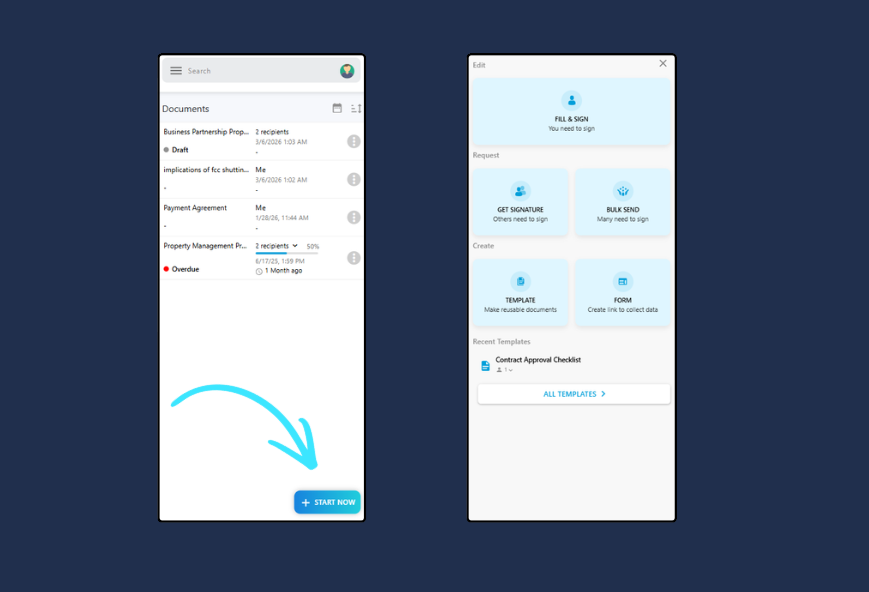
3. Select Fill & Sign or Get Signature if you're requesting signatures from other people.
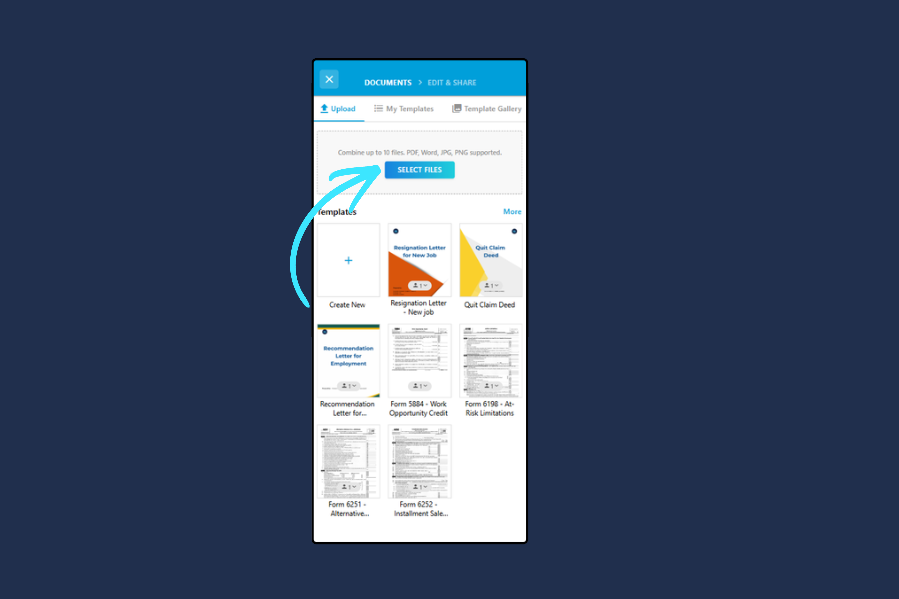
4. Upload your PDF via Select Files. Click Next or add another file if you're combining several documents.
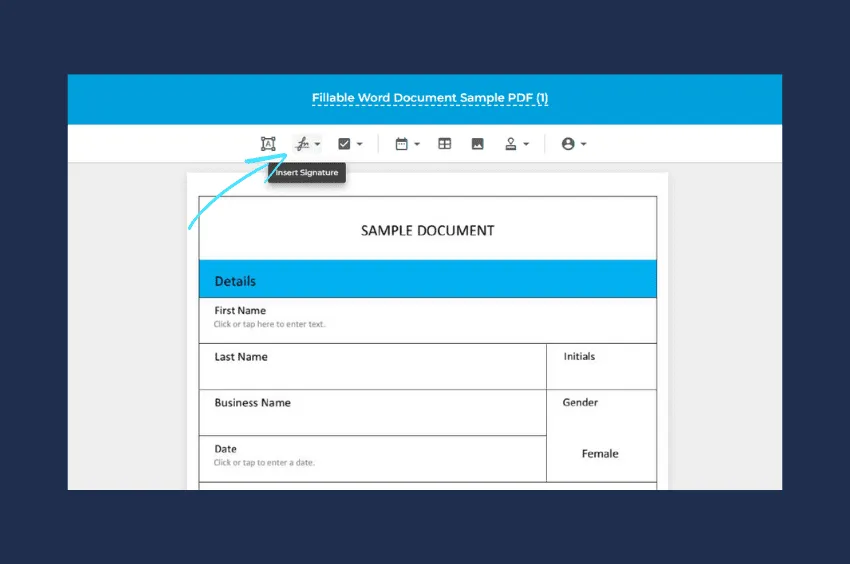
5. Tap Insert Signature, then New to create your first signature.
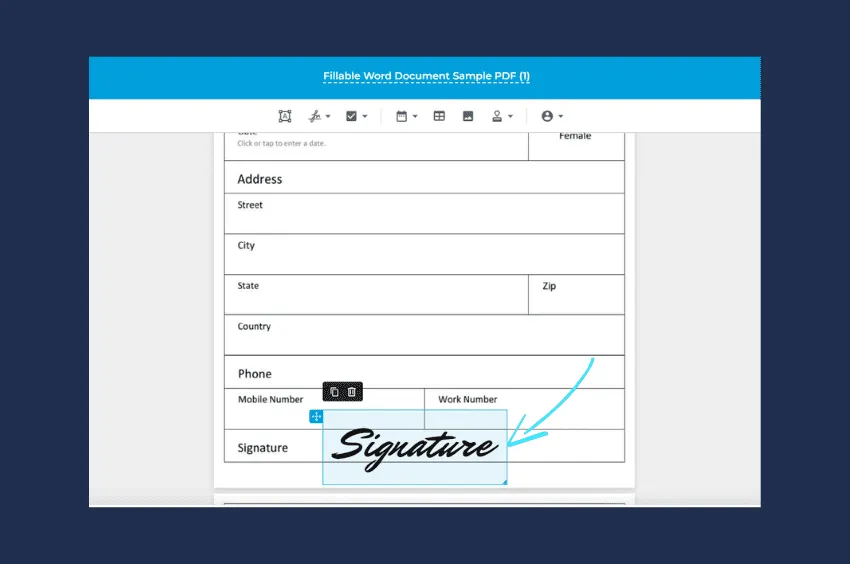
6. Type, draw, or upload your electronic signature. Once done, click Save. You may also drag and adjust the size of your esignature according to your liking.
7. Once you're satisfied with the outcome, click Save.
That's it. Once signed, you're all set to share your signed PDF via email or direct link. You can also share your document with specific members of your team.
How to Sign a PDF on Android Devices
To get your PDFs signed on an Android device, you must first look for a reliable third-party document signing app. It should be secure enough to keep your files safe and convenient enough to let you sign PDFs from anywhere, using any Android-powered device.
Since Android has no built-in tool for adding electronic signatures, you'll have to download and install one from the Play Store. Your safest bet would be to choose a popular one like Adobe Acrobat Reader.
Using the Adobe Acrobat Reader app is easy.
1. Install the Adobe Acrobat Reader app on your Android phone or tablet. After opening the app, you will be asked to sign in using your Adobe ID. You’ll need to register as a new user if you don’t have an existing account.
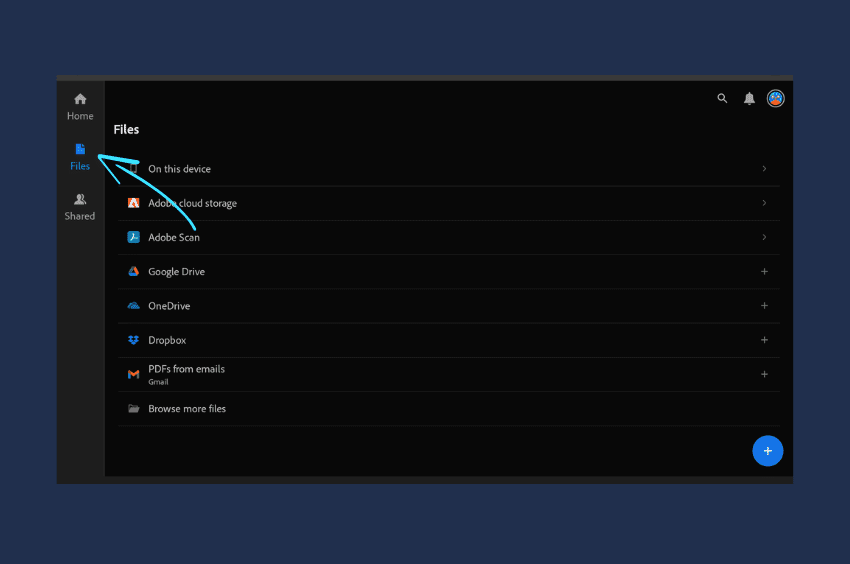
2. Once you see the main screen, look for the left or bottom navigation. From there, select Files. You then have the option to upload or import your PDF from Google Drive, OneDrive, or Dropbox. You can also import a PDF directly from your local device folder.
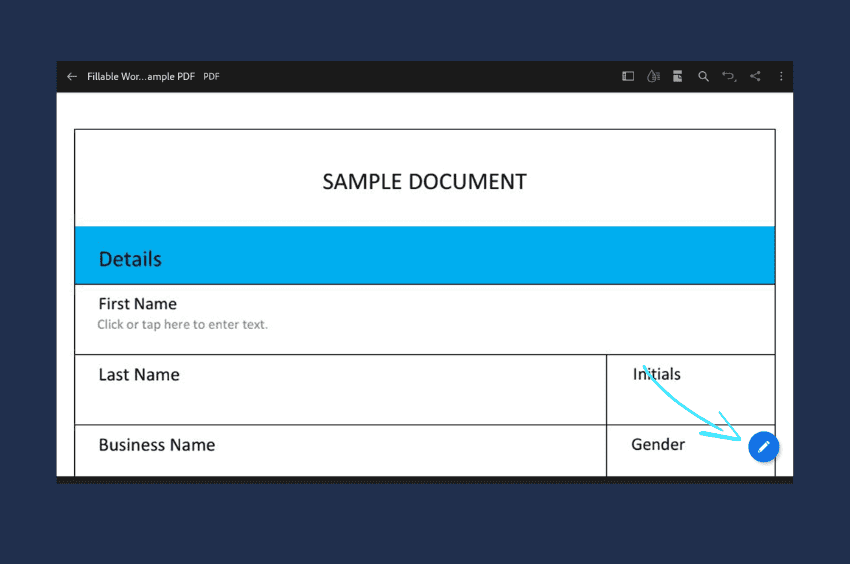
3. After importing your file to Acrobat, tap the Edit icon, then select Fill and Sign.
4. Tap on the pen nib icon from the top or bottom menu. Select Create Signature or Create Initials.
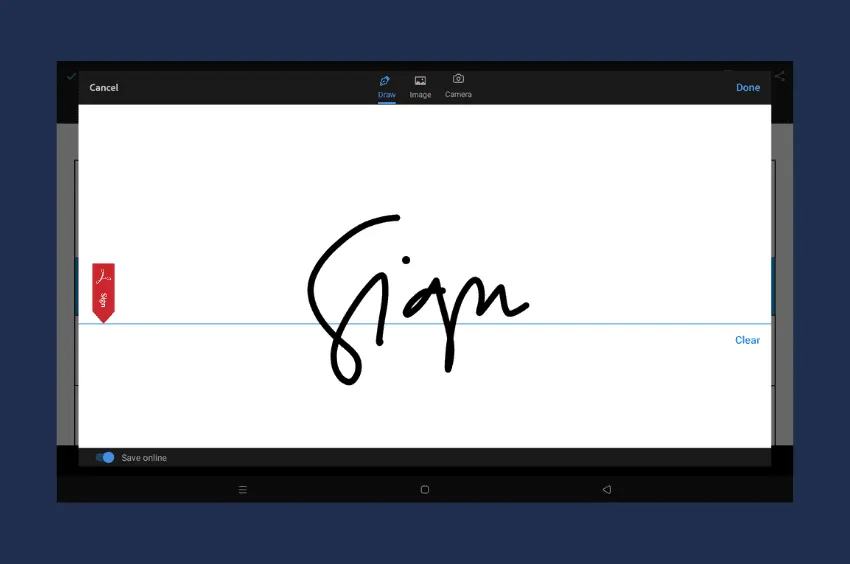
5. Next, draw your signature in the Sign Here box.
6. You may also upload an existing signature image or take a picture of your handwritten signature using your phone's built-in camera. Right after doing so, click Done.
7. Now, go and tap any section of the document. Right after doing so, a new menu should show up. From there, select the pen nib icon to add the signature.
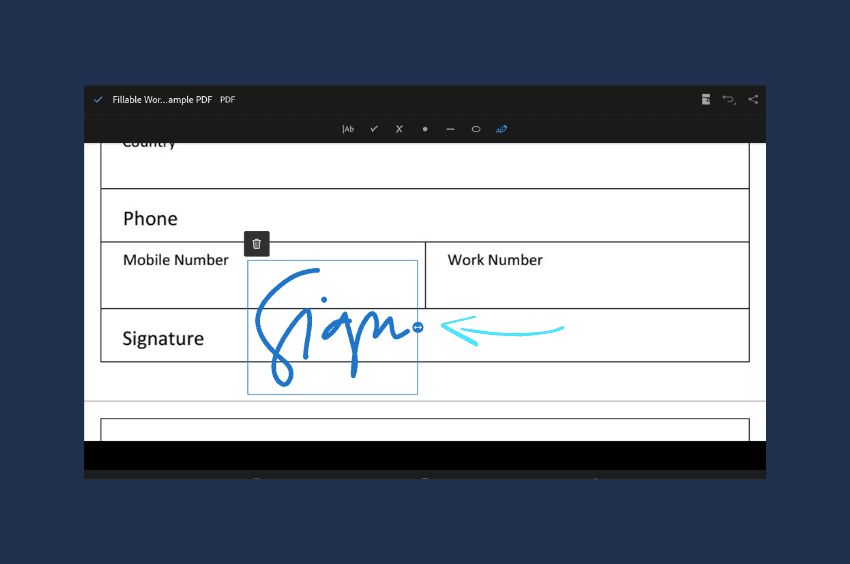
8. Feel free to drag and resize the signature to where you'd like it to appear. Repeat until you get all the signature fields signed.
9. Use the Delete option to start over.
10. Once everything is all set, tap the check icon to save your changes.
That's it! You've successfully signed a PDF file on Android without printing a single page.
See also: How to Sign a Word Document on an iPhone
Final Thoughts
To sign a PDF on Android means having more control over your documents. It lets you sign documents from anywhere, so you don't have to miss out on important deals. You can also speed up your signing process by eliminating the need to affix your signature manually.
By using an esignature to sign PDFs on Android, you can implement better security measures to safeguard confidential information. For example, you can restrict access to your PDFs to avoid unauthorized viewing and tampering.
You can also ask a signatory to confirm their identity by submitting a government-issued document like a valid passport or driver's license.
With Fill, you can get any PDF signed while making the most of your time, effort, and money.
So go ahead and start a free account to experience how easy it is to sign and collect esignatures on the go.
For more detailed methods and options, visit our Sign a PDF main guide to explore signing PDFs across all devices, including iPhone, Android, and desktop.


View our Privacy Policy for more info.