How to Add an Electronic Signature in Word (2026 Guide)

Microsoft Word offers several ways to add an electronic signature without printing documents. You can use Word's built-in tools or an eSignature platform for a faster, more secure signing experience.
In this guide, you'll learn how to:
- insert a scanned handwritten signature
- draw your signature in Word
- add a digital signature with a certificate
- electronically sign your document online
If you're looking for a broader guide on signing documents online, check out our comprehensive article on how to sign a document.
If you'd prefer to use Microsoft's built-in tools instead of an online eSignature platform, here are the most common ways to add a signature directly in Word.
How to Add an Electronic Signature in Word (Insert Image Method)
Quick steps:
- Open your Word document.
- Click Insert in the top menu.
- Select Pictures and upload your signature image.
- Adjust Layout Options → Behind Text.
- Move the signature to the correct location and save the document.
Inserting an image of your handwritten signature is one of the simplest ways to electronically sign a Word document. This method works well for contracts, letters, and internal documents when you already have a scanned signature saved as an image.
If you already have a scanned copy of your handwritten signature saved as an image, follow these steps:
1. Go to the Insert tab in Microsoft Word.
2. Click Pictures. Choose Insert Picture From This Device and select the image of your scanned signature.
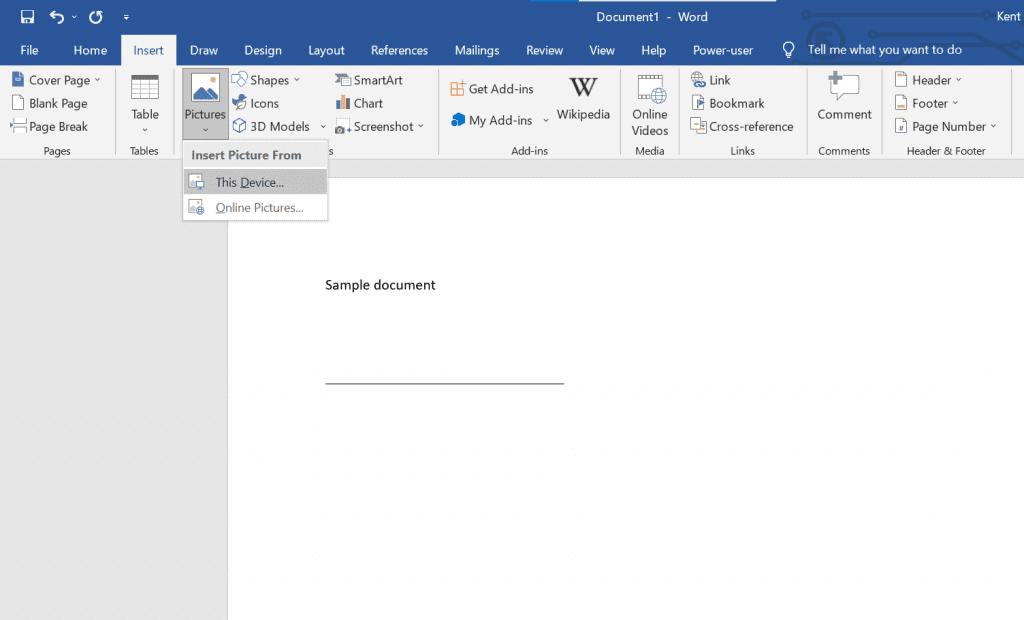
3. After inserting your signature image, adjust the layout settings. Click the image and open Layout Options.
4. Select Behind Text under Text Wrapping.
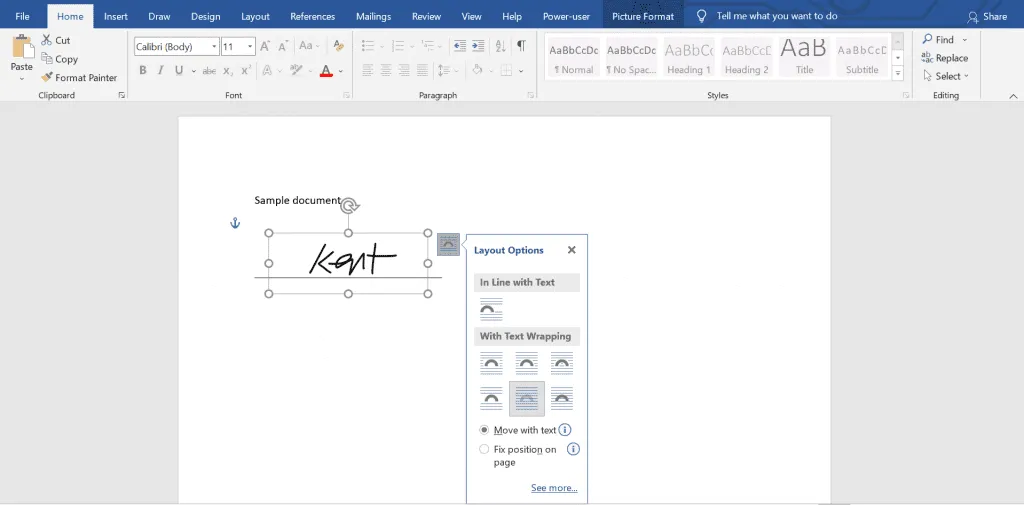
5. Move the signature image to the correct location in the document. You can resize the image and place it above the printed name or signature line.
6. Save your document. Your Word document now contains your electronic signature, which you can reuse for future Word files without printing or scanning documents again.
How to Draw Your Signature in Word
If you don’t have a scanned image, you can write your signature directly in Word. This method works best if you are using a touchscreen device, stylus, or trackpad.
Steps to draw your signature in Word
- Open your Word document.
- Click the Draw tab in the ribbon.
- Select one of the pen tools.
- Adjust the pen thickness and color if needed.
- Use your mouse, stylus, or finger to draw your signature.
- Save the document.
This method is useful for quick approvals and internal documentation.
How to Add a Signature Line in Word
Microsoft Word also allows you to insert a signature line, which acts as a placeholder where someone can sign a document.
Signature lines are commonly used in contracts, agreements, and official forms.
To insert a signature line in Word:
- Place your cursor where the signature should appear.
- Click the Insert tab.
- In the Text group, select Signature Line.
- Click Microsoft Office Signature Line.
- Enter the signer's name, title, and instructions.
- Click OK.
Word will insert a signature field into the document.
When someone signs the document, the signature will appear above the line along with the signer’s information.
How to Electronically Sign a Word Document (Free & Online)
If you need a faster method, you can electronically sign a Word document online using an eSignature platform instead of manually inserting images or signature lines.
Many users search for:
- How to electronically sign a Word document
- How to sign a Word document electronically
- Sign Word document online free
- eSign Word document
An electronic signature allows you to sign a document digitally without printing it.
Electronic signatures often include additional security features such as:
- encryption
- authentication
- timestamp verification
- audit trails
These features help verify when and by whom a document was signed. This is one of the simplest ways to use an electronic signature in Word while maintaining security and legal compliance.
Sign Your Word Document Online with Fill (Fastest & Most Secure)
Step 1: Go to Fill’s website and upload your Word document.
Step 2: Choose whether to sign yourself or request signatures from others.

Step 3: Create your signature. You can:
- Type your name
- Draw your signature
- Upload a saved image
Step 4: Place the signature in the correct location inside the document.
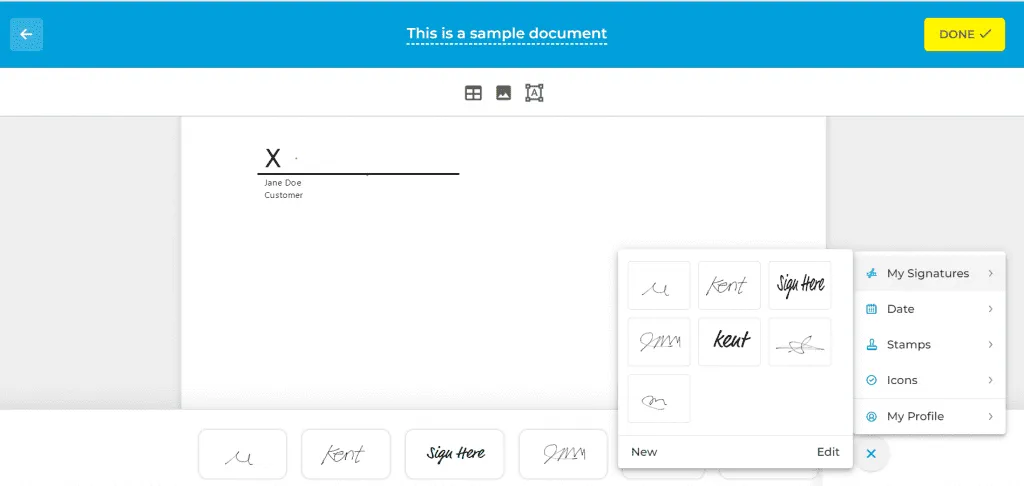
Step 5: Download or send the signed document.
Fill automatically converts Word files to secure PDFs and applies encryption, audit trails, and tamper-proof protection.
This is ideal if you need:
- Legally binding signatures
- Multiple signers
- Secure document storage
- Compliance with ESIGN, UETA, and HIPAA

Can You Electronically Sign a Word Document for Free?
Yes. You can:
- Insert a signature image manually in Word
- Draw your signature in Word
- Use certain online eSignature tools with free plans
However, free methods inside Word do not automatically provide audit trails or tamper protection. If you need stronger legal protection, a secure eSignature platform is recommended.
How to Add a Digital Signature in Word (With Certificate)
Electronic signatures and digital signatures are different.
A digital signature uses a verified digital certificate to confirm identity and protect document integrity.
To digitally sign a Word document:
- Click the signature line in your document.
- Right-click and choose Sign.
- Enter your name or select an image.
- Choose your digital certificate (if installed).
- Click Sign.
After signing, Word locks the document in read-only mode.
To obtain a certificate, you must use a certified provider such as IdenTrust or GlobalSign.
If you don’t have a certificate, a platform like Fill provides legally recognized digital signing without manual certificate installation.
How to Sign a Word Document Online
If you don’t want to install anything but still need an online digital signature, you can sign Word documents online.
The typical process:
- Upload the Word document.
- Add your electronic signature.
- Place it in the signature field.
- Download or send the signed copy.
Online signing tools are especially useful when:
- You’re working remotely
- You need signatures from multiple people
- You don’t have access to your main computer
Are you working with a Google document? You can check out our guide on how to sign documents in Google Docs. If you frequently need to sign contracts, PDFs, or other files digitally, you may want to read our guide on how to sign documents online.
How to Sign a Word Document on iPhone
If you're looking to sign a Word document on your phone, the process is slightly different.
You can:
- Use the Microsoft Word app (requires subscription and saved signature)
- Convert the document to PDF and use iPhone Markup
- Use a mobile eSignature app like Fill
Step-by-step guide: how to sign a Word document on iPhone
Can You Sign a Word Document without Printing?
Yes. Microsoft Word allows you to sign documents without printing them.
You can:
- insert a scanned handwritten signature
- draw a signature directly in the document
- add a digital certificate
- use an online electronic signature tool
This eliminates the need for printing, scanning, or mailing documents and allows agreements to be completed faster.
Is It Legal to Electronically Sign a Word Document?
Yes.
Electronic signatures are legally valid in the United States under the ESIGN Act and UETA, and in many other countries under similar laws.
However:
- A simple image pasted into Word may not provide proof of authenticity.
- A certified digital signature or secure eSignature platform provides stronger legal protection.
If you need enforceability, audit logs, and tamper protection, use a secure eSignature solution.

Why Businesses Choose Fill Over Word's Built-in Signing Tools
Word works well for occasional document signing. But for professional or business use, it has limitations.
Here’s why many teams switch to a dedicated platform:
Legal Validity: Scanned images alone don’t provide authentication. Platforms like Fill add audit trails and encryption.
Security: Word files can be edited after signing. Secure eSignature tools lock documents after signing.
Efficiency: No emailing files back and forth. Track signature progress in real time.
Scalability: Manage templates, automate workflows, and handle bulk signing requests.
Key Takeaway
Learning how to add a signature in Word allows you to:
- Avoid printing documents
- Speed up approvals
- Reduce paperwork
- Improve productivity
Whether you want to insert a handwritten signature, create an electronic signature in Word, or digitally sign business documents, Microsoft Word offers several ways to complete documents electronically.
For occasional use, Word works well. But for secure workflows, audit trails, and legally binding signatures, a dedicated eSignature platform provides a much smoother experience. This is also the smart move if you need a HIPAA-compliant electronic signature.
Experience the ease of using a dedicated eSignature platform. Go ahead and give Fill a try.
FAQs
How do I write my signature on a Word document?
Use the Draw tool in Word to write your signature with a mouse or stylus.
How do I electronically sign a Word document?
You can upload your document to an online eSignature tool, create your signature, and place it in the document securely.
How do I digitally sign a Word document?
Use a digital certificate inside Word and sign using the built-in digital signature feature.
Can you digitally sign a Word document without a certificate?
No. Word requires a digital certificate. However, eSignature platforms provide legally valid signing without manual certificate installation.
Can I sign a Word document without printing?
Yes. You can insert, draw, or electronically sign your document without printing it.
How do I create an electronic signature in Word?
You can create an electronic signature in Word by scanning your handwritten signature, saving it as an image, and inserting it into the document using the Insert → Pictures feature. You can also draw your signature directly in Word or use an online eSignature platform for more secure signing.


Related Stories
How to Create a Fillable Form in Word: The Complete Guide

How to Sign a Document (Online, PDF, Word, or on Your Phone)
How to Set Up an Electronic Signature?
View our Privacy Policy for more info.