How to Digitize Your Signature Online

Want to digitize your handwritten signature? You can scan or photograph your signature, clean up the image, remove the background, and save it as a transparent PNG. If you don't already have a digital copy, you can also use Fill's free signature generator to draw, type, or upload a signature and download it as a PNG.
What Is a Transparent Signature?
A transparent or digitized signature is a digital version of your handwritten signature with the background removed. Instead of appearing inside a white rectangle, the signature blends naturally into documents and forms.
Transparent signatures are commonly used for:
- PDFs
- Word documents
- Contracts
- Online forms
- Google Docs
- Email signatures
The best format for a transparent signature is usually PNG because PNG files support transparent backgrounds.
Digital vs. Digitized Signature
It’s common to confuse digital signatures with digitized signatures, but they are not the same thing. Understanding the difference will help you choose the right option depending on whether you need a legally binding signature, added security, or simply a quick way to sign documents.
If your priority is simplicity and convenience, a digitized signature works well for quick signing. But when legality, compliance, and security are crucial, a digital signature is the safer choice.
Are Digitized Signatures Legally Binding?
Yes, for as long as you abide by the requirements of local and international laws. For example, the E-Sign Act describes in detail what makes an electronic signature legally binding. Your digitized signature may not hold any legal weight if you fail to meet these regulations.
If you wish to use a digitized or electronic signature to sign a document, you need to provide proof that the signature is genuine. The best way to do this is by converting the "scanned" or computerized autograph into a digital signature.
Note that "digitized" and "digital" do not mean the same thing. A digital signature is more than just a virtual copy of your wet signature. It uses advanced encryption to block any forgery or counterfeiting attempt. It also comes with a unique private key, which is needed to create a legally verifiable signer's certificate.
Ways to Create a Transparent Signature
Use Fill's Free Signature Generator (Fastest Method)
If you need a transparent signature quickly, the easiest option is Fill's Free Signature Generator. Instead of scanning paper or removing image backgrounds manually, you can create a transparent signature online in just a few clicks.
Choose the method that works best for you:
- Type your name and choose a font that closely matches your handwriting.
- Draw your signature using your mouse, trackpad, stylus, or touchscreen.
- Upload an existing signature if you've already scanned or photographed it.
Once you're happy with the result, simply download your signature as a transparent PNG and use it in Word documents, PDFs, Google Docs, contracts, forms, and other digital files.
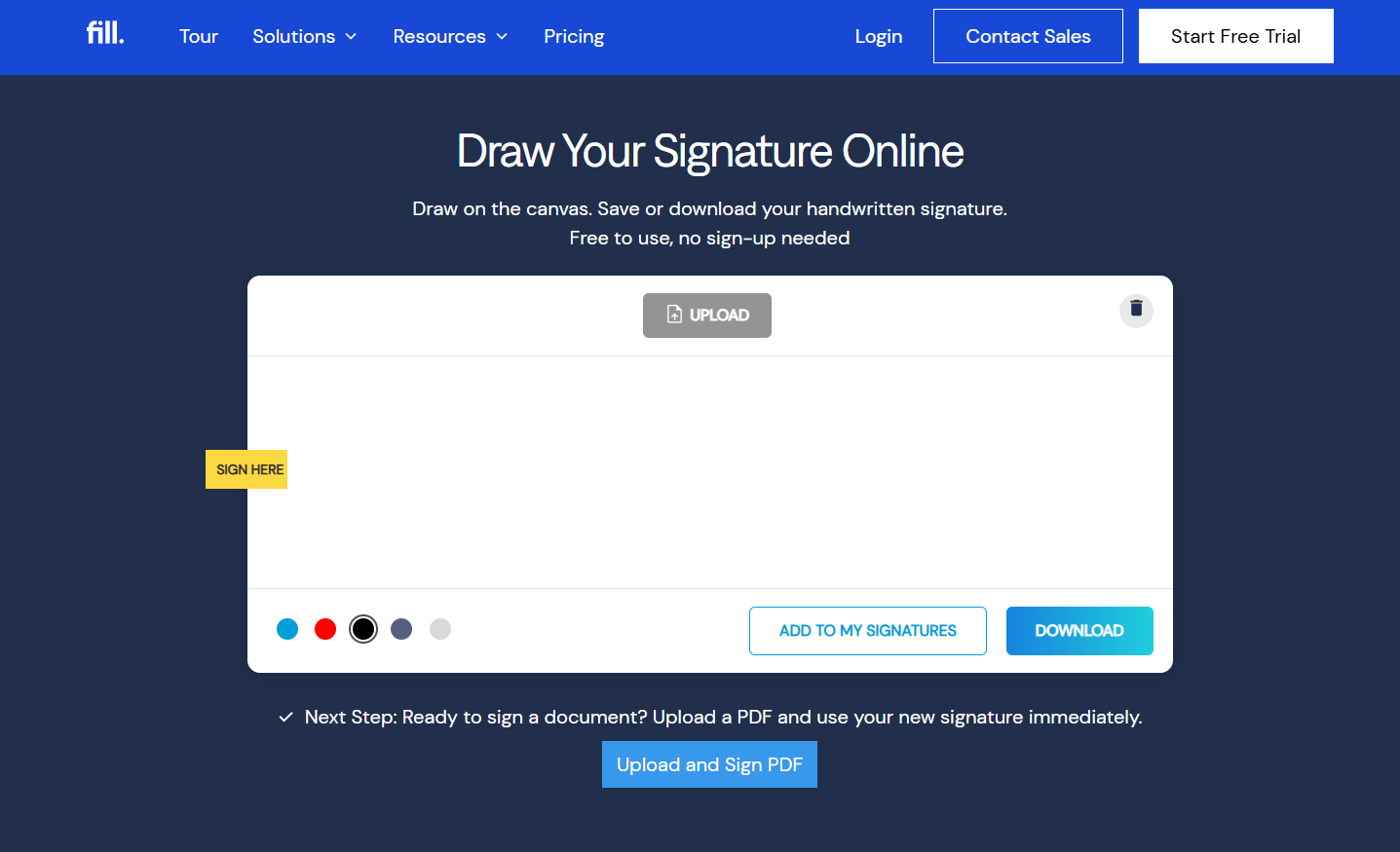
How to create your signature
- Open Fill's Free Signature Generator.
- Choose whether to Type, Draw, or Upload your signature.
- Customize your signature until you're satisfied with the result.
- Download your transparent PNG and use it anywhere you need a clean digital signature.
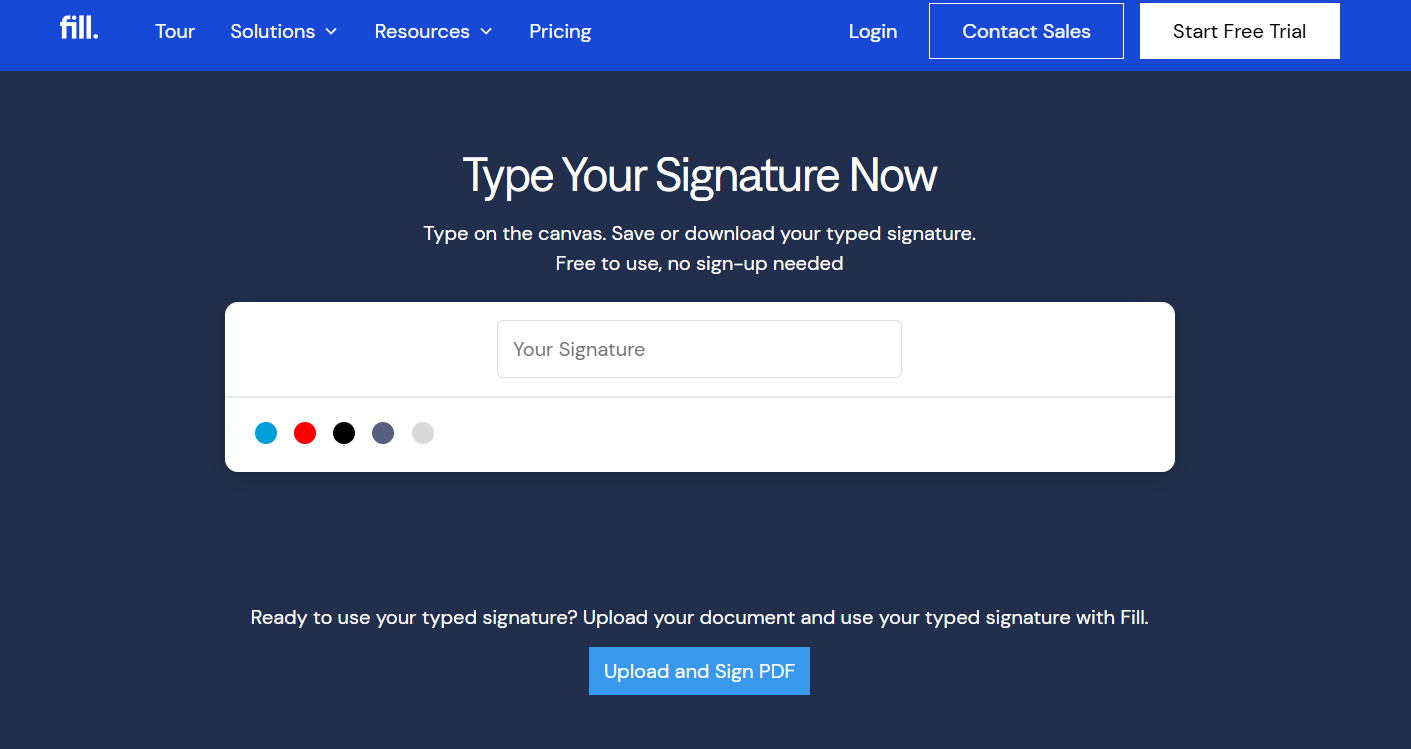
Pro Tip: If you're planning to use your signature regularly, save a copy of the PNG in a secure folder so you can quickly insert it into future documents.
Scan your signature
The standard process of digitizing signatures involves the use of a flatbed scanner. To do so, you'll need to do the following:
- Write your signature on a piece of white paper. Do it like how you would usually sign a printed document. Avoid using a writing tool that could easily smear, such as a fountain pen or dry-erase marker.
- Scan your handwritten signature. Ensure that the resulting image is crisp and legible. It won’t be accepted as valid if it appears distorted or blurry.
- Save the scanned signature as a PNG file. Various word processors and PDF editors support this format, making it the ideal option for web or online use.
- Open any document you wish to sign. Insert the digitized signature as an image. Crop, move, and resize it as needed.
- This step is optional, but you can also make the background transparent using a third-party image editing tool (e.g., GIMP, Photoshop, etc.). This way, your signature will appear more prominent. It also won't clash with the default background or layout of your document.
PNG vs JPG for Digital Signatures
If you want a professional-looking digital signature, PNG is usually the better option.
Take a picture of your signature
If you don't have access to a scanner, you can still create a digital version of your wet signature. All you need to do is take a photograph of your handwritten signature with a smartphone or camera.
- Write down your signature on a blank sheet of paper. Make it more prominent than usual.
- Place the document with your handwritten signature on a flat and well-lit surface. Use your mobile phone or tablet to take a photo. Make sure that you're capturing the image from the top angle with no skewed or asymmetrical corners.
- Save the photo to your image gallery.
- Using MS Paint or another image editor, crop the photo to show only the signature part. Save the picture as a PNG file.
- If you're using Adobe Acrobat, open the document you wish to sign. Click Fill & Sign > Sign Yourself > Add Signature. Import your signature as an image, then click Apply.
- If you're using MS Word, click the Insert tab and select Pictures. Add your electronic signature to the document, then hold and drag it to the appropriate field.
Draw your signature
You can also use online tools to create a digitized signature without scanning or taking a photo. For this, you only have to use your fingertip, trackpad, mouse, or stylus to draw on a touch screen or blank canvas.
- Open your preferred online drawing tool. A few good examples would be AutoDraw and Sketch.io. Popular PDF tools like Adobe Acrobat and macOS Preview also support this functionality.
- Use the draw tool to scribble your signature on the blank canvas.
- Change the pen tip and color according to your preference.
- Set the background to transparent or white.
- Download the image to your local folder.
How to Add a Transparent Signature to Word
Once you have a transparent PNG signature:
- Open your Word document
- Click Insert > Pictures
- Select your signature PNG
- Resize and position the signature
Because the background is transparent, the signature blends naturally into the document.
Read Further: How to Add a Signature to Word
How to Add a Transparent Signature to a PDF
To insert a transparent signature into a PDF:
- Open the PDF editor
- Upload your PNG signature
- Drag the signature into place
- Save the signed PDF
This method works well for contracts, agreements, and forms.
Read Further: How to Sign a PDF Online
Put Your Signature to Work
Now that you've created a transparent signature, you can use it in Word documents, PDFs, contracts, and forms. But if you regularly sign documents, there's an even faster way.
With Fill, you can securely sign documents online using legally binding electronic signatures—without repeatedly inserting signature images into every file. Simply upload your document, place your saved signature where it's needed, and send or sign in minutes.
Fill also helps you:
- Save multiple signatures and initials for future use.
- Sign PDFs, contracts, and forms online.
- Request signatures from clients and teammates.
- Automate repetitive document workflows.
- Protect sensitive documents with enterprise-grade security.
Whether you're signing one agreement each month or hundreds of documents every week, Fill simplifies the entire signing process from start to finish.
Frequently Asked Questions (FAQs)
How do I make my signature background transparent?
Upload a scanned image of your signature to a background removal tool and save the result as a transparent PNG.
What is the best file format for a digital signature?
PNG is usually the best format because it supports transparent backgrounds.
Can I use a phone photo as a signature?
Yes. You can photograph your handwritten signature using your phone, then remove the background and save it digitally.
How do I create a PNG signature?
Write your signature on paper, scan or photograph it, remove the background, and export it as a PNG file.
Can I use a transparent signature in Word or PDF documents?
Yes. A transparent signature can be inserted into Microsoft Word documents, PDFs, Google Docs, presentation slides, and other digital files without leaving a white background around your signature. Saving your signature as a PNG with a transparent background helps it blend naturally into the document and gives it a cleaner, more professional appearance.
What's the difference between a transparent signature and an electronic signature?
A transparent signature is simply an image of your signature—usually saved as a PNG file with a transparent background so it can be placed neatly on documents without a white box around it.
An electronic signature (eSignature) is the process of signing a document digitally using software like Fill. In addition to placing your signature on a document, eSignatures can include security features such as audit trails, signer authentication, and tamper-evident records to help verify the authenticity of the signed document.
If you only need a signature image, a transparent PNG is usually enough. But if you're signing contracts, agreements, or other legally binding documents, using an eSignature platform provides a more secure and efficient signing experience.


Related Stories
How to Create an Electronic Signature and Sign Documents Online

How to Sign Documents Online for Free (2026 Guide)
How to Request Signatures Online and Get Documents Signed Faster
View our Privacy Policy for more info.