How to Add an Electronic Signature in Google Forms
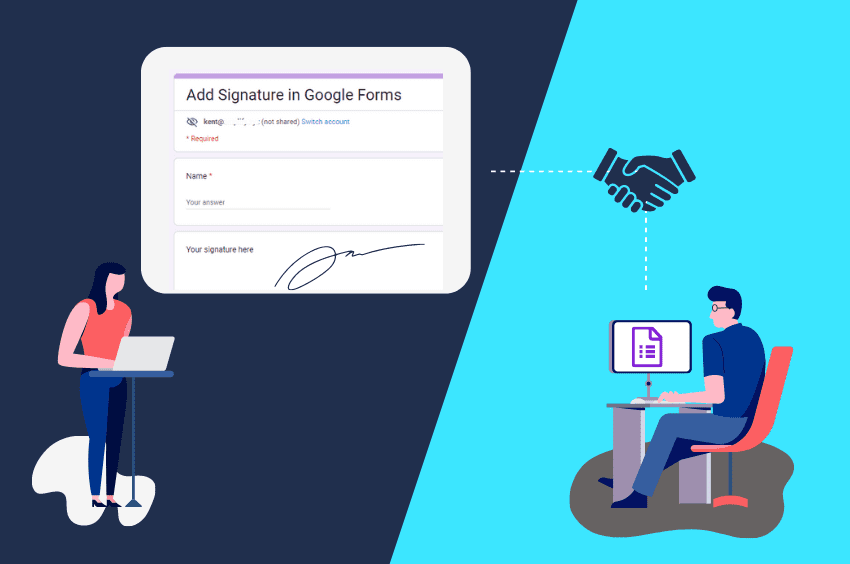
Google Forms doesn't have a native electronic signature field. If you need respondents to sign a form, you'll need to use a third-party signature add-on or move the completed form into a dedicated eSignature platform.
In this guide, we'll show you how to add a signature to Google Forms using a third-party add-on, explain the limitations of this approach, and show you an alternative for collecting signatures on contracts, agreements, and other important documents.
Can You Add a Signature to Google Forms?
Not directly. Google Forms does not have a native signature field. If you want respondents to sign a form, you'll need to use a third-party add-on or move the document into a dedicated eSignature platform.
For a simple signature-collection workflow, a Google Forms add-on can let respondents draw or upload their signature while completing the form. However, add-ons can introduce additional setup, permissions, and limitations.
If you're collecting signatures for contracts, agreements, waivers, or other important documents, a dedicated eSignature platform may be a better fit. These tools are designed specifically for sending documents for signature, managing multiple signers, and maintaining signing records.
In the next section, we'll walk through the Google Forms add-on method step by step.
How to Add a Signature to Google Forms
Since Google Forms doesn't include a native signature field, you'll need a third-party add-on to collect signatures directly through a form. The options available in the Google Workspace Marketplace can change over time, so choose an add-on that supports the signing workflow you need.
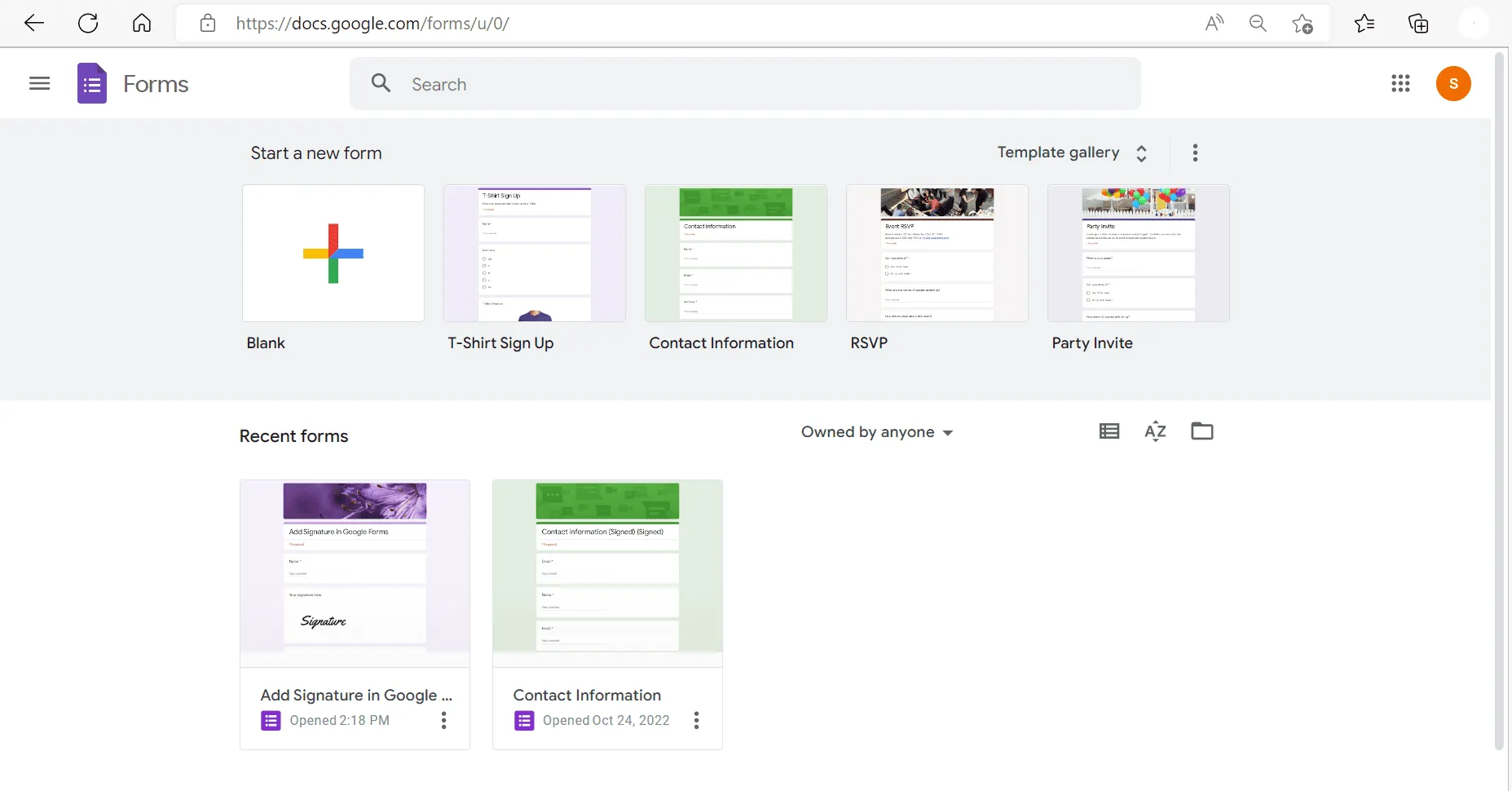
1. Create or Open Your Google Form
Go to Google Forms and create a new form or open an existing one. Add the questions and fields you want respondents to complete.
You can customize the form's title, questions, required fields, images, videos, and other settings as needed.
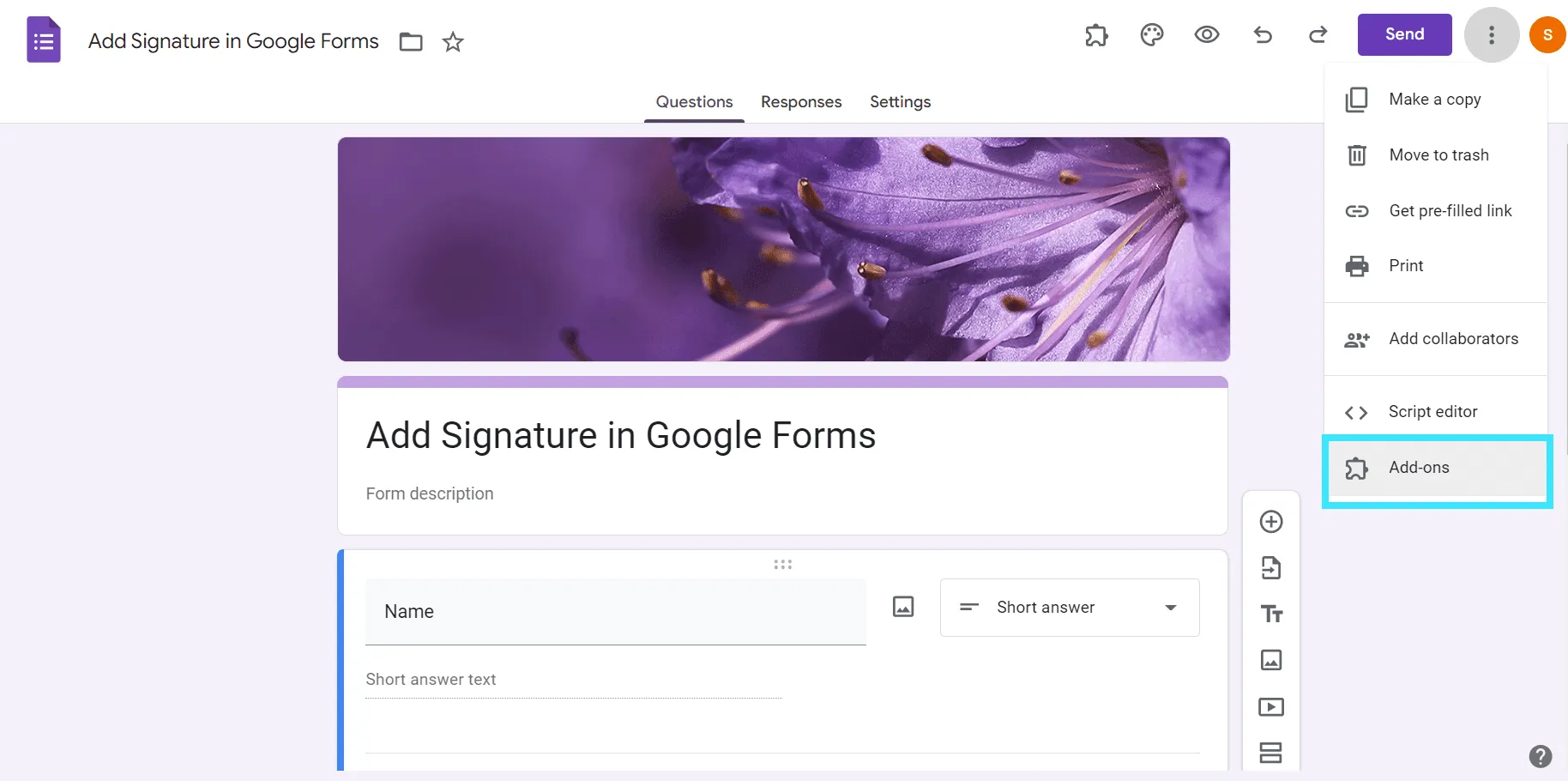
2. Install a Signature Add-on
In the Google Forms editor, open the Add-ons or Extensions menu and browse the Google Workspace Marketplace.
Search for terms such as signature, electronic signature, or eSignature to find available options. Review each add-on's features, permissions, pricing, and user reviews before installing it.
Choose an add-on that supports the type of signature workflow you need, then follow its installation instructions.
Important: Third-party add-ons may request access to your Google account, Drive files, or other information. Review the permissions carefully before granting access.
3. Configure Your Form Settings
After installing the add-on, open its settings from the Google Forms editor.
Make sure your form is accepting responses and review any sign-in or access restrictions. If people outside your organization need to complete the form, make sure your settings don't prevent your intended recipients from accessing it.
The exact settings will vary depending on the add-on you choose.
4. Add a Signature Field
Open the signature add-on from your Google Forms editor and follow its instructions for adding a signature field.
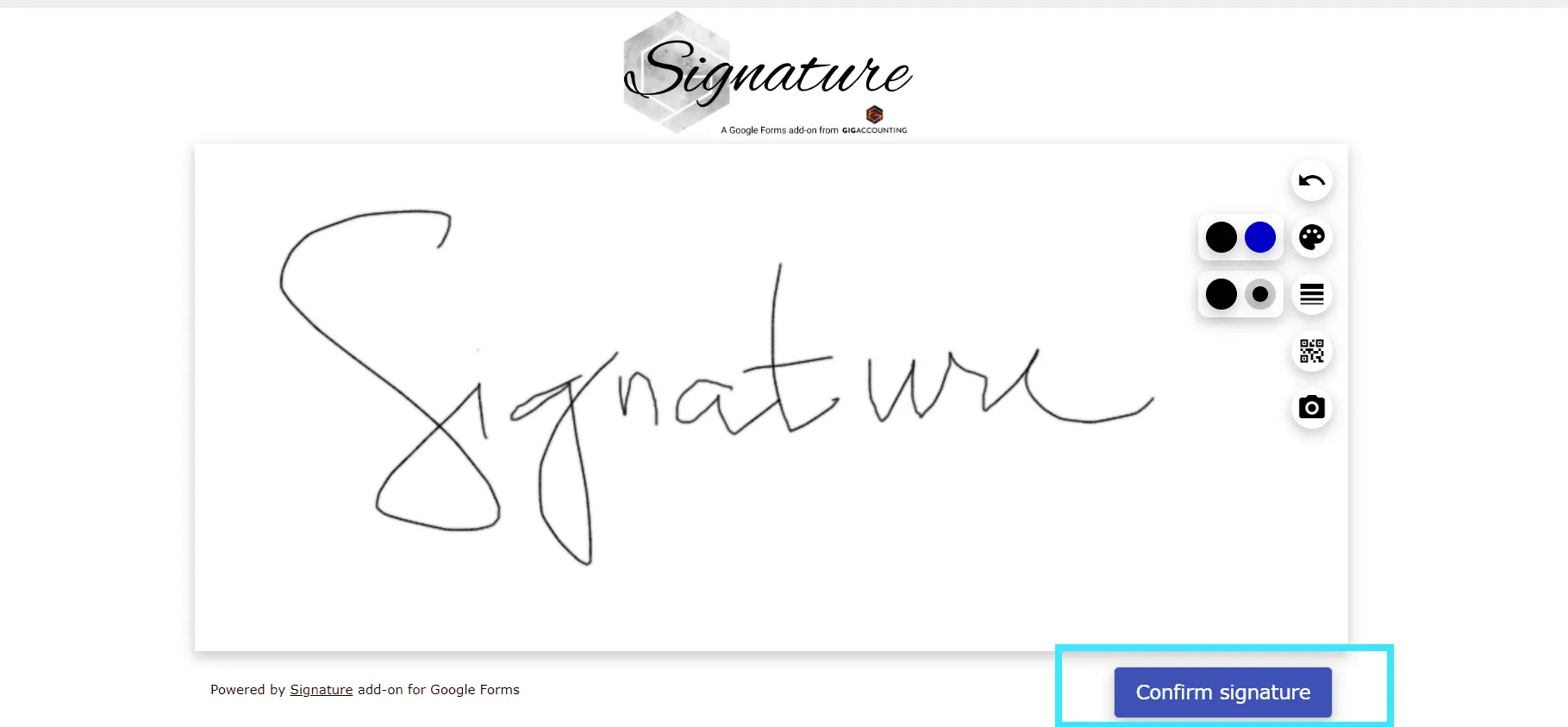
Depending on the add-on, respondents may be able to draw, type, or upload a signature. Some options may also support additional signing features.
Because available features vary between add-ons, check the provider's documentation to confirm what your chosen tool supports.
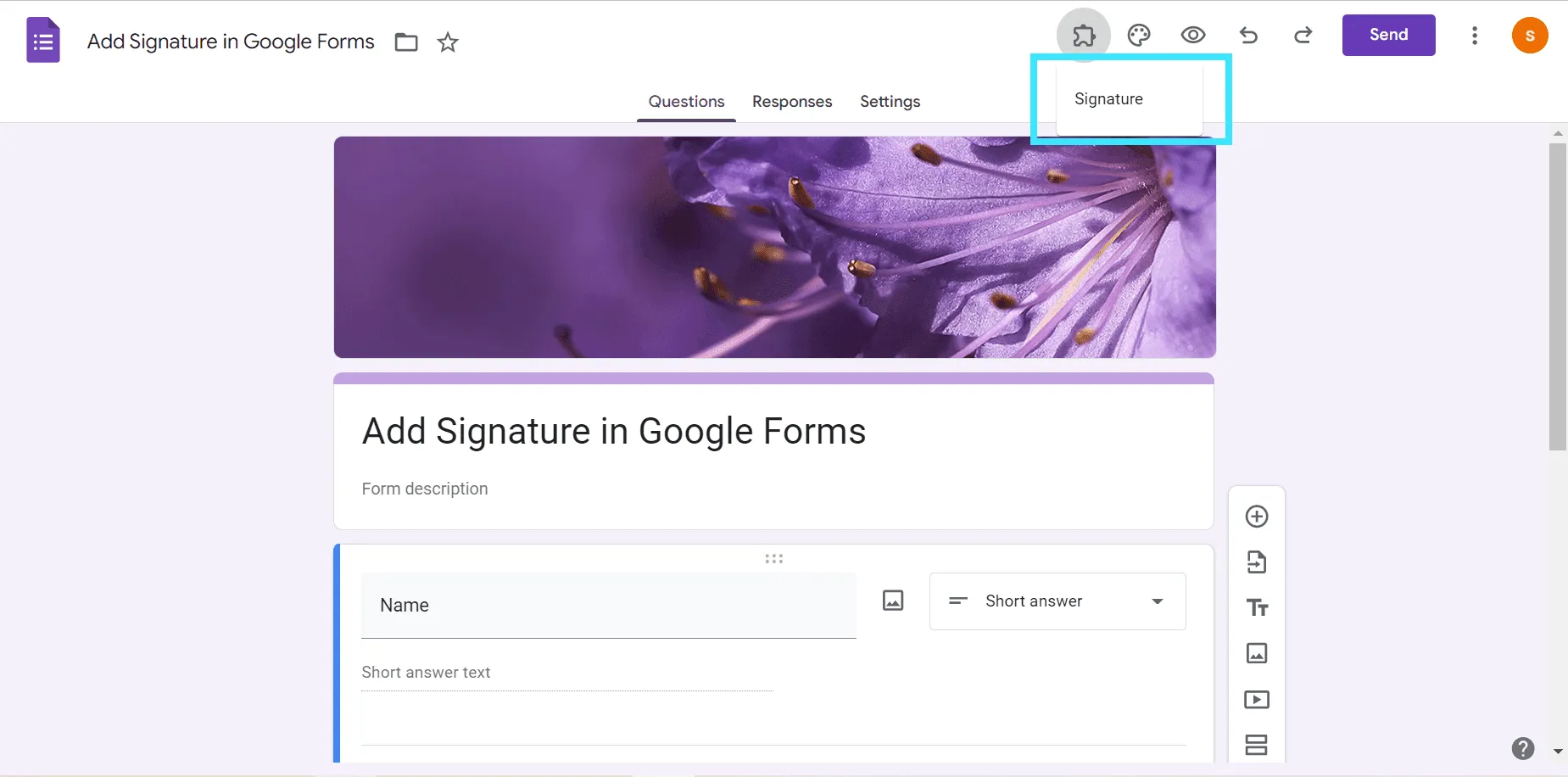
5. Configure the Signing Request
Depending on the add-on, you may need to enter the recipient's email address, name, or other information before sending the form for signature.
Review the available options carefully, particularly if your form requires signatures from multiple people.
6. Send the Form for Signing
Follow the add-on's instructions to send the form to your recipient. Some add-ons may send an invitation by email, while others may provide a link that you can share yourself.
Make sure your recipient knows which email address or account they should use if the add-on requires authentication.
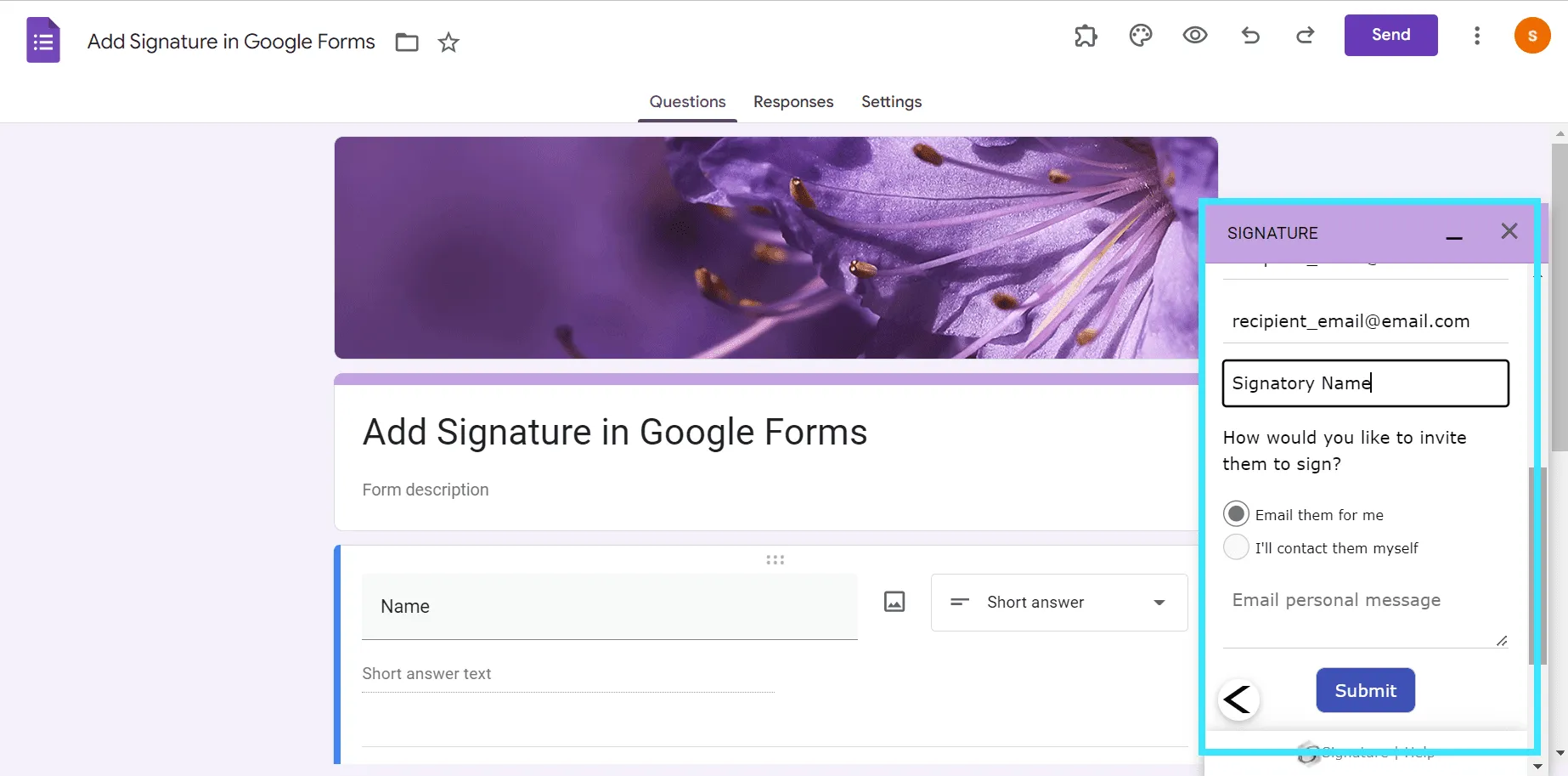
7. Have Your Signatory Complete the Form
Your recipient can open the form, complete the required fields, and provide their signature using the method supported by the add-on.
Once they've completed the form and submitted their signature, the add-on will process the response according to its own workflow.
While it's possible to add an electronic signature in Google Forms, there is no guarantee that the electronic signature would be legally binding. If you need to sign contracts and other official documents, it’s best to choose a safer alternative like Fill.
See more: What Makes an Electronic Signature Legally Binding?
Limitations of Adding a Signature to Google Forms
Using a third-party add-on can give Google Forms the ability to collect signatures, but it also adds another layer to your workflow. Whether this approach is right for you depends on what you're using the signature for.
1. There Is No Native Signature Field
Google Forms doesn't provide a built-in field for drawing or adding an electronic signature. That means you'll need to rely on a third-party add-on or move the document to another tool whenever you need someone to sign.
For a simple form, that extra step may be manageable. But if signatures are a regular part of your workflow, it can become inconvenient.
2. Third-Party Add-ons Add Complexity
Signature add-ons can require additional installation, permissions, configuration, or accounts. Their features, pricing, and availability can also vary.
Before installing an add-on, review the permissions it requests and make sure you understand how it handles the information submitted through your forms. For forms containing sensitive or confidential information, choose a provider you trust and review its security practices.
3. Signing Workflows May Be Limited
Collecting one signature is different from managing an actual signing process.
Depending on the add-on you choose, you may have limited options for multiple signers, signer order, reminders, document tracking, or other workflow features.
If you're collecting signatures for contracts, agreements, approvals, or other business documents, these limitations can become more noticeable.
4. Security, Compliance, and Records Matter
A signature isn't just another form response. For important documents, you may also need a reliable record of who signed, when they signed, and what document they signed.
The security and compliance features available will depend on the third-party add-on you use. If you're handling sensitive or legally important documents, it's worth considering whether a dedicated eSignature platform is better suited to the job.
Google Forms or eSignature Software?
The right option depends on what you need the signature for.
If you simply need someone to add a signature while completing a basic form, a third-party Google Forms add-on may be enough.
But if you're using forms to collect signatures for contracts, agreements, waivers, approvals, or other important documents, a dedicated eSignature platform can provide a more complete signing workflow.
Bottom line: Google Forms is a good choice when collecting information is the primary goal. When collecting signatures becomes an important part of the process, dedicated eSignature software is usually the better fit.
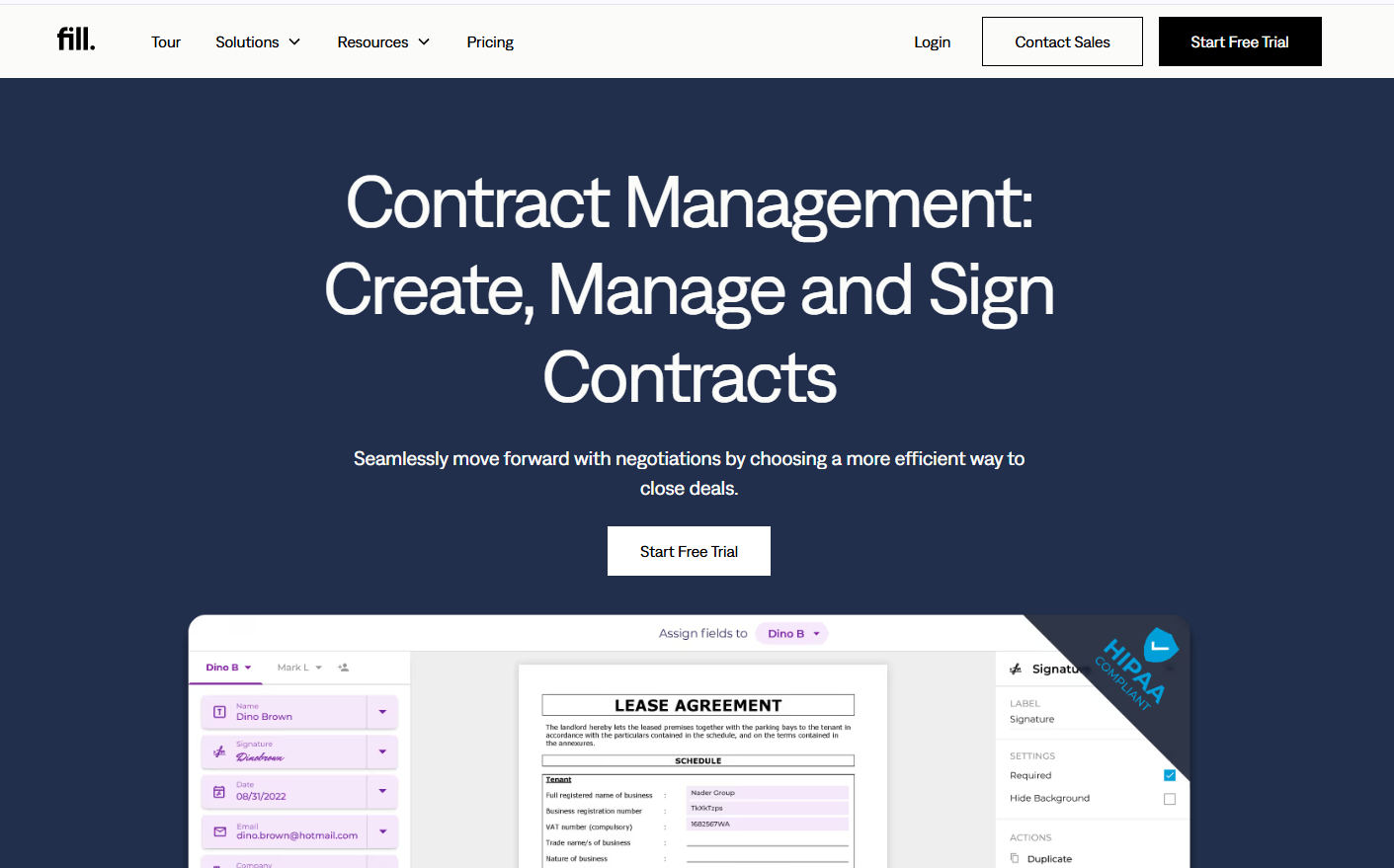
Use Fill for a Complete eSignature Workflow
If you need more than a signature field, a dedicated eSignature platform can simplify the entire signing process.
With Fill, you can prepare your document, add the fields you need, send it to recipients for signing, and manage the completed document from one place.
The basic workflow is: Upload → Prepare → Send → Sign → Manage
1. Upload Your Document
Start by uploading the document you need signed. You can use an existing PDF or other supported document rather than rebuilding it as a Google Form.
2. Add Signature and Form Fields
Add the fields your recipients need to complete, such as:
- Signature fields
- Text fields
- Date fields
- Checkboxes
- Other required information
You can place the fields directly where they belong in the document so recipients know exactly what they need to complete.
3. Send It for Signing
Enter your recipients and send the document for signature. Instead of asking people to complete a Google Form and then managing the resulting document separately, the signing request is part of the same workflow.
4. Recipients Sign
Recipients open the document, complete the required fields, and add their electronic signature. They can complete the signing process without having to recreate or manually return the document.
5. Manage the Completed Document
Once the document is signed, you can access the completed document and keep the signing workflow organized in one place.
This is especially useful when you're regularly collecting signatures for contracts, agreements, approvals, waivers, or other business documents.
Why Use Fill Instead of a Google Forms Add-on?
The difference isn't simply where the signature appears.
With a Google Forms add-on, you're adding signature functionality to a tool primarily designed to collect form responses.
With Fill, the document-signing process is the workflow itself. You can prepare the document, collect the information and signatures you need, send it to recipients, and manage the completed document from one place.
If you only need someone to sign a simple form, a Google Forms add-on may be enough. If signing documents is a regular part of your workflow, Fill gives you a more purpose-built approach.
Frequently Asked Questions About Google Forms Signatures
Can you add a signature to Google Forms?
Not directly. Google Forms does not currently include a native electronic signature field. To collect a signature through a Google Form, you'll need to use a third-party signature add-on or use a dedicated eSignature platform.
Does Google Forms have a signature field?
No. Google Forms does not have a built-in signature field that lets respondents draw, type, or upload an electronic signature. You can add signature functionality through a third-party add-on, but the available options and features vary.
How do you add a signature to Google Forms?
To add a signature to Google Forms, you'll need a third-party signature add-on. Open your form, browse the Google Workspace Marketplace for an available signature add-on, install it, and follow its instructions for adding a signature field and sending the form for signing.
If you need a more complete signing workflow, you can also use a dedicated eSignature platform such as Fill.
Can you collect signatures on Google Forms?
Yes, but not with Google Forms alone. You'll need a third-party add-on that adds signature functionality to the form. Depending on the add-on, respondents may be able to draw, type, or otherwise provide their signature.
For workflows involving contracts, agreements, or multiple signers, a dedicated eSignature platform may provide more signing and document-management features.
Is there a signature add-on for Google Forms?
Yes. There are third-party signature add-ons available through the Google Workspace Marketplace. Because available add-ons, features, pricing, and permissions can change, review the current Marketplace listing before choosing one.
Look for an option that supports the type of signing workflow you need and carefully review the permissions it requests.
Can you add an electronic signature to Google Forms?
Not natively. Google Forms doesn't have a built-in electronic signature feature. You can add electronic signature functionality through a third-party add-on, or use an eSignature platform to handle the document-signing process separately.
Can you sign a Google Form?
Yes, but Google Forms itself doesn't provide a native signature function. If the form includes a signature field through a third-party add-on, you can follow the add-on's instructions to provide your signature.
If you're being asked to sign a document rather than simply submit information through a form, an eSignature platform may be a better option.
Can you add a signature to Google Forms for free?
It depends on the third-party add-on you use. Some signature add-ons may offer free functionality or limited usage, while others may require a paid plan. Pricing, limits, and features can change, so check the current Marketplace listing before choosing an add-on.
If you're looking for a dedicated eSignature solution, Fill offers a 7-day free trial to try its signing workflow.


Related Stories
How to Create Online Forms in Minutes

How to Make an Electronic Contract
How to Sign a PDF on Android
View our Privacy Policy for more info.