Best Free Signature Makers (2026): Create a Signature Online Instantly
Skip printing and scanning—use the best online signature maker to create secure, legally binding signatures in minutes, anytime and on any device.

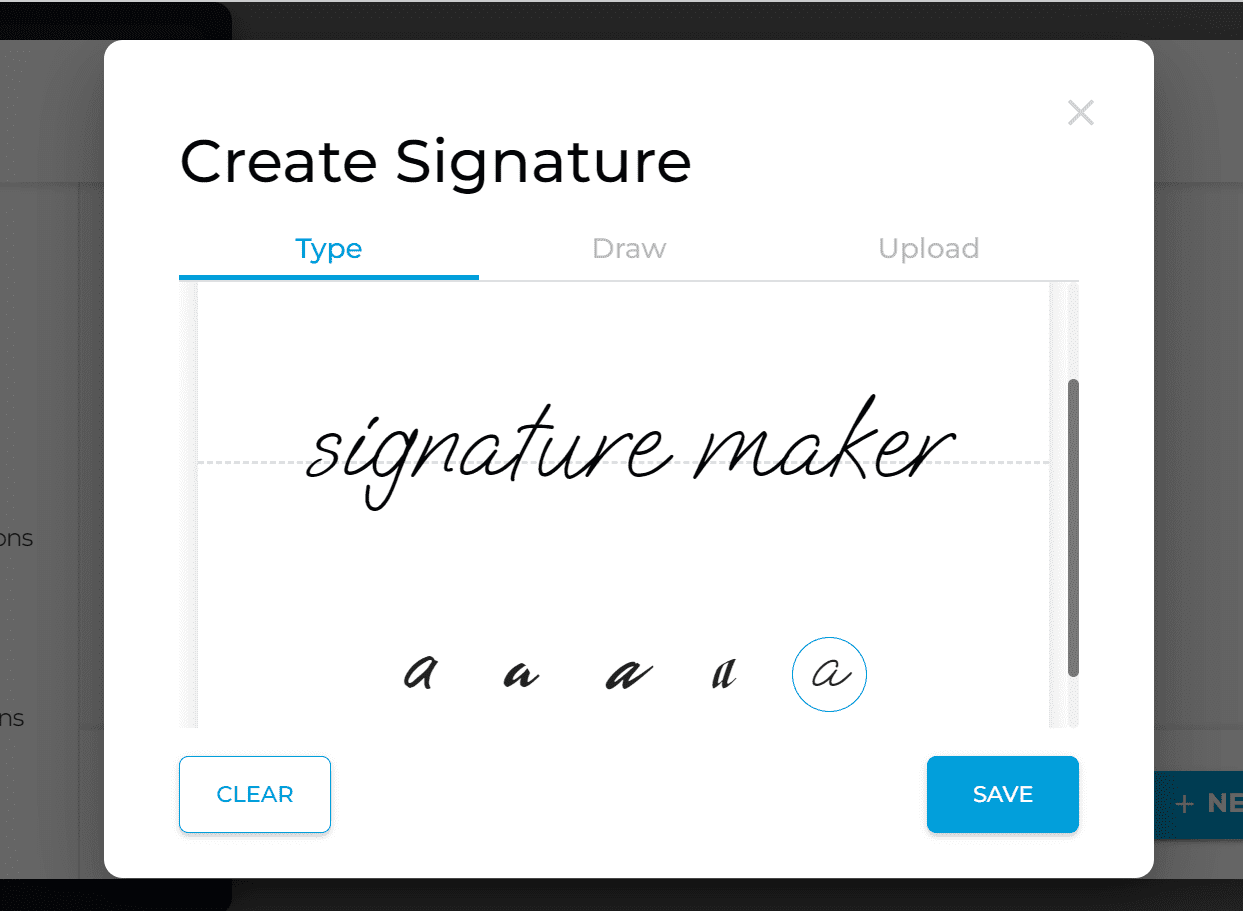
Create a digital signature in seconds. We tested the best free signature makers for ease of use, customization, and what you can actually do with your signature after creating it.
Creating a signature online is much easier than printing, signing, and scanning a document. Most signature makers let you type, draw, or upload your signature and download it instantly for use in documents, emails, and forms.
In this guide, we'll compare the best free signature makers in 2026 and explain which one is best for different needs, from creating a simple signature image to signing and sending documents online.
What Is a Signature Maker?
A signature maker is a simple tool that helps you create a digital version of your signature.
Most tools let you:
- type your name and choose a handwritten-style font
- draw your signature using a mouse, stylus, or finger
- upload an existing signature image
Once created, you can download your signature and use it anywhere, like documents, emails, and forms. Note that most of these tools are designed for creating signatures, not for managing full document workflows.
Best Free Signature Makers (Quick List)
Signature Maker vs eSignature Software
A signature maker and eSignature software aren't quite the same thing. The right option depends on what you want to do after creating your signature.
How We Evaluated These Signature Makers
We tested each signature maker hands-on, looking at how quickly you can create a signature, how easy it is to download and reuse, and what you can do after creating it.
For each tool, we considered:
- Ease of use: How quickly can you create a signature and figure out what to do next?
- Signature options: Can you type, draw, or upload a signature? How much customization is available?
- Download experience: How easy is it to save and reuse the signature after creating it?
- Signing capabilities: Can you use the signature to sign documents, or is it primarily a signature generator?
- Document workflows: Can you prepare, send, track, or manage documents after creating a signature?
- Overall experience: Is the tool straightforward, reliable, and practical for its intended use?
We also considered who each tool is best suited for. A simple signature generator can be the right choice if you only need a signature image, while an eSignature platform makes more sense if you regularly sign or send documents.
That's why our list includes both dedicated signature makers and tools that extend into document signing. Now that you know how we evaluated the tools, here's a closer look at what each one does well and where it falls short.
Best Free Signature Makers (Detailed List)
1. Fill — Best Overall Signature Maker
Best for: Creating a signature and immediately using it in a document workflow
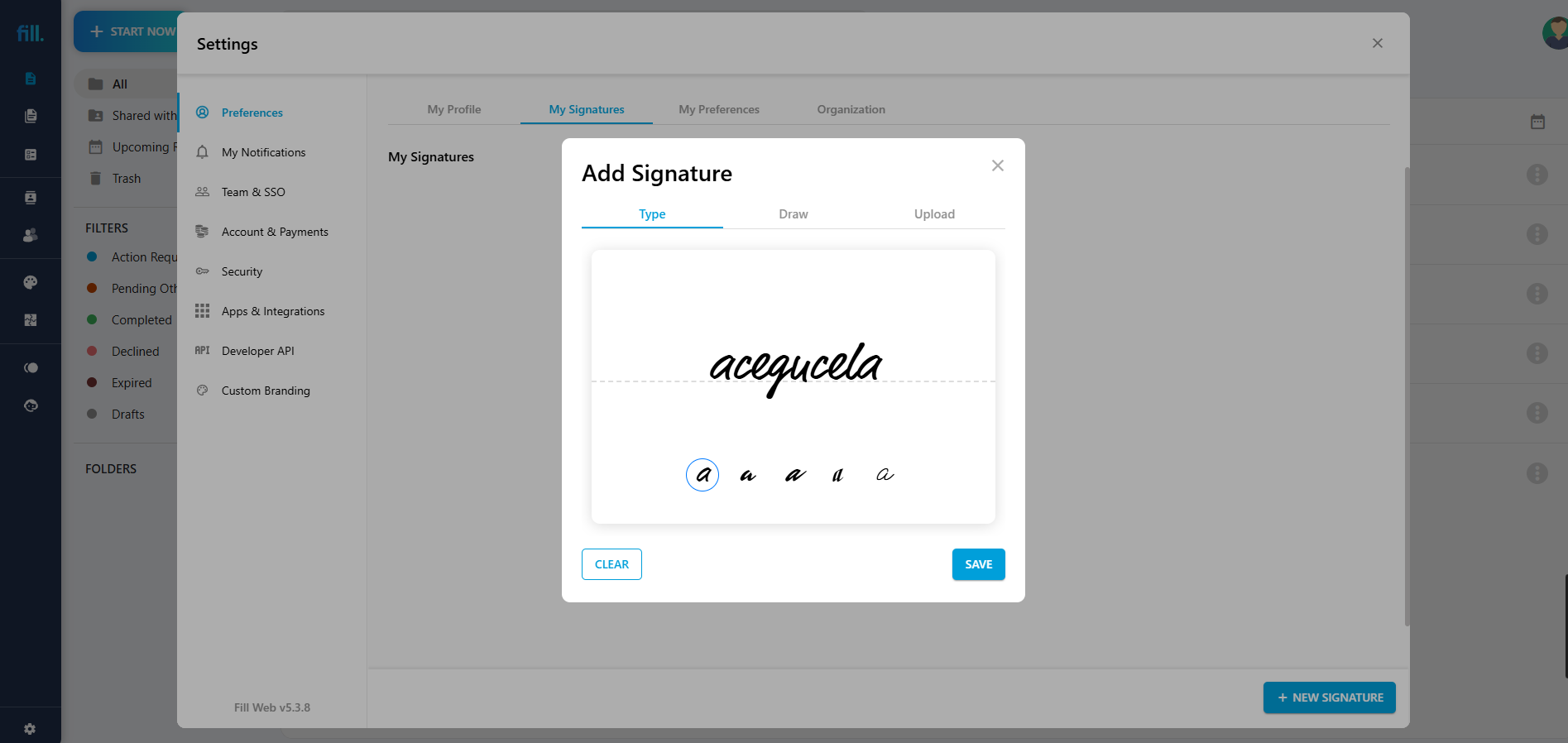
Most free signature makers stop once your signature is created. Fill lets you take the next step without switching to another tool.
You can type, draw, or upload your signature, then use it immediately to sign a document, prepare a document for others to sign, or reuse it in future workflows.
Why Fill stands out:
- Create your signature: Type, draw, or upload a signature in seconds.
- Sign documents: Apply your signature directly to documents without downloading and re-uploading it.
- Prepare documents: Add fields, pre-fill information, and set up documents before sending them.
- Reuse your work: Use templates, folders, and tags to keep frequently used documents organized.
- Send for signatures: Send documents to others and manage the signing process from the same platform.
The biggest advantage isn't the signature generator itself. It's what happens after you create your signature.
With a basic signature maker, the workflow often looks like:
Create → Download → Open another tool → Upload → Sign → Send
With Fill, you can keep that process in one place:
Create → Sign → Send
Limitations
Fill may be more functionality than you need if you only want to create a signature image and download it. Some advanced document features may also require a little onboarding.
Verdict
If you only need a signature image, a basic generator may be enough. But if you're going to use that signature on documents, send documents for signing, or repeat the process regularly, Fill is the stronger all-in-one option.
[Create Your Free Signature →]
If you need full document workflows, see our guide to signature generators.
2. SignWell — Best Simple Alternative
Best for: Quickly creating a signature and signing documents with minimal setup

SignWell is a straightforward option if you want to create a signature without dealing with a complicated interface. It focuses on making the basic signing process quick and easy.
You can create a signature, use it to sign documents, and send documents to others for signing. Its free plan also makes it a practical option for occasional use.
Key strengths
- Simple, easy-to-navigate interface
- Quick signature creation
- Supports typed and drawn signatures
- Can be used for document signing and sending
- Free plan available
Limitations
- Fewer signature customization options than dedicated signature generators
- Signature management and reuse can feel less intuitive
- Less focused on creating highly stylized signatures
- Advanced document workflows require more than the basic free experience
Verdict
SignWell is a good choice if your priority is simple document signing with minimal setup. It's especially worth considering if you want a signature maker that can also handle the next step—actually signing and sending documents.
However, if you want to go beyond basic signing and manage the entire document workflow, Fill offers more tools for preparing, organizing, and automating documents in one place.
3. MyLiveSignature — Best for Stylized Signatures (with Caveats)
Best for: Creating a handwritten-style signature with lots of visual options
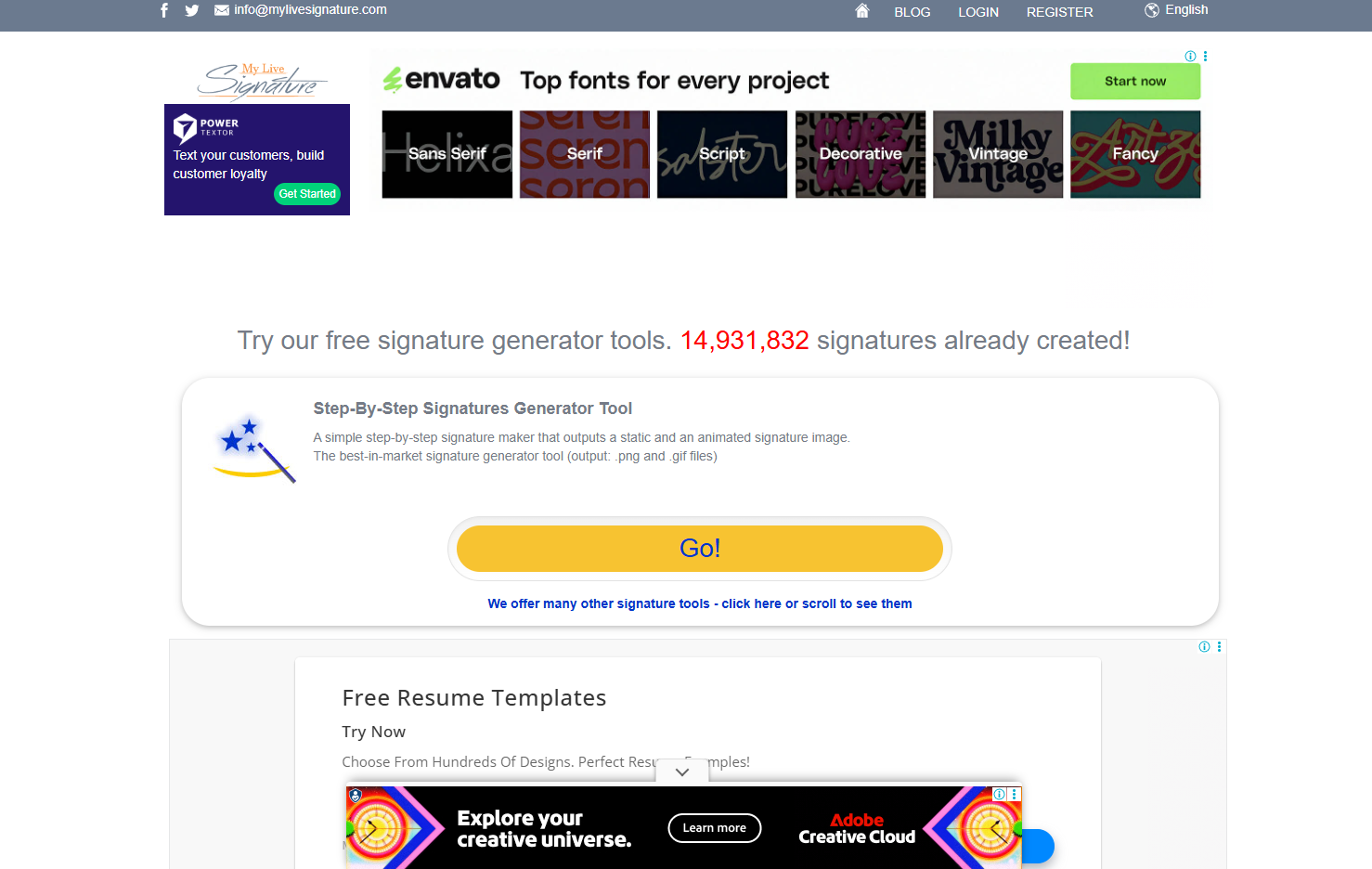
MyLiveSignature is one of those tools that looks promising at first—but takes a bit of patience to use.
The interface feels outdated and is heavily cluttered with ads. It’s the kind of site that makes you hesitate for a second before clicking anything, especially if you’re used to cleaner, modern tools.
That said, if you can get past the experience, it does what you came for.
Key strengths
- Wide selection of handwritten-style fonts
- Let's you adjust details like slant and spacing
- No account required to generate and download a signature
Once you generate your signature, the output is decent—good enough for documents, forms, or basic use.
Limitations
- Ad-heavy and slightly intrusive interface
- Overall experience feels outdated
- Signature quality is acceptable, but not premium
- Paid plan ($1.99/month) adds features most users won’t need
Verdict
A functional tool with plenty of style options—but the experience can feel rough around the edges. Best if you just want variety and don’t mind navigating a cluttered interface.
4. OnlineSignature — Best for Quick Signatures (But Inconsistent Results)
Best for: Quickly generating or drawing a signature without signing up
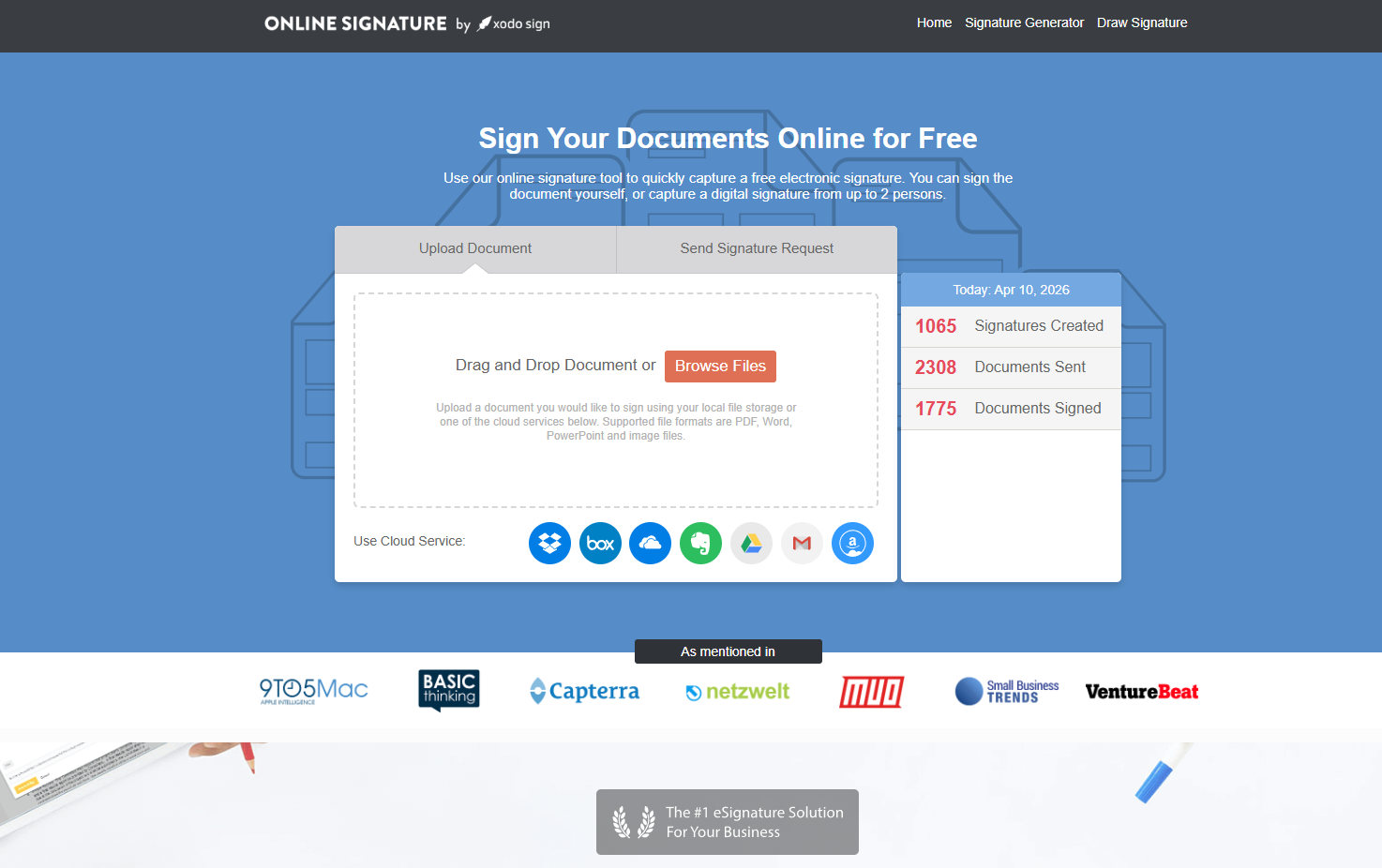
OnlineSignature (by Xodo Sign) tries to bridge two worlds:
- quick signature generation
- full document signing
You can jump straight into creating a signature without an account, which is great—but you’ll notice frequent nudges to sign up along the way.
Key strengths
- Let's you type a signature and customize font, color, and slope
- Option to draw your signature manually
- No account required to get started
- Can transition into document signing if needed
On paper, it’s flexible. In practice, the experience is a bit uneven.
Limitations
- Downloading typed signatures can be unreliable
- Generated signatures sometimes look generic or inconsistent
- Output doesn’t always match the selected font
- Frequent prompts to sign up interrupt the flow
Interestingly, the draw feature works better than the typed one. When drawing a signature, the download process is smoother, and the output is more usable.
Verdict
Convenient and flexible—but inconsistent. Works best if you’re okay with drawing your signature manually rather than relying on the typed generator.
5. Wisestamp — Best for Email Signatures
Best for: Creating polished signatures for email use
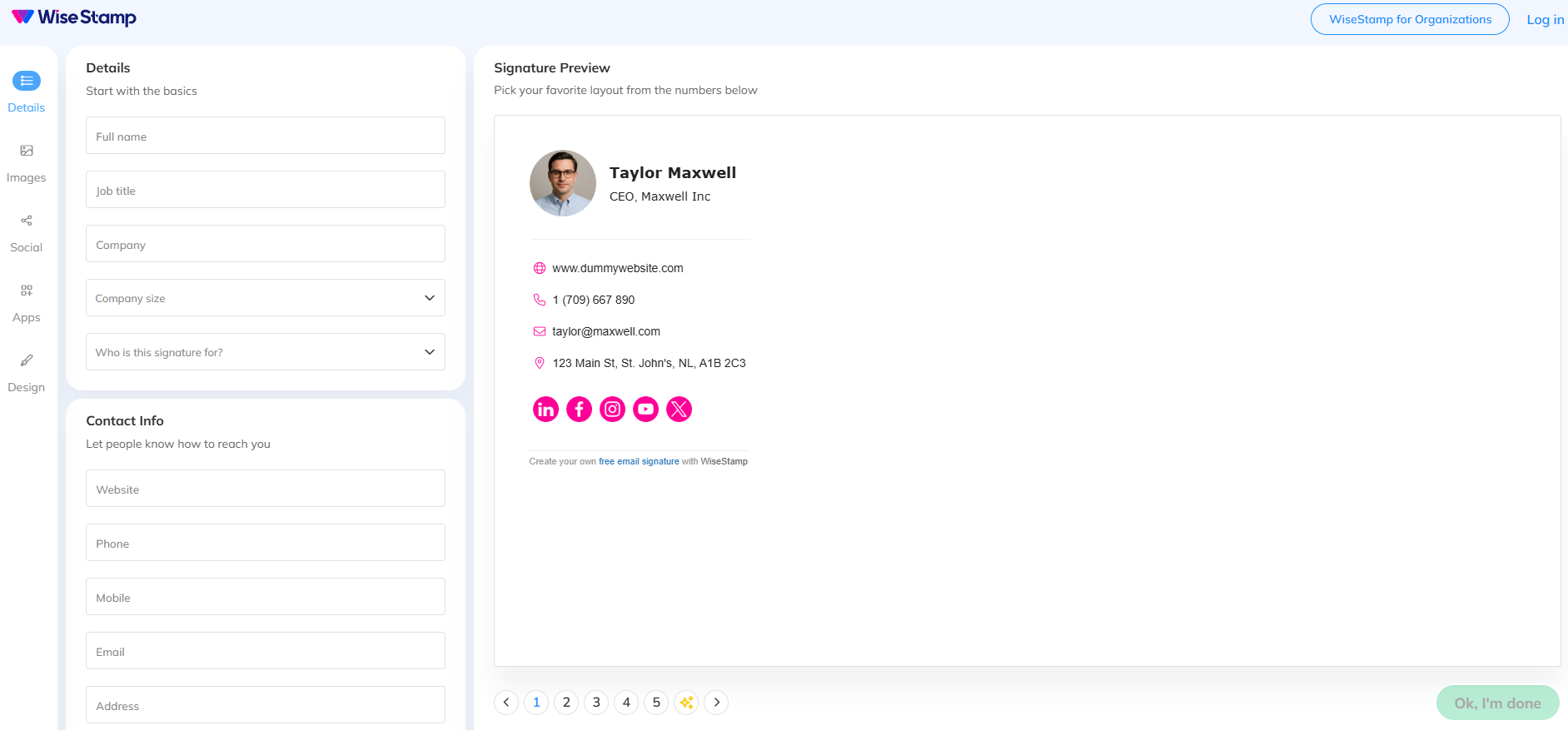
Wisestamp isn’t trying to help you sign documents—it’s focused entirely on how your signature looks in emails. And it shows.
Instead of just generating a name in cursive, it helps you build a full email signature with layout, branding, and links.
Key strengths
- Designed specifically for email signatures
- Supports images, logos, and social links
- Clean, professional layouts
You end up with something that looks more like a mini business card than just a signature.
Limitations
- Not designed for document signing
- Some features are locked behind a paid plan
- Overkill if you just need a simple signature image
Verdict
Best if your goal is presentation, especially for professional email use.
6. Signaturely — Best Lightweight Option
Best for: Simple signature creation with the option to grow into document signing
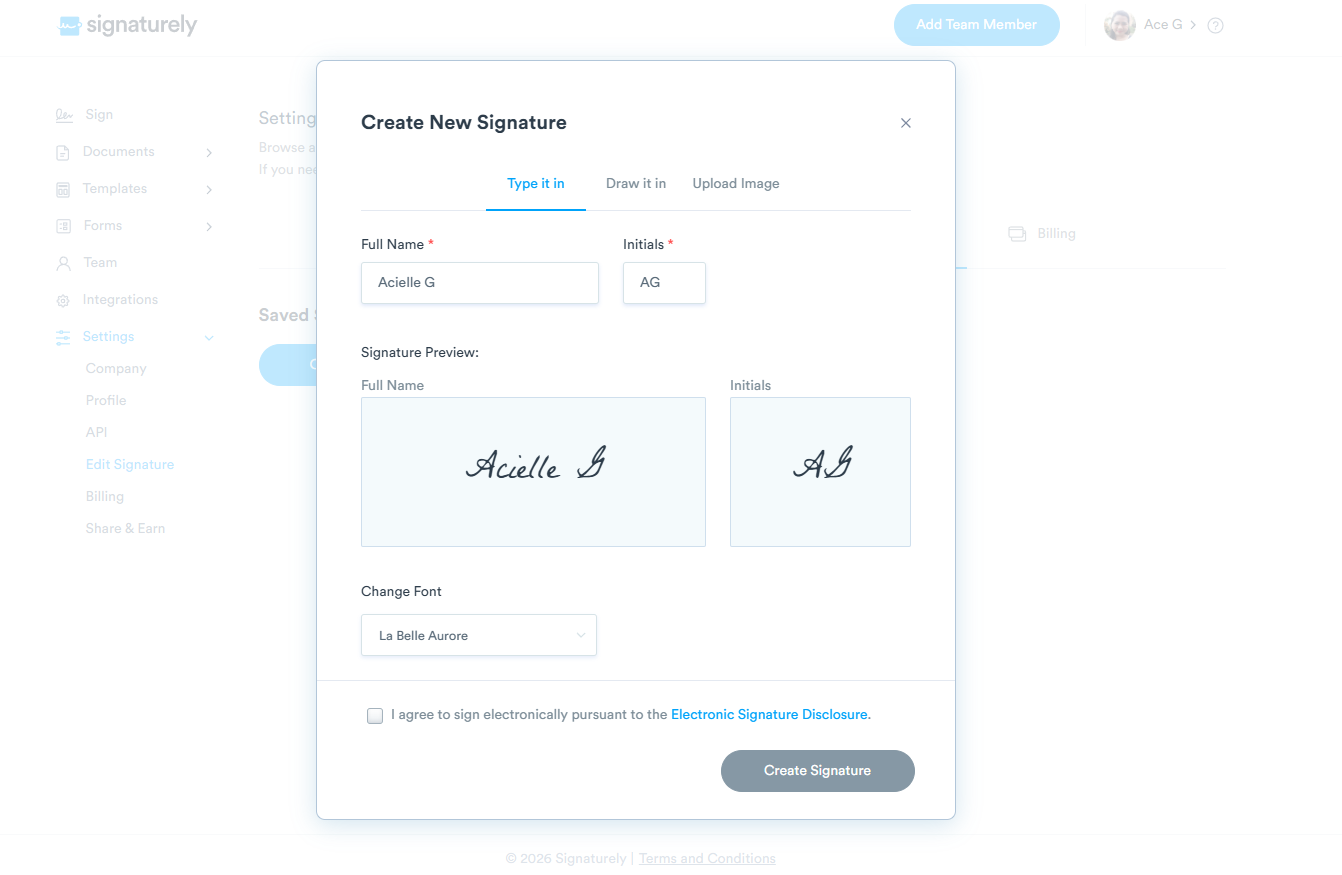
Signaturely sits somewhere in between a basic generator and a full signing tool.
It’s simple enough to use quickly—but structured enough that you can see how it could scale into more than just creating a signature.
Key strengths
- Clean, straightforward interface
- Ability to save multiple signatures
- Easy transition into document signing
It doesn’t try to do too much upfront, which makes it approachable.
Limitations
- Limited customization for signature design
- Slightly slower than instant generators
- Some features are gated behind signup
Verdict
A good middle ground—especially if you want something simple now but don’t want to switch tools later.
7. CocoSign — Best Basic Signature Generator
Best for: Quickly typing or drawing a signature across devices
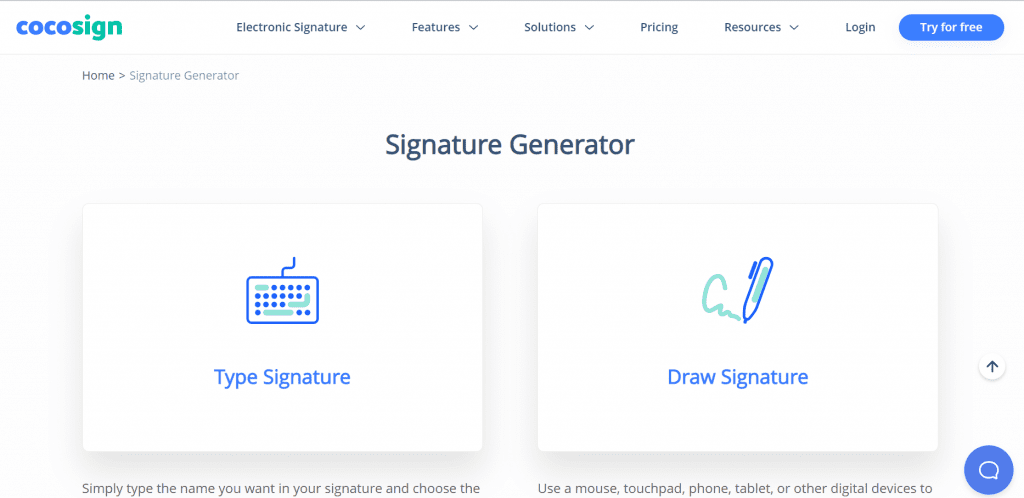
CocoSign gives you a straightforward way to create a signature—nothing more, nothing less.
It works reliably across devices, which makes it convenient if you’re switching between phone and desktop.
Key strengths
- Simple interface
- Works well on both mobile and desktop
- Multiple signature styles available
It does what you expect, with minimal friction.
Limitations
- Limited customization beyond basic styles
- Not focused on signature quality or refinement
- Leans more toward basic functionality
Verdict
A dependable option for quick signature creation—but not the most refined.

How to Create a Signature Online
Most tools follow the same process:
- Choose how you want to create your signature (type, draw, or upload)
- Customize the style (if available)
- Download your signature
- Insert it into your document or email
That’s it-it usually takes less than a minute. Learn more about how Fill's electronic signature platform works.
Final Thoughts
The best signature maker depends on what you actually need.
If you only need to create and download a signature, MyLiveSignature or OnlineSignature can get the job done quickly. SignWell is a better option if you also want simple document signing.
But if creating your signature is only the first step—and you also need to sign, send, prepare, and manage documents—Fill is the better all-in-one choice.
With Fill, you can create your signature, apply it directly to documents, add fields, send documents for signing, and keep everything in one workflow. You don't have to create a signature in one tool and switch to another when you're ready to use it.
Our pick: Fill for users who need more than a signature image.
Frequently Asked Questions
How can I create a signature online for free?
You can use a signature maker to type, draw, or upload your signature. Most tools let you download it instantly and use it in documents, emails, or forms.
Are online signatures legally valid?
Yes. In many countries, electronic signatures are legally binding as long as they meet basic requirements, such as intent and consent.
Can I reuse my signature after creating it?
Yes. Most tools allow you to download and reuse your signature across multiple documents.
What’s the difference between a signature maker and eSignature software?
A signature maker helps you create a signature image.
eSignature software lets you send documents, add fields, and collect signatures from others.
Do I need an account to create a signature?
Not always. Many tools let you generate and download a signature without signing up, though some features may require an account.
Related Stories
Handwritten Signature Generator: Create a Unique Signature Online

How to Send a Document for Electronic Signature

Best Free eSign Software in 2026: Top Picks for Signing Documents Online