Best eSignature Apps for Android (Tested for Real Mobile UX)
Looking for the best eSignature app for Android? This guide compares top apps based on real mobile experience—so you can easily sign PDFs, send documents, and manage signatures directly from your phone.


If you’re trying to sign documents on Android, most “best eSignature software” lists won’t actually help you. That’s because they’re written for desktop users—not for people using a phone or tablet.
And the difference matters.
An app that works perfectly in a browser can feel completely different on mobile. Some tools are too complex, others hide key features, and a few are surprisingly smooth for quick tasks like signing a PDF on Android.
So instead of reviewing features in general, I tested the best eSignature apps for Android based on real mobile usage—focusing on speed, usability, and how easy it is to actually get a document signed from your device.
If you’re looking for the best Android eSignature app, this guide breaks down what actually works (and what doesn’t) when you’re on mobile.
How I Tested These Android eSignature Apps
To keep this focused on real-world usage, I tested each electronic signature app for Android based on:
- How fast I could sign a document on Android
- Time to send a document from mobile
- Ease of use on a small screen
- Navigation and layout on Android devices
- Mobile limitations vs desktop versions
- Overall experience signing and managing documents on the go
Best eSignature Apps for Android: At a Glance
Fill — Best Android eSignature App for Speed and Ease of Use
Fill was the fastest tool to get started with on mobile. After logging in, I didn’t have to go through a long setup process. I could immediately upload a document, add fields, and send it out for signature. This kind of speed makes a big difference when you need to sign documents on Android quickly.
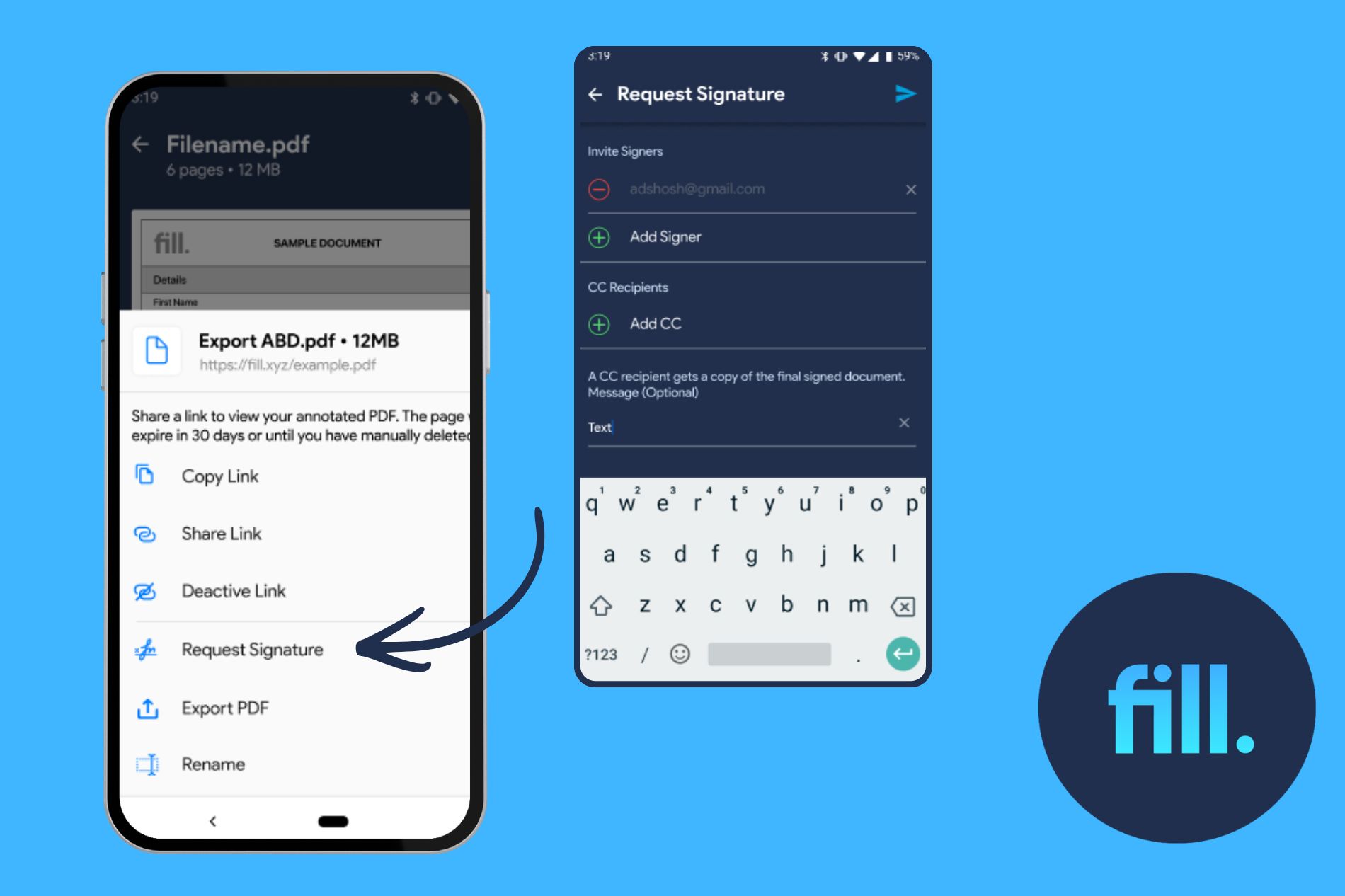
The interface is clean and minimal, which works well on a smaller screen. I didn’t feel overwhelmed by too many options, and the main actions were easy to find.
Preparing a document also worked smoothly:
- Adding fields felt responsive even with touch controls
- Assigning recipients was clear and well-organized
- I could sign the document myself before sending
Signing documents on Android was just as smooth. The progress bar at the top helps track completion, which is useful when filling out longer forms on mobile.
What felt easy:
- Uploading and sending documents from Android
- Creating and placing fillable fields
- Signing documents directly on mobile
What felt frustrating:
- Some features like the AI assistant require login or a subscription
Verdict:
It focuses on speed and simplicity. Instead of trying to replicate a desktop experience, it makes it easy to sign PDFs on Android and send documents in just a few steps.
DocuSign — Reliable Android eSignature App for Signing and Tracking
DocuSign is one of the most recognized electronic signature apps, and its Android app is reliable—but slightly heavier compared to others.
Once inside the app, I could immediately see documents waiting for signature, which made it easy to act quickly. Signing a document on Android was straightforward and required little effort.
However, sending documents from mobile felt a bit more involved. The app seems designed for full workflows rather than quick actions.
What felt easy:
- Signing documents on Android without friction
- Tracking document status
- Creating and applying signatures
What felt frustrating:
- Initial setup takes longer than expected on mobile
- Some workflows feel better suited for desktop
Verdict:
If you need a dependable electronic signature app for Android, DocuSign is a solid choice—especially for signing and tracking documents. But for quick mobile tasks, it can feel slightly overbuilt.
PandaDoc — Modern eSignature App for Android with Smooth Navigation
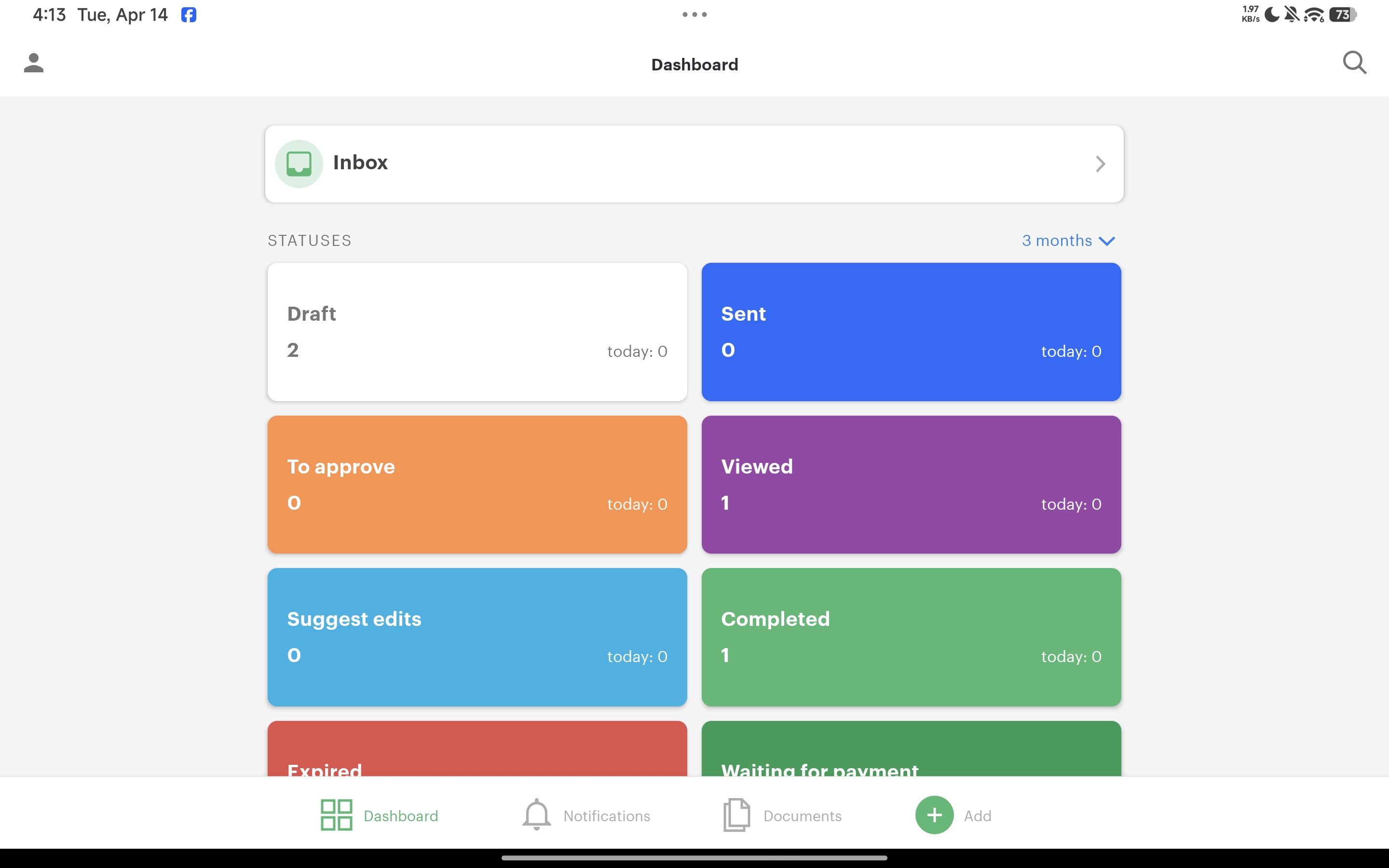
PandaDoc stands out for its modern interface. The app feels polished, and navigation is smooth, even on a smaller screen. Sending and signing documents worked well, and the experience felt consistent with the web version.
One issue I encountered was that my documents didn’t appear right away due to a default time filter. On mobile, small issues like this can slow you down if you’re not aware of them.
What felt easy:
- Navigating the app
- Signing and sending documents
- Viewing document status
What felt frustrating:
- Hidden filters affecting document visibility
Verdict:
It offers a smooth and modern experience, making it a good option if you want a visually intuitive mobile eSignature app.
Adobe Acrobat Sign — Powerful PDF Tool, But Not Optimized for Android
Adobe Acrobat is well-known for PDF editing, and its eSignature features are powerful—but on Android, the experience feels too complex.
The app aims to bring desktop-level functionality to mobile, resulting in a more cluttered interface. While features like automatic field detection are impressive, navigating through menus on a small screen takes more effort than it should.
What felt easy:
- Uploading and preparing documents
- Using AI to detect fillable fields
What felt frustrating:
- Too many options for mobile
- Slower navigation compared to simpler apps
Verdict:
Adobe Sign is powerful, but not designed for speed. If your goal is to quickly sign a PDF on Android, there are simpler tools that do it better.
SignNow — Fast Setup, But Inconsistent Mobile Experience
SignNow starts strong on the web, but the Android app feels less polished. Right after installing, I was prompted to subscribe before I could fully use the app, which adds friction right away.
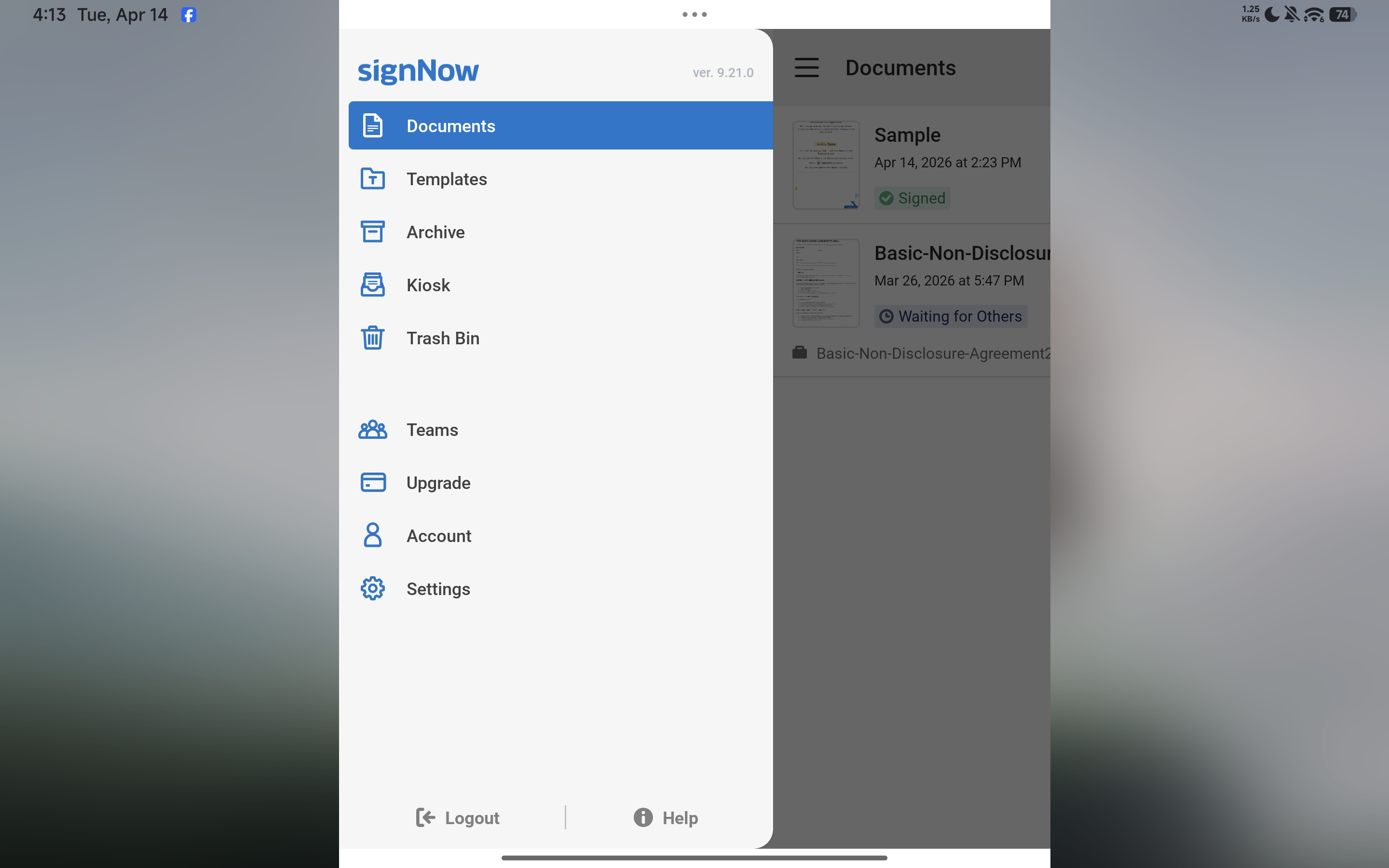
The interface is basic, and on tablets, the portrait-only layout makes it harder to work comfortably.
What felt easy:
- Uploading and signing documents
- Basic document workflows
What felt frustrating:
- Immediate paywall on mobile
- Limited screen optimization
- Inconsistent experience compared to desktop
Verdict:
While it works for basic tasks, the mobile experience feels secondary.
Zoho Sign — Simple Electronic Signature App for Android
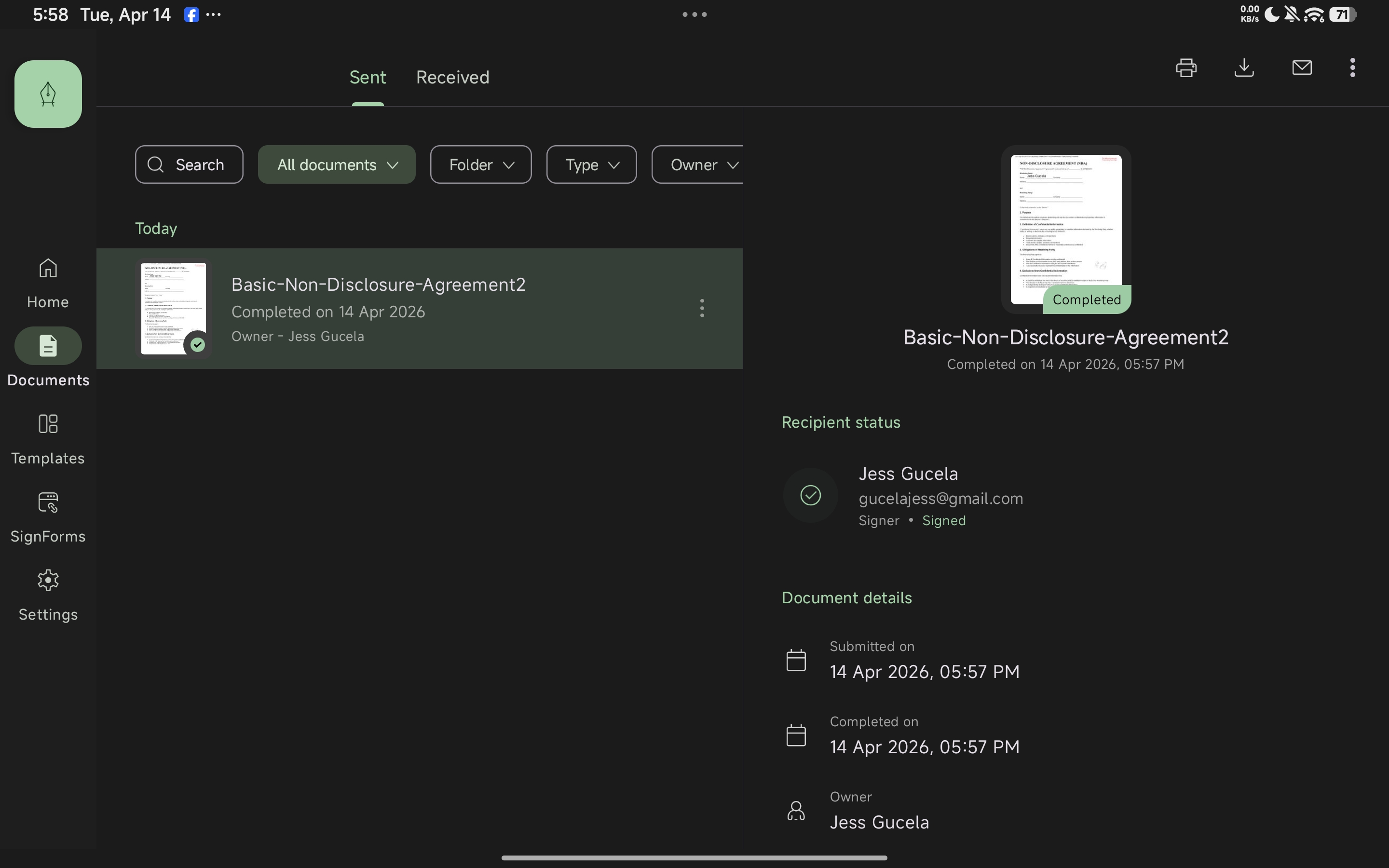
Zoho Sign is simple and easy to navigate. The interface resembles an email client, which makes it intuitive even for first-time users. Signing documents on Android was quick, and the workflow was straightforward.
However, the free version includes noticeable limitations like watermarks and document limits.
What felt easy:
- Signing documents quickly
- Navigating the interface
What felt frustrating:
- Free plan restrictions
- Limited flexibility
Verdict:
It’s a good option for light use, especially if you just need to sign documents on Android occasionally.
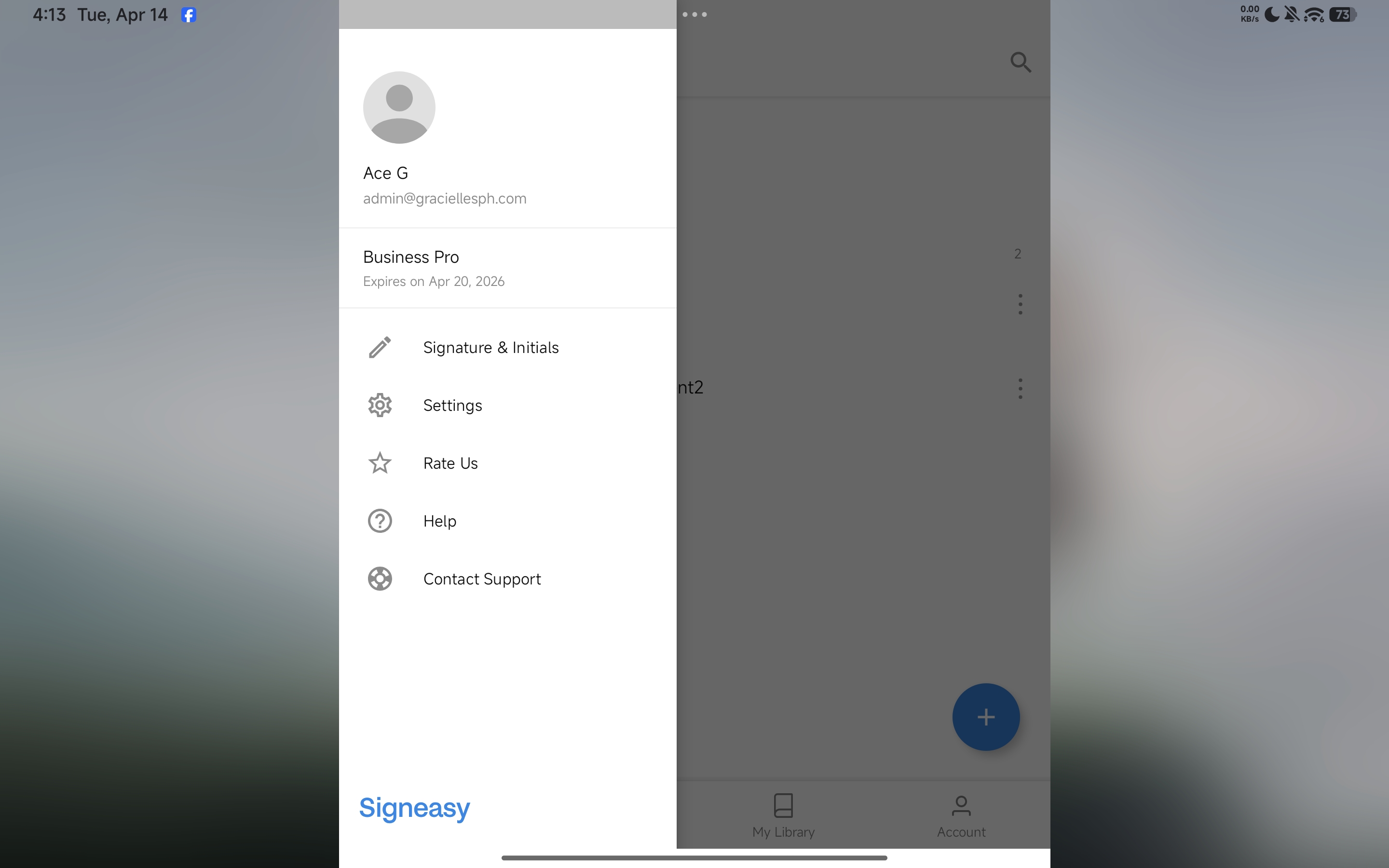
SignEasy — Best for Quickly Signing Documents on Android
SignEasy is one of the simplest tools I tested. The app is lightweight, and signing documents takes only a few taps. If your main goal is to sign a PDF on Android without extra steps, this app delivers.
However, it lacks more advanced document management features.
What felt easy:
- Signing documents quickly
- Clean and simple interface
What felt frustrating:
- Limited functionality beyond signing
- Not ideal for managing multiple documents
Verdict:
It’s perfect if you only need a fast way to sign documents on Android, without dealing with complex workflows.
DocHub — Simple PDF Editor and eSignature App for Android
DocHub is straightforward and easy to use for basic document editing and signing.
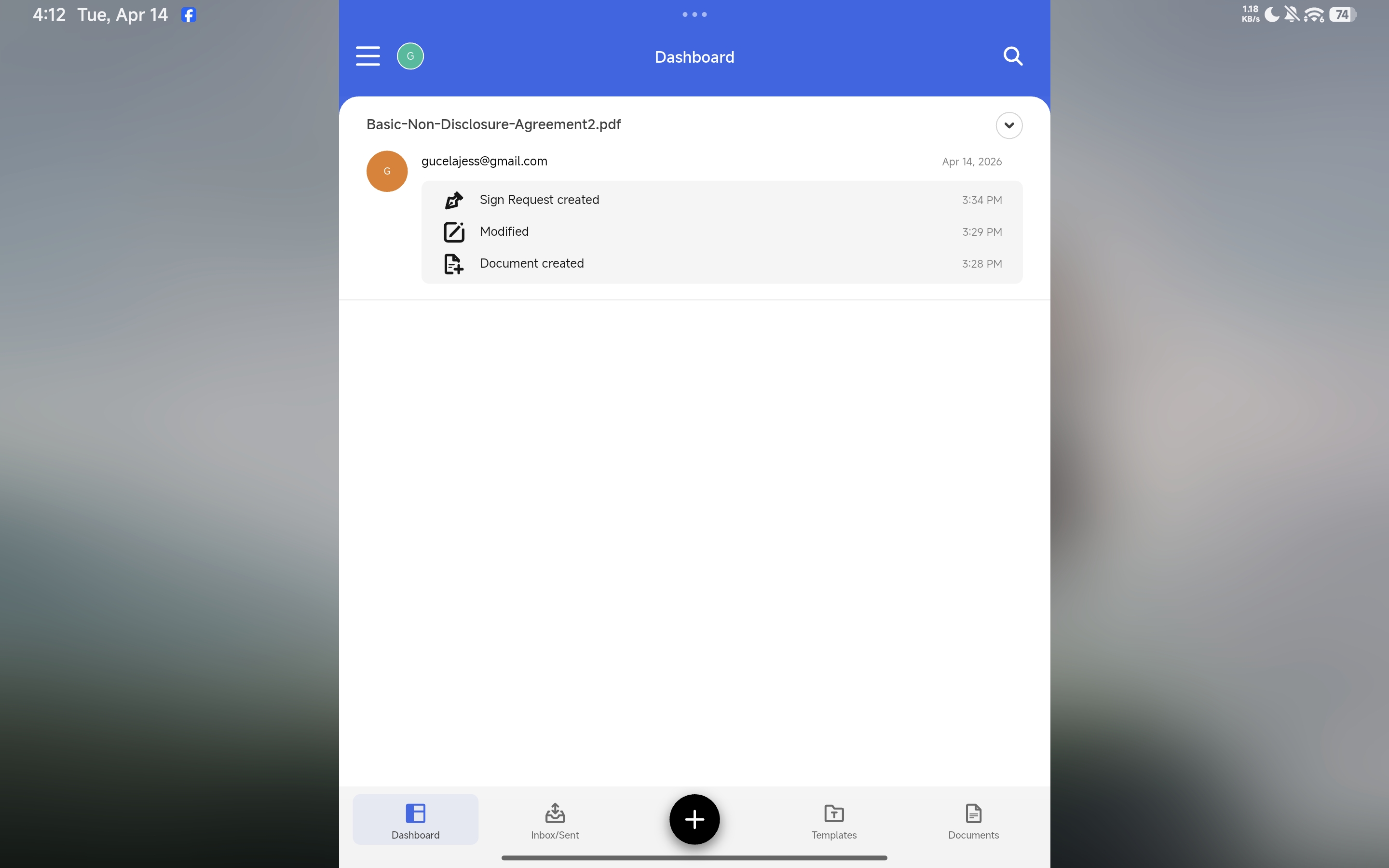
The interface is clean, but on tablets, it doesn’t fully use the available screen space, which can make it feel limited.
What felt easy:
- Editing and signing documents
- Simple navigation
What felt frustrating:
- Limited screen optimization
- Not ideal for advanced use
Verdict:
It’s a solid choice for basic tasks, especially if you need a simple Android app to sign PDF documents.
Related Read: Best Electronic Signature Apps
Which Android eSignature App Should You Choose?
There isn't one Android eSignature app that's right for everyone. The best choice depends on what you need to do from your phone.
Based on our testing, here's how the apps compare by use case:
What else should you consider?
Once you've narrowed down your options, there are a few things worth checking before choosing an Android eSignature app.
Security and compliance
If you're signing contracts, healthcare documents, financial records, or other sensitive information, look beyond the mobile interface.
Check whether the platform provides appropriate security measures, audit trails, encryption, and compliance certifications for your use case.
Ease of use
A good Android signing app should make it easy to upload, prepare, sign, and send a document without forcing you through unnecessary steps.
This is especially important on a small screen, where complicated menus and desktop-style interfaces can quickly become frustrating.
Features beyond signing
If you're using eSignatures regularly, consider whether you also need features such as document management, templates, integrations, or other workflow tools.
The right app should fit the way you actually work—not simply offer the longest feature list.
Final Thoughts: Fill Is the Best Android eSignature App for Most Users
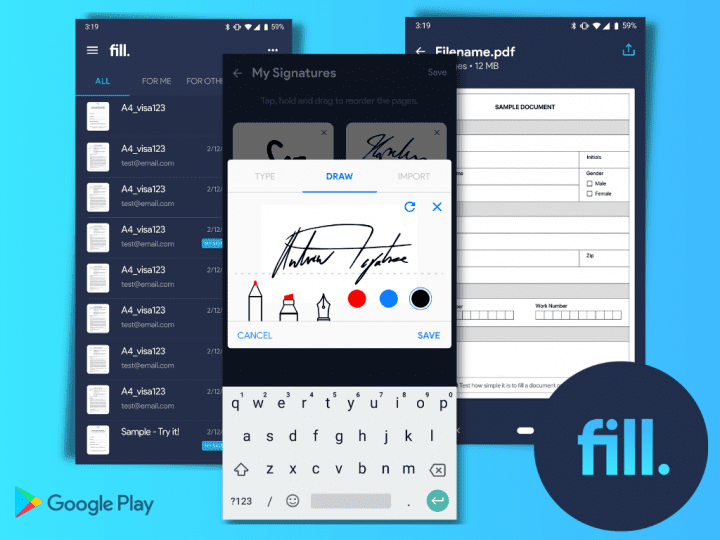
After testing these eSignature apps on Android, Fill stands out as the best overall choice for most users.
What separates it from the competition isn't simply the number of features it offers. It's how well those features work on a phone. Fill was the fastest to get started in our testing, and its clean interface made it easy to prepare, sign, and send documents without navigating a complicated mobile workflow.
That makes Fill particularly useful if you regularly handle documents away from your computer and want an eSignature app that gets out of the way instead of slowing you down.
That doesn't mean Fill is the right choice for everyone. DocuSign may make more sense if tracking and enterprise familiarity are your priorities. PandaDoc is a strong option if you prefer a polished interface, while SignEasy works well for straightforward, occasional signing. Adobe Acrobat Sign is worth considering when advanced PDF functionality matters more than mobile simplicity.
But if your priority is a fast, intuitive Android signing experience, Fill is the app we'd choose.
Frequently Asked Questions About eSignature Apps for Android
How do I sign a PDF on Android?
You can sign a PDF on Android using a dedicated eSignature app such as Fill. The basic process is:
- Open or upload the PDF in your eSignature app.
- Add a signature field where you need to sign.
- Create your signature by typing, drawing, or uploading an image.
- Place the signature on the document.
- Save or send the completed PDF.
If you need someone else to sign the document, you can also add their signature fields and send a signature request directly from your Android device.
For occasional signing, this is much simpler than printing, signing, scanning, and sending the document back.
What is the best eSignature app for Android?
Fill is our top pick for most Android users, particularly if you prioritize speed, simplicity, and an intuitive mobile experience.
In our testing, Fill was the fastest to get started and made it easy to upload, prepare, sign, and send documents from Android.
Other apps may be a better fit for specific needs. DocuSign is a strong choice for reliability and tracking, PandaDoc for a polished interface, and SignEasy for quick, straightforward signing.
Ultimately, the best app depends on your workflow, but Fill offers the best overall balance for signing and managing documents on Android.
What is the best free eSignature app for Android?
If you only need to sign documents occasionally, several eSignature apps offer free plans or trials on Android, although their limits vary.
Fill offers a 7-day free trial with access to its paid features, while other apps may offer free plans with restrictions on document volume or available features.
If you're comparing free options, look beyond whether an app is technically free. Check its document limits, signature-request capabilities, and whether features such as tracking and workflow management are included.
For users who need more than occasional signing, Fill's trial lets you test the full workflow—from uploading and preparing a document to signing and sending it—before deciding whether it fits your needs.
Can I send documents for others to sign from my Android phone?
Yes. Most major eSignature apps let you send documents for others to sign directly from Android.
The typical workflow is:
- Upload the document.
- Add the recipients who need to sign.
- Place signature fields for each person.
- Set the signing order if needed.
- Send the document for signature.
With Fill, you can prepare and send documents from Android, while also tracking the signing process. In our testing, assigning recipients and adding fields was straightforward on mobile.
This makes an Android eSignature app useful not just for signing documents yourself, but for managing the entire signature workflow when you're away from your computer.

Related Stories
Best Free eSign Software in 2026: Top Picks for Signing Documents Online

Are Electronic Signatures Compliant With GDPR?

How to Use a Signature Maker App for PC