How to Scan and Send a Document With Your Phone (iPhone & Android)
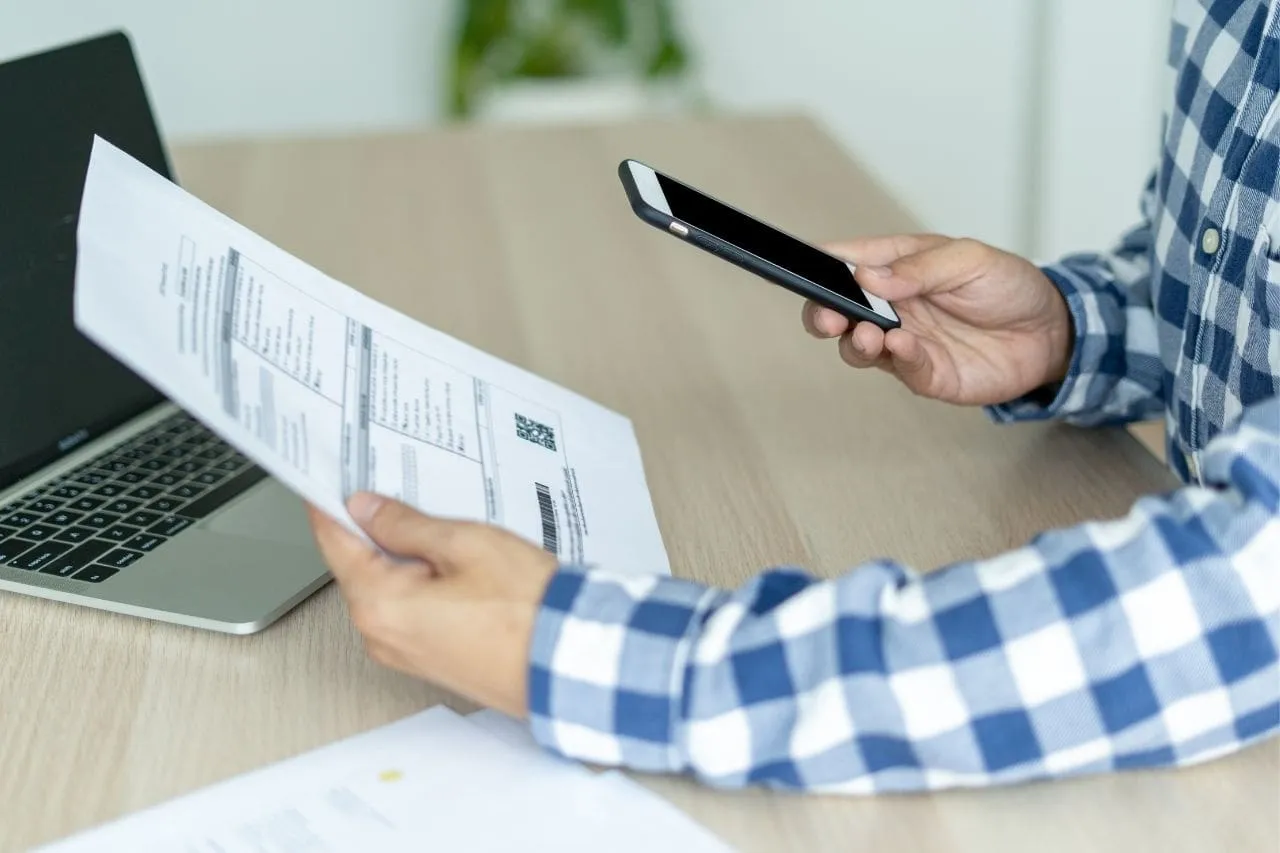
Need to send a paper document but don't have access to a scanner? You can scan, save, and send a document directly from your phone in just a few minutes.
Whether you're using an iPhone, Android device, Google Drive, or a document scanning app, this guide walks you through the easiest ways to scan a document and send it as a PDF.
If you only need to create a PDF, your phone's built-in scanner may be all you need. But if you need to scan, sign, send, and track a document afterward, a dedicated document platform like Fill can handle the entire process in one place.
Quick Answer
To scan and send a document with your phone:
- Open a document scanning tool on your phone.
- Position the document within the camera frame and capture it.
- Save the scan as a PDF.
- Share the PDF by email, text message, or another file-sharing method.
You can do this using built-in tools such as Apple Notes and Google Drive or with a dedicated document scanning app like Fill if you also need to edit, sign, send, or manage the document.
3 Ways to Scan a Document With Your Phone
You don't need a traditional scanner to turn paper documents into digital files. Your phone can do it using a built-in scanning feature or an app.
The best option depends on what you need to do after the document has been scanned.
- Apple Notes: Best for quickly scanning documents on an iPhone.
- Google Drive: Convenient for scanning and storing PDFs in Google Drive.
- Fill: Best when you need to scan a document and then sign, send, track, or manage it.
1. Scan a Document Using Fill

Need more than just a PDF? Fill lets you scan a document from your phone and continue working with it, whether you need to edit it, sign it yourself, send it for signature, or track its progress.
Fill is available on iOS, Android, Mac, Windows, and the web, so you can access your documents across devices.
How to scan a document using Fill
- Download the Fill app on iOS or Android.
- Create a free account.
- Tap the + button and select Scan Document.
- Allow camera access when prompted.
- Capture the document.
- Adjust brightness, contrast, cropping, and color settings.
- Save the document as a PDF.
Once your document is scanned, you can do more than send it as an attachment. You can add your signature, request signatures from others, and track the document's progress from Fill.
2. Scan a Document Using Google Drive
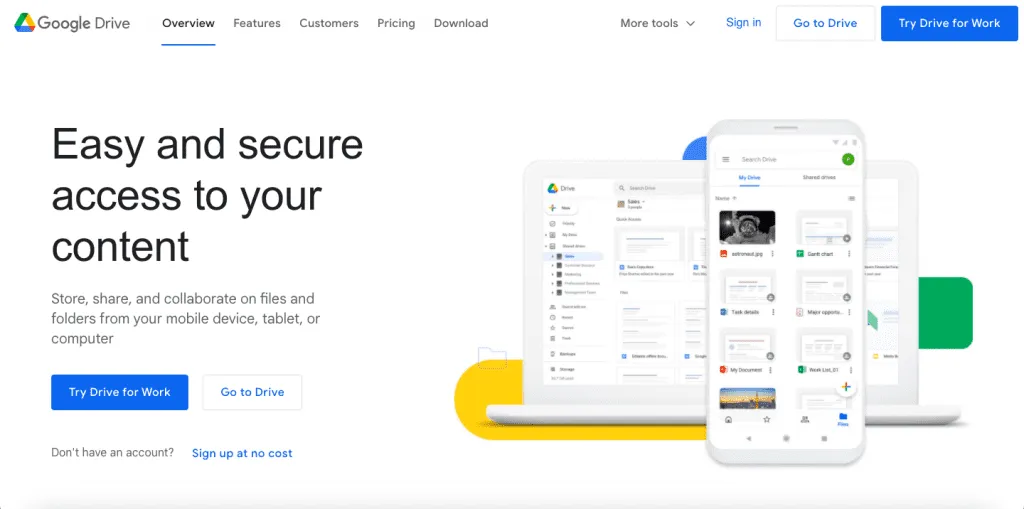
Google Drive includes a built-in scanner that lets you quickly turn paper documents into PDF files. It's a convenient option if you already use Google Drive to store and share your files.
To scan a document using Google Drive:
- Open the Google Drive app.
- Tap the + icon.
- Select Scan.
- Capture the document using your camera.
- Crop or adjust the image if needed.
- Save the scan as a PDF in Google Drive.
This is one of the easiest options for Android users and works on iPhone as well.
3. Scan a Document Using the Notes App on iPhone
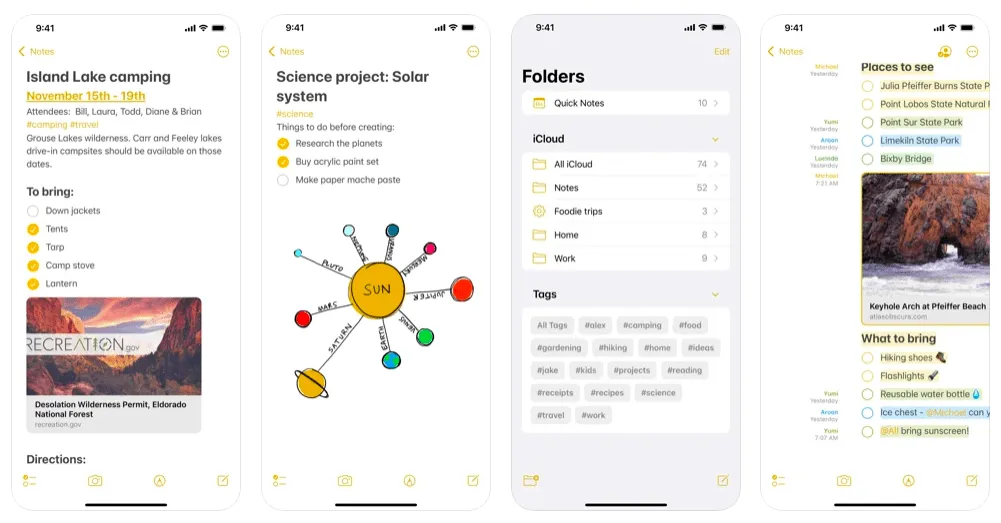
If you're using an iPhone, you can scan documents directly from the Notes app without installing another application. It's a convenient option when you simply need to create a PDF from a paper document.
- Open the Notes app.
- Create a new note.
- Tap the Camera icon.
- Select Scan Documents.
- Position the document within the camera frame.
- Tap Keep Scan.
- Save the document.
The Notes app automatically detects document edges and can combine multiple pages into a single PDF.
How to Save a Scanned Document as a PDF
Most modern scanning tools automatically save documents as PDF files.
PDFs are preferred because they:
- Preserve the document's formatting
- Are easy to email and share
- Work across devices
- Are widely accepted for applications, contracts, and business documents
Both Google Drive and Fill allow you to save scans directly as PDFs.
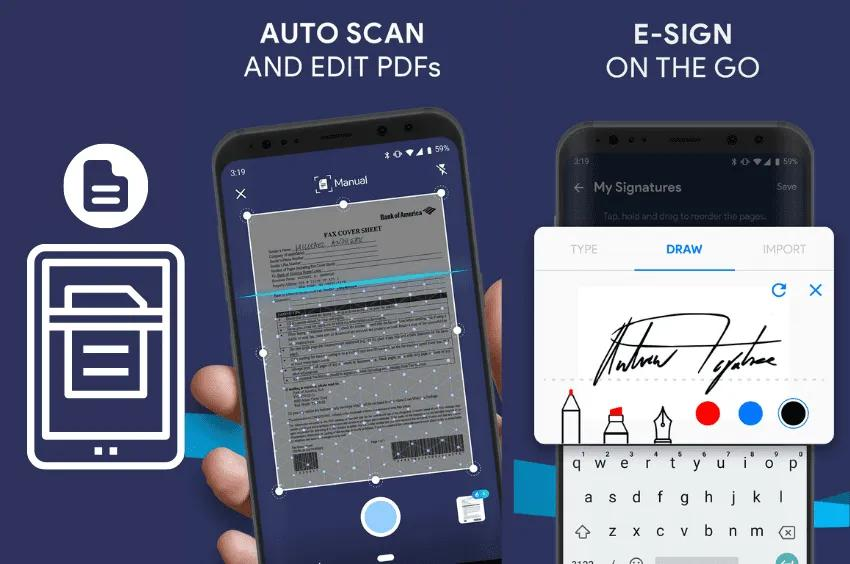
How to Scan and Email a Document From Your Phone
Once your document has been scanned and saved as a PDF:
- Open your email application.
- Create a new message.
- Tap Attach File.
- Select the scanned PDF.
- Enter the recipient's email address.
- Send the email.
Using Google Drive:
- Open Google Drive.
- Locate the scanned PDF.
- Tap the three-dot menu.
- Select Send a Copy.
- Choose Gmail or another email application.
- Send the file.
Email works well when you simply need to send someone a copy of the document. But if the recipient needs to review and sign the document, there's an easier way to handle the process.
How to Send a Scanned Document for Signature
If the document needs a signature, you don't have to print the scanned PDF again or send attachments back and forth.
With Fill, you can turn a scanned document into a complete signing workflow:
- Upload or save the scanned document.
- Add signature fields where needed.
- Enter the recipient's email address.
- Send the signing request.
- Track the document as it moves through the signing process.
Fill also provides delivery notifications and document activity tracking, so you can see the status of your signing requests from one place.

Tips for Better Mobile Scans
To improve scan quality:
- Place documents on a flat surface.
- Use bright, even lighting.
- Avoid shadows across the page.
- Keep your phone steady.
- Review scans before sending.
Higher DPI settings generally produce sharper scans but create larger file sizes.
When Should You Use Fill Instead of Your Phone's Scanner?
Apple Notes and Google Drive are great when you simply need to turn a paper document into a PDF.
A dedicated document platform becomes more useful when you need to do something with that document afterward.
Final Thoughts
Your phone can replace a traditional scanner for most everyday documents. Apple Notes and Google Drive are great when all you need is a PDF.
But if that PDF needs to be signed, sent for signature, tracked, or managed afterward, you don't need to piece together several different apps.
Fill lets you scan documents from your phone and continue the entire workflow from one place—from creating the PDF to collecting signatures and tracking document activity.
Frequently Asked Questions
Can I scan a document with my phone?
Yes. Most smartphones include built-in document scanning tools or support scanning apps that can create PDF files.
Is scanning a document the same as taking a photo?
No. Document scanners automatically detect edges, straighten pages, improve contrast, and create cleaner PDF files than standard photos.
How do I scan and send a document by email?
Scan the document, save it as a PDF, attach it to an email, and send it to the recipient.
How do I save a scanned document as a PDF?
Most document scanning apps automatically save scans as PDFs. Google Drive, Apple Notes, and Fill all support PDF output.
What is the best app for scanning documents?
Apple Notes and Google Drive are good options if you simply need to scan a document and create a PDF.
If you need to do more with the document, Fill combines document scanning with PDF management, electronic signatures, document sharing, OCR, and workflow tools in one platform.


View our Privacy Policy for more info.