How to Sign a Document in Google Docs (3 Easy Ways)

You can sign a document in Google Docs in three main ways: draw your signature with the built-in Scribble tool, upload an image of your handwritten signature, or use an electronic signature app for a faster, more secure workflow.
If you only need to sign a document once, Google Docs' built-in tools work well. But if you regularly sign contracts, forms, or other business documents, an eSignature app lets you save your signature, send documents for signature, and keep everything organized in one place.
Here's a quick overview of the three methods:
- Draw your signature (Scribble): Best for one-time signatures.
- Upload a signature image: Best if you already have a scanned or photographed signature.
- Use an eSignature app: Best for reusable signatures, sending documents for signature, and managing business workflows.
In this guide, you'll learn how to use each method step by step. We'll also show you how to sign documents in Gmail, sign PDFs stored in Google Drive, and sign Google Docs on iPhone or Android.
If you’re looking for more ways to electronically sign files, including PDFs, Word documents, and contracts, see our complete guide on how to sign a document online.
How to Sign a Document in Google Docs
There isn’t a single “Sign” button inside Google Docs. Instead, you can:
• Add a signature mark (drawing or image) directly in the doc for simple use cases
• Electronically sign using an eSignature add-on when you need reusable signatures, identity verification, or a signing history (audit trail)
If you’re signing a PDF in Google Drive or an attachment in Gmail, the smoothest workflow is typically to open the file with an eSignature app and save it back to Drive or share it from Gmail.
How to Add a Signature in Google Docs using the Drawing Tool
Google Docs has a built-in feature for signing documents. It’s not as comprehensive as third-party eSignature apps like Fill, but it’s a good starting point. This is the quickest way to sign a Google Doc, but it’s usually best for one-off signatures since you may need to redraw it the next time.
Follow these steps to generate a Google Docs signature.
1. Open a document and locate the Insert tab on the toolbar.
2. Hover your cursor on the drawing button, then click the New button on the right.
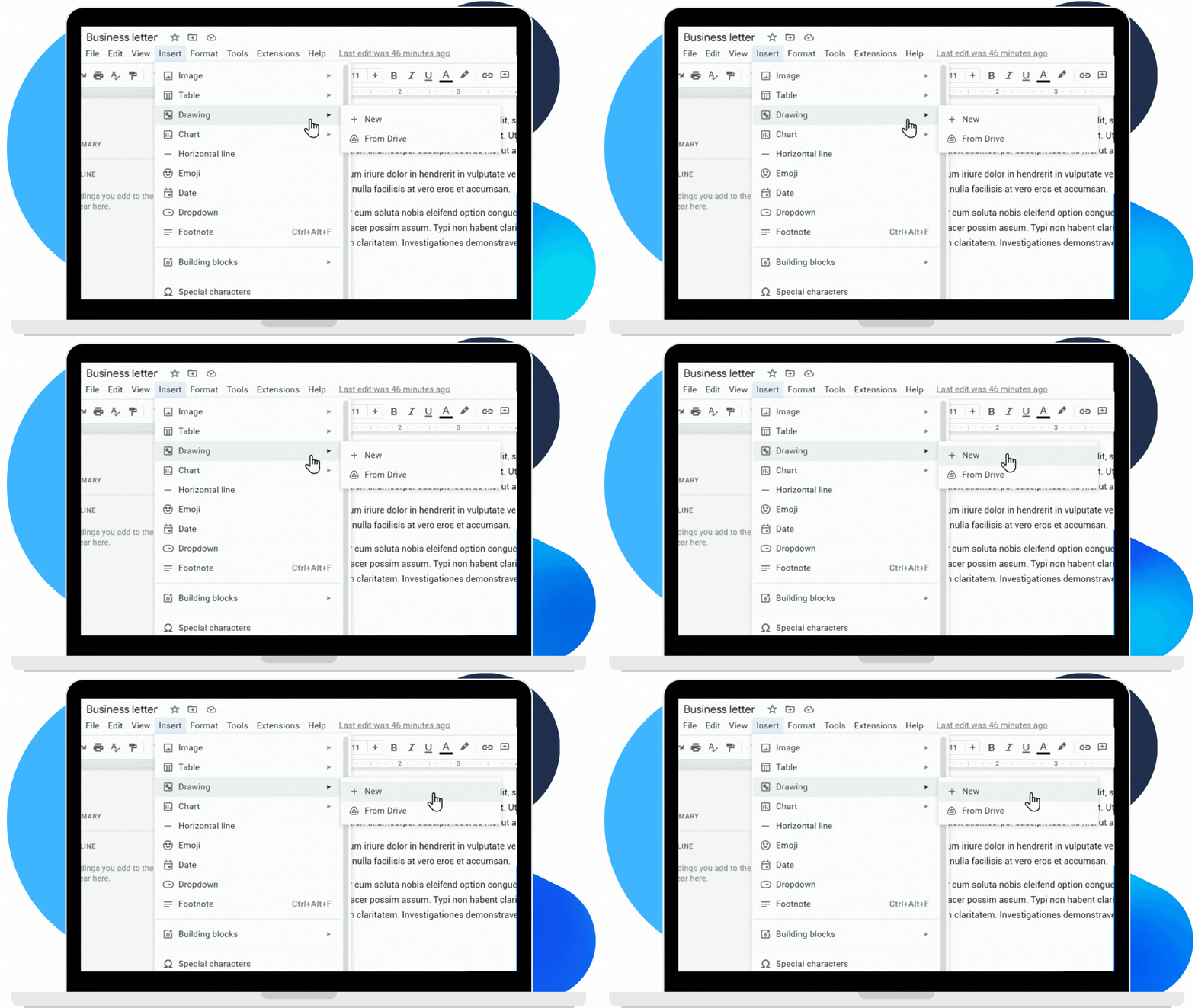
3. The drawing interface should pop up. Hover your cursor on the line icon, then select Scribble.
4. You can now draw your eSignature using a mouse, trackpad, or digital drawing pen.
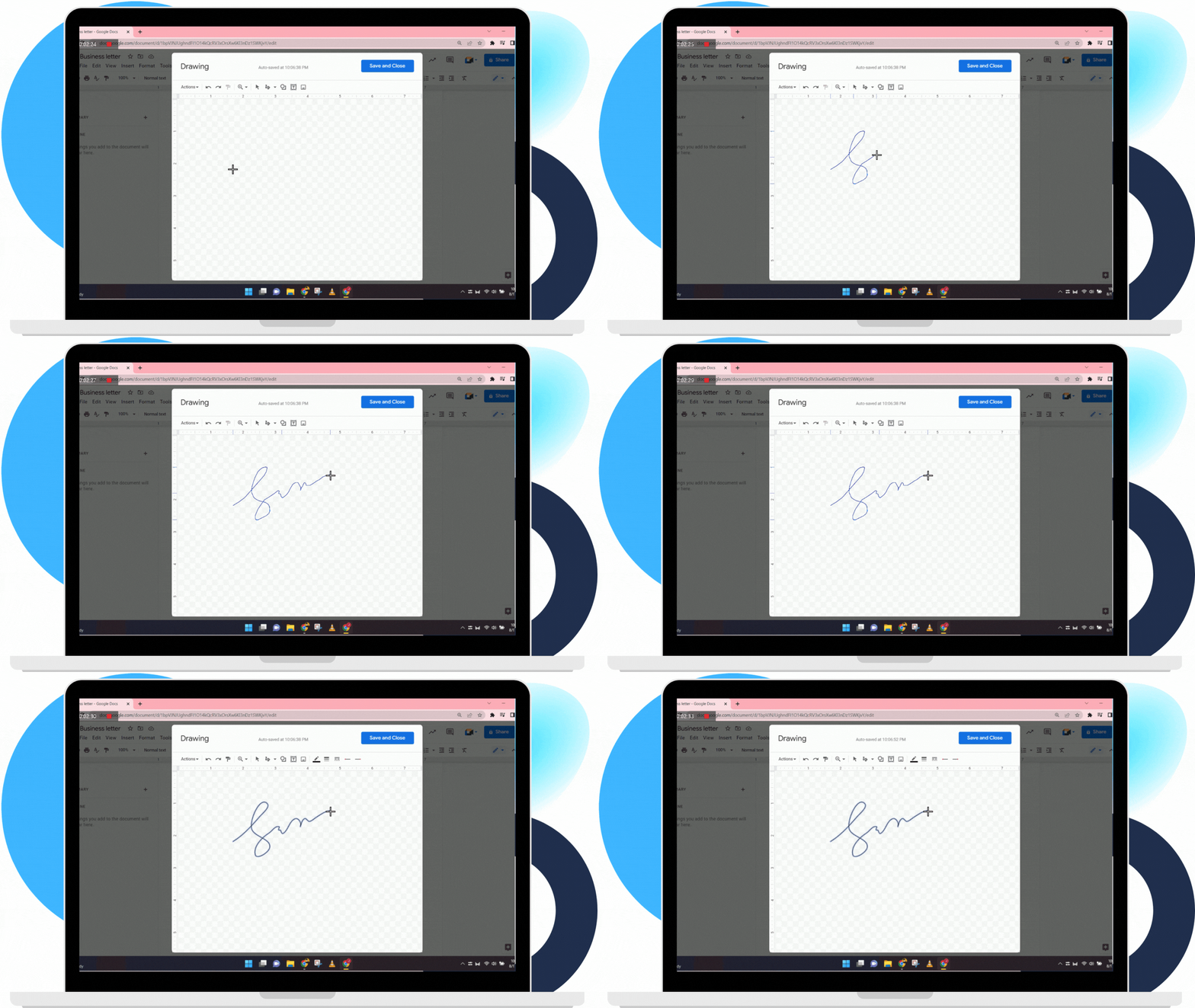
5. Once done, click Save and Close.

6. Your digital signature should now be visible. You can then resize and drag the drawing to the appropriate field. This built-in drawing tool allows you to quickly create and add a signature in Google Docs without installing additional extensions.
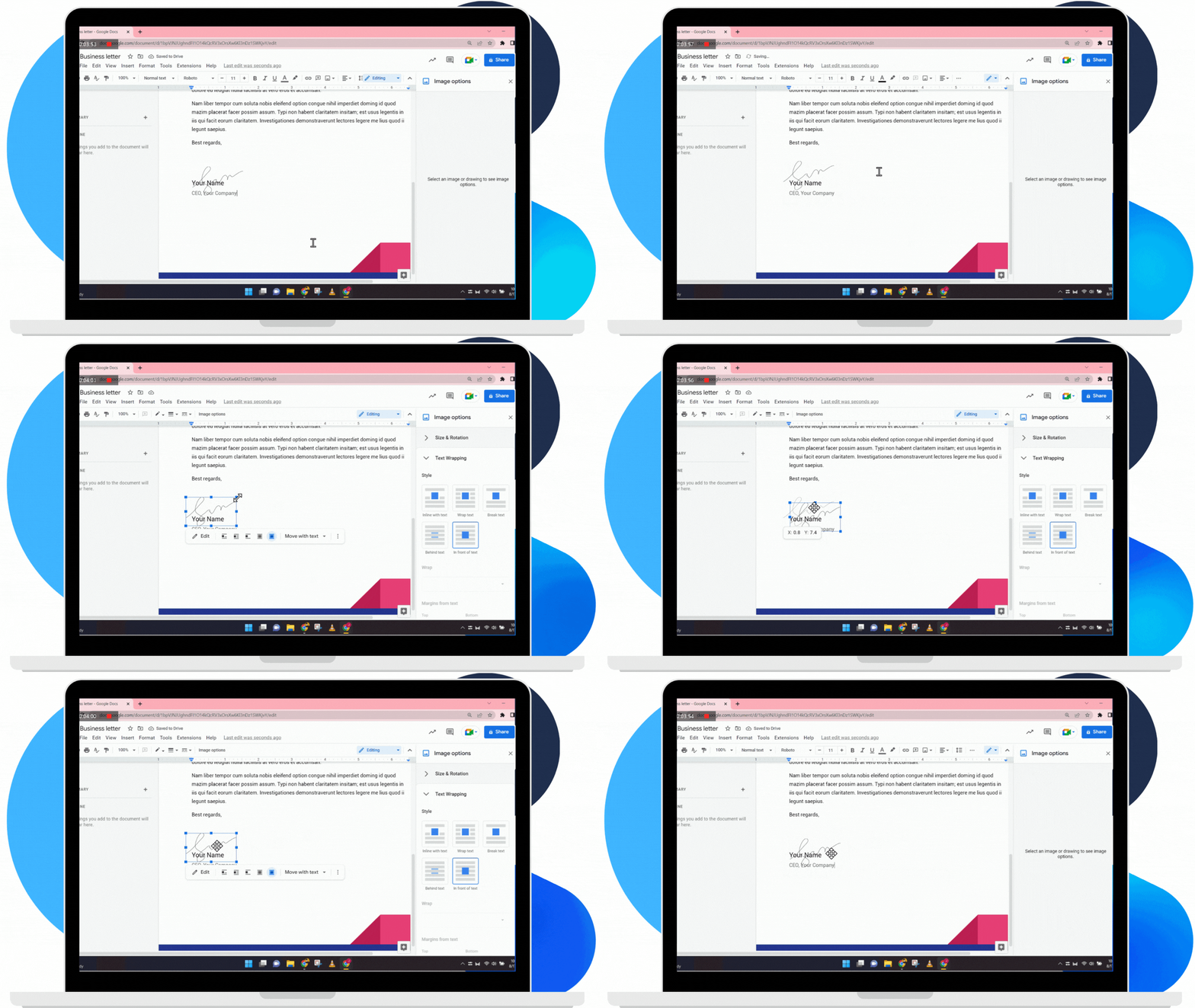
It’s that simple. The next time you need to sign a document in a pinch, this can give you a straightforward way to get it done.
The downside? The next time you need your eSignature, you’ll have to draw it again, which can be tedious. You can automate this process by opting for a dedicated online signature service.
How to Insert a Signature Image in Google Docs (Scan or Photo)
There’s another simple way to insert a signature in Google Docs by uploading a scanned or photographed image of your handwritten signature. With this option, you can take advantage of a pre-existing signature, so you won’t have to create a new one.
To use this method, do the following:
1. As with the previous process, open a document and find the Insert tab on the toolbar.
2. This time, hover your cursor on the Image tab and click on Upload from computer.
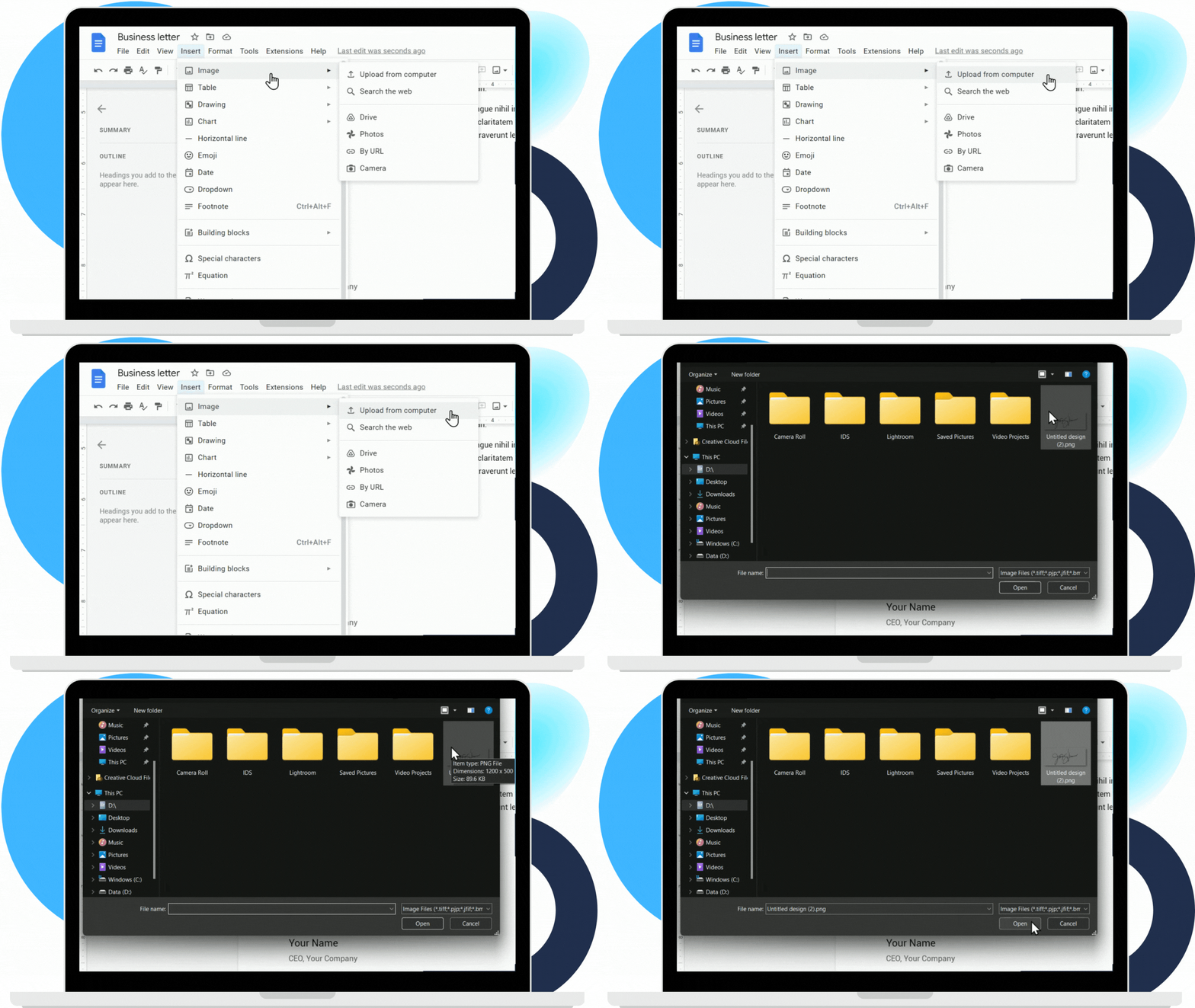
3. Then, open the saved image of your signature.
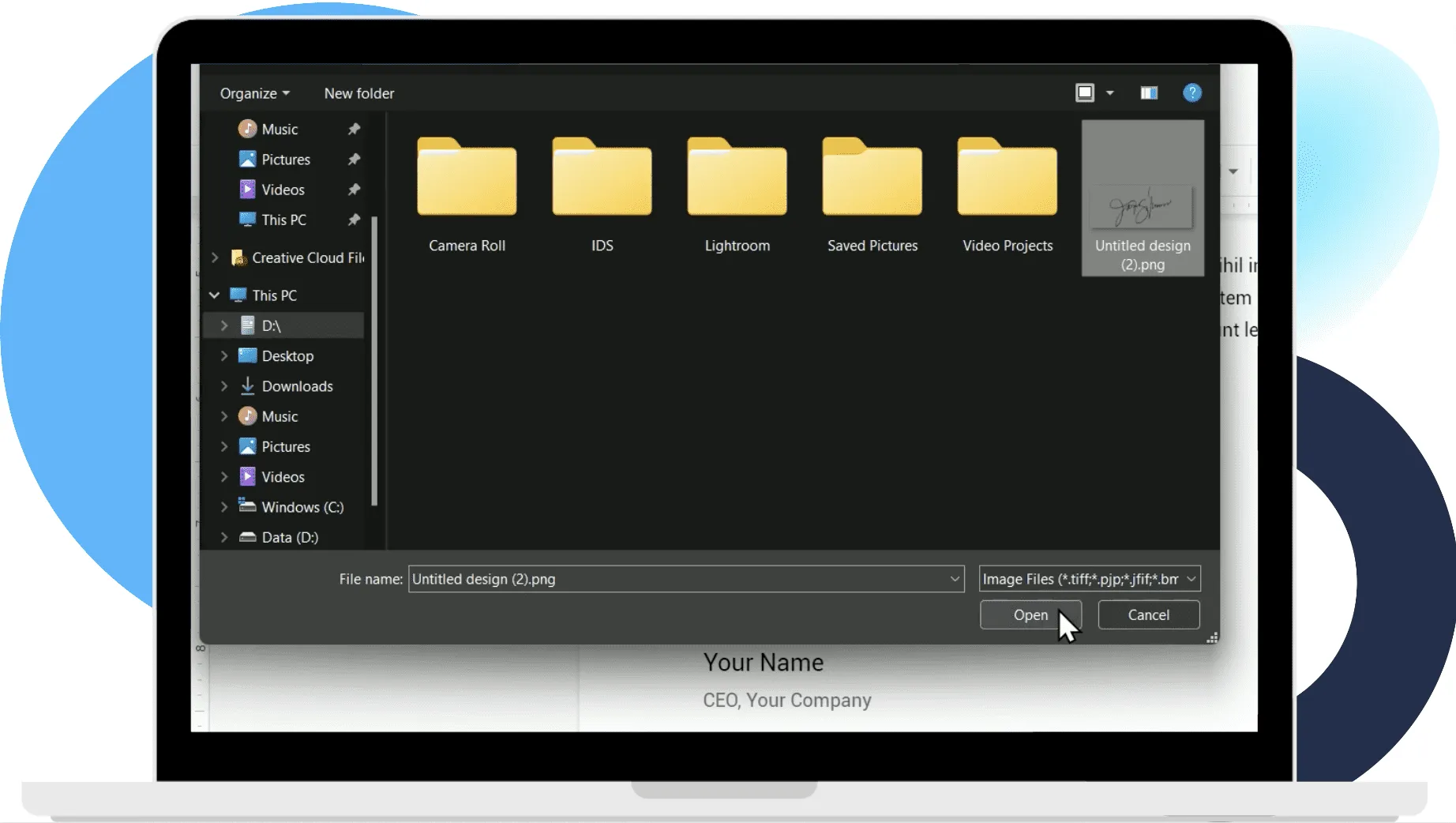
4. The eSignature should now appear inside the document. You can scale and place the image anywhere you like.
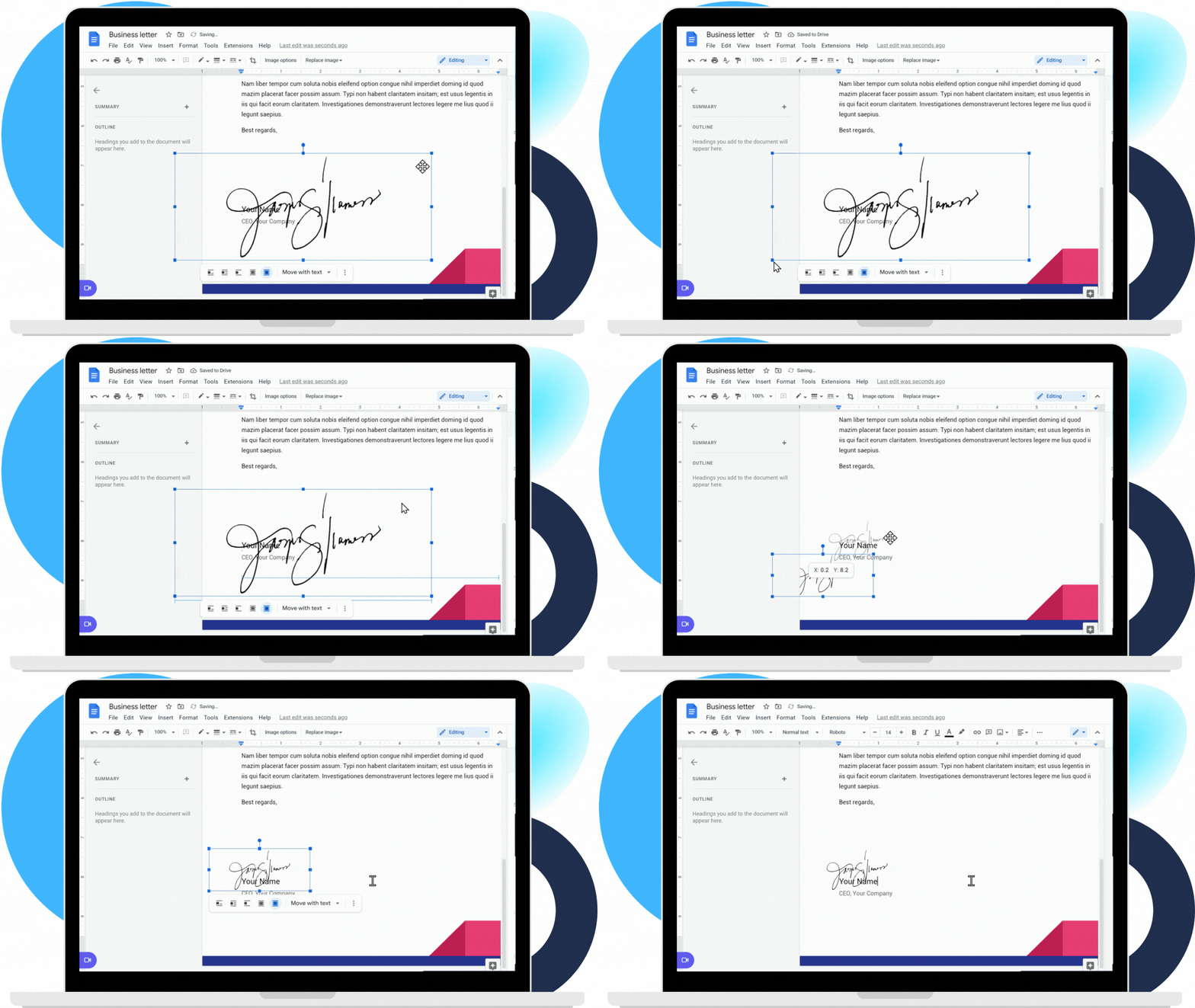
Like the previous method, uploading a wet signature comes with its share of limitations. For example, a low-quality image would look out of place within the document. Images with a non-transparent background could also have a similar effect. Both may be considered invalid if they are difficult to read.
Tip: If your signature image has a white background, it may look “sticker-like” on the page. If possible, use a PNG with a transparent background for a cleaner result.
How to Electronically Sign in Google Docs Using an eSignature Add-on (Reusable + Audit Trail)
If you need more than a quick signature mark—like a reusable signature, signing requests, or an audit trail—use an eSignature add-on from the Google Workspace Marketplace.
This approach is ideal when you want a more automated workflow (especially for teams), or when you’re signing files from Google Drive, Gmail, or across multiple devices. If you're using Fill, you can electronically sign and send documents straight from Google Drive.
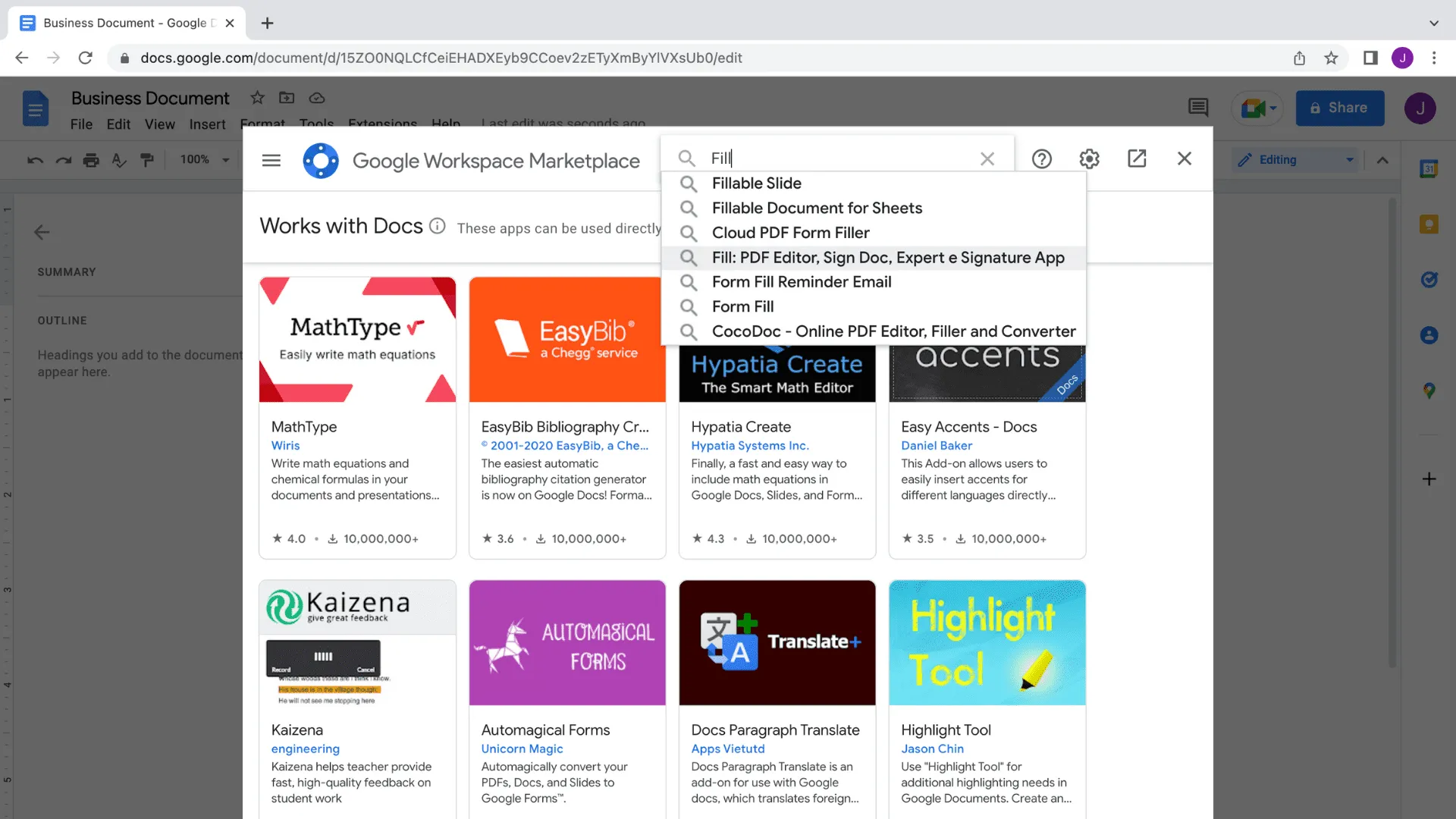
- Navigate to the Google Workspace Marketplace and search for Fill.
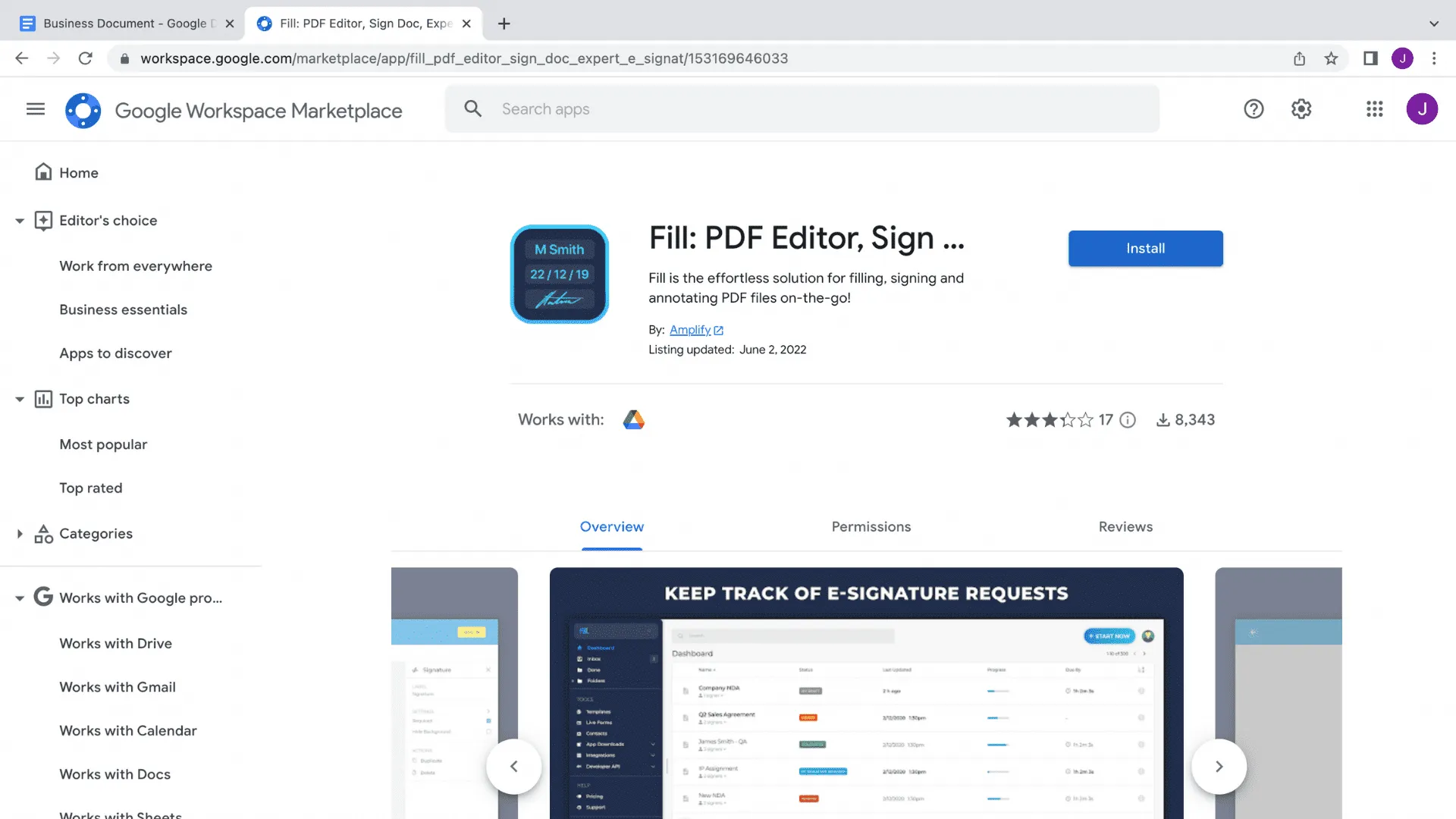
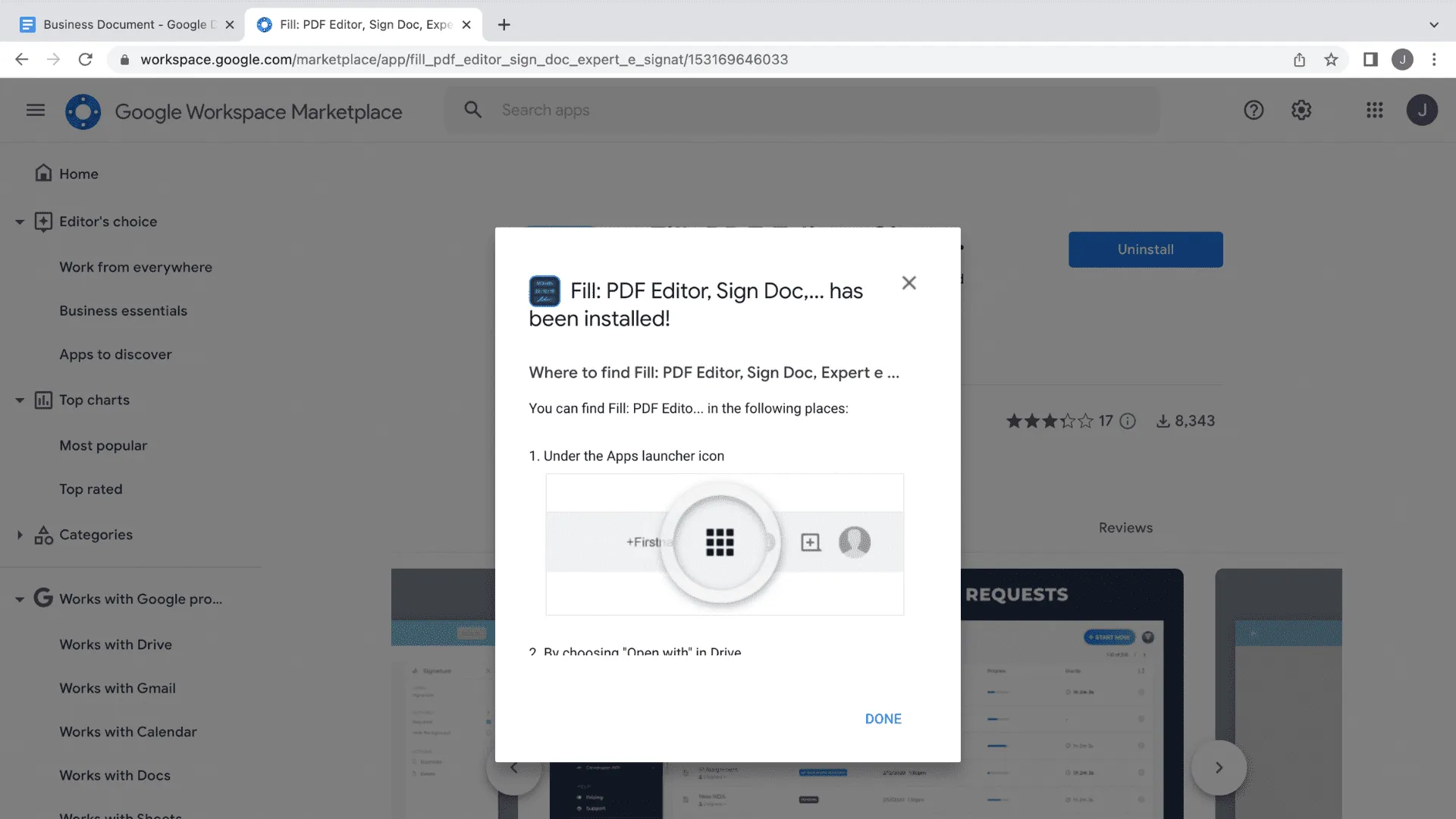
2. Install the app extension to connect the service to your Google Drive account.
3. Once installed, you can find Fill under the Apps Launcher or as an option for opening Google Docs files.
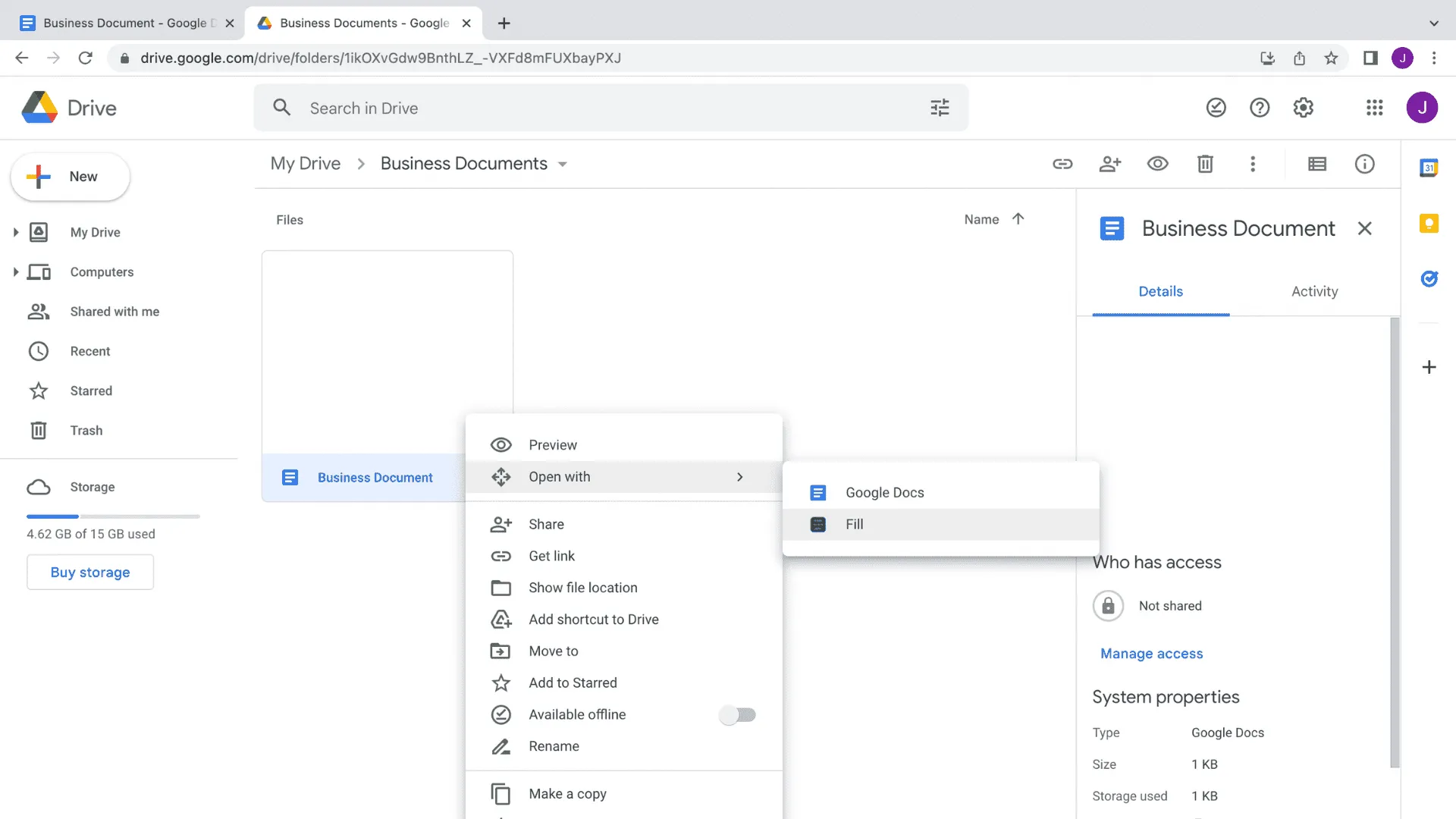
4. Next, go to Google Drive and right-click on a document to open it with Fill.
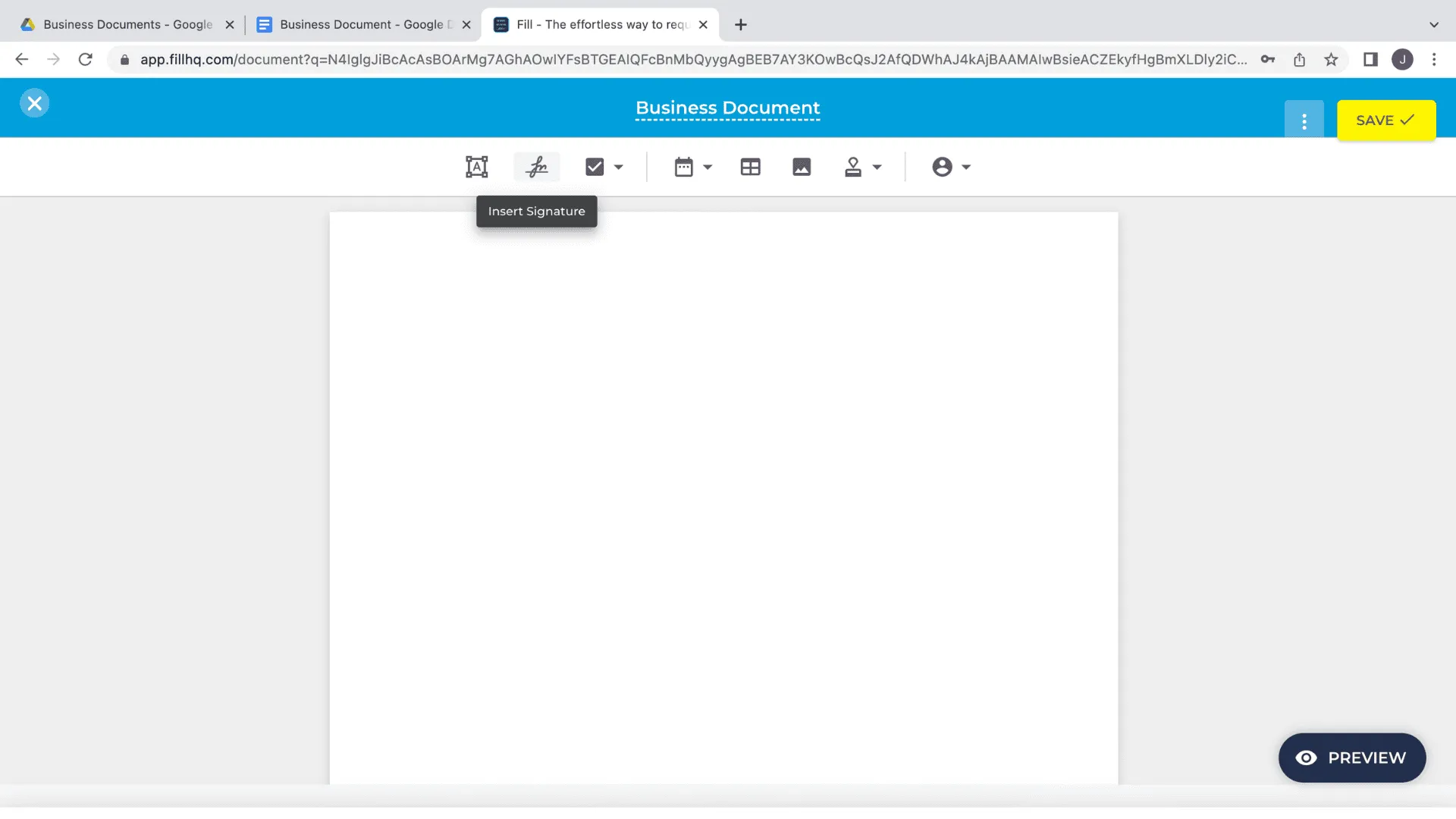
5. The document will open in Fill. Locate and click the Insert Signature button on the toolbar to start creating your eSignature.
6. Create your digital signature by typing, drawing, or uploading an image of a wet signature.
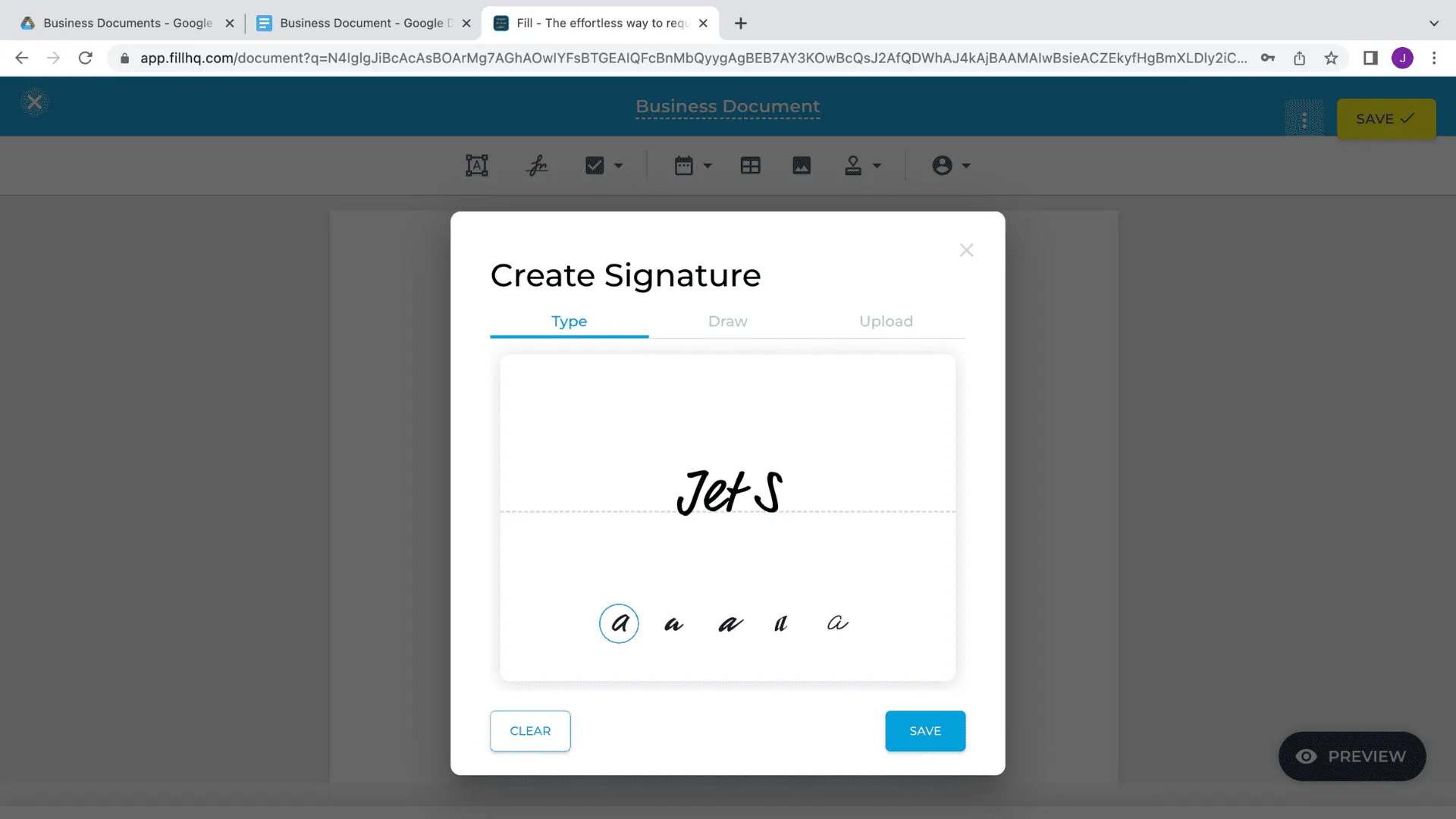
7. Save your new eSignature and place it anywhere in the document.
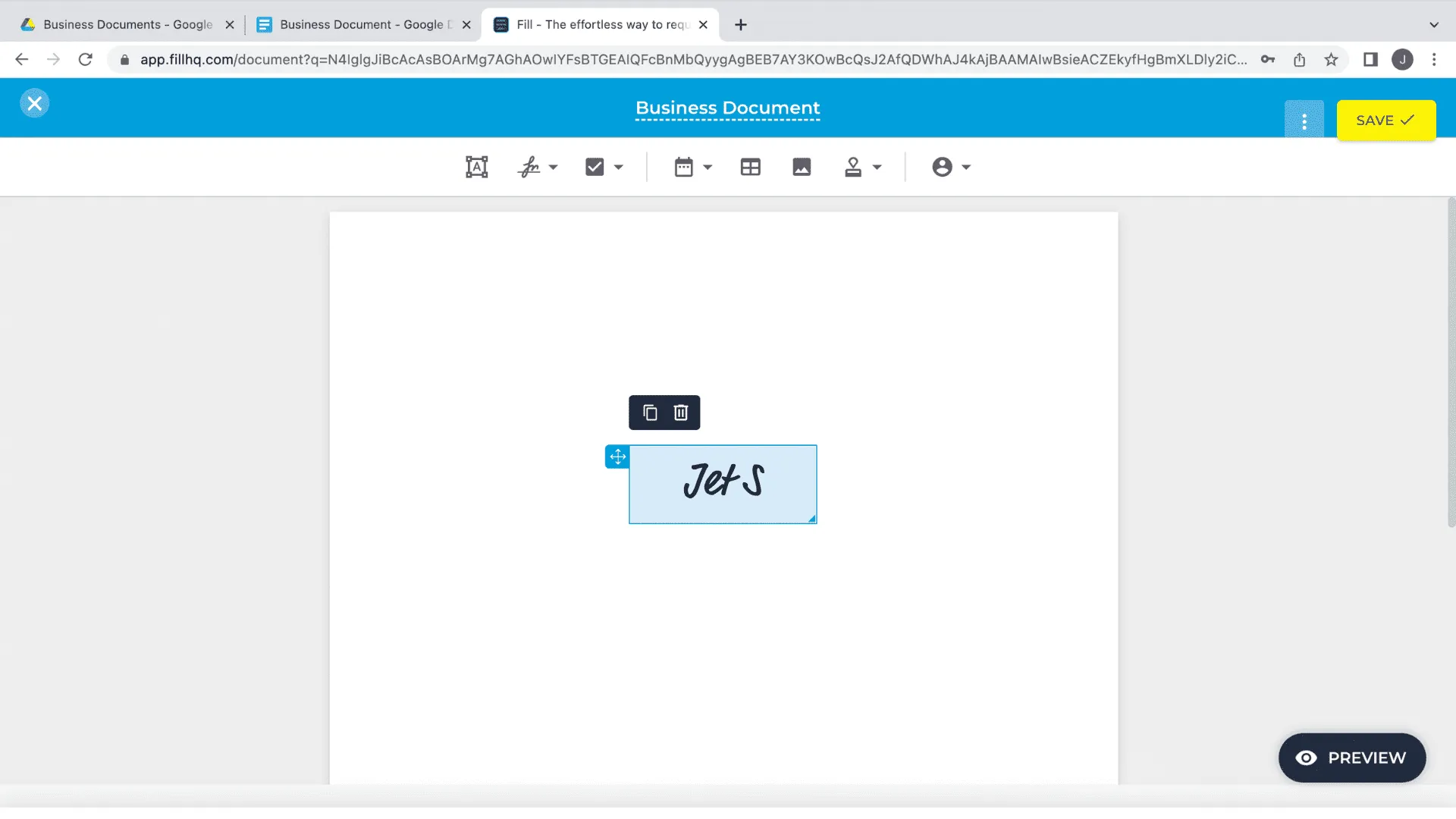
8. Then, save the document. You can now send it to anyone using a link or via their email address.
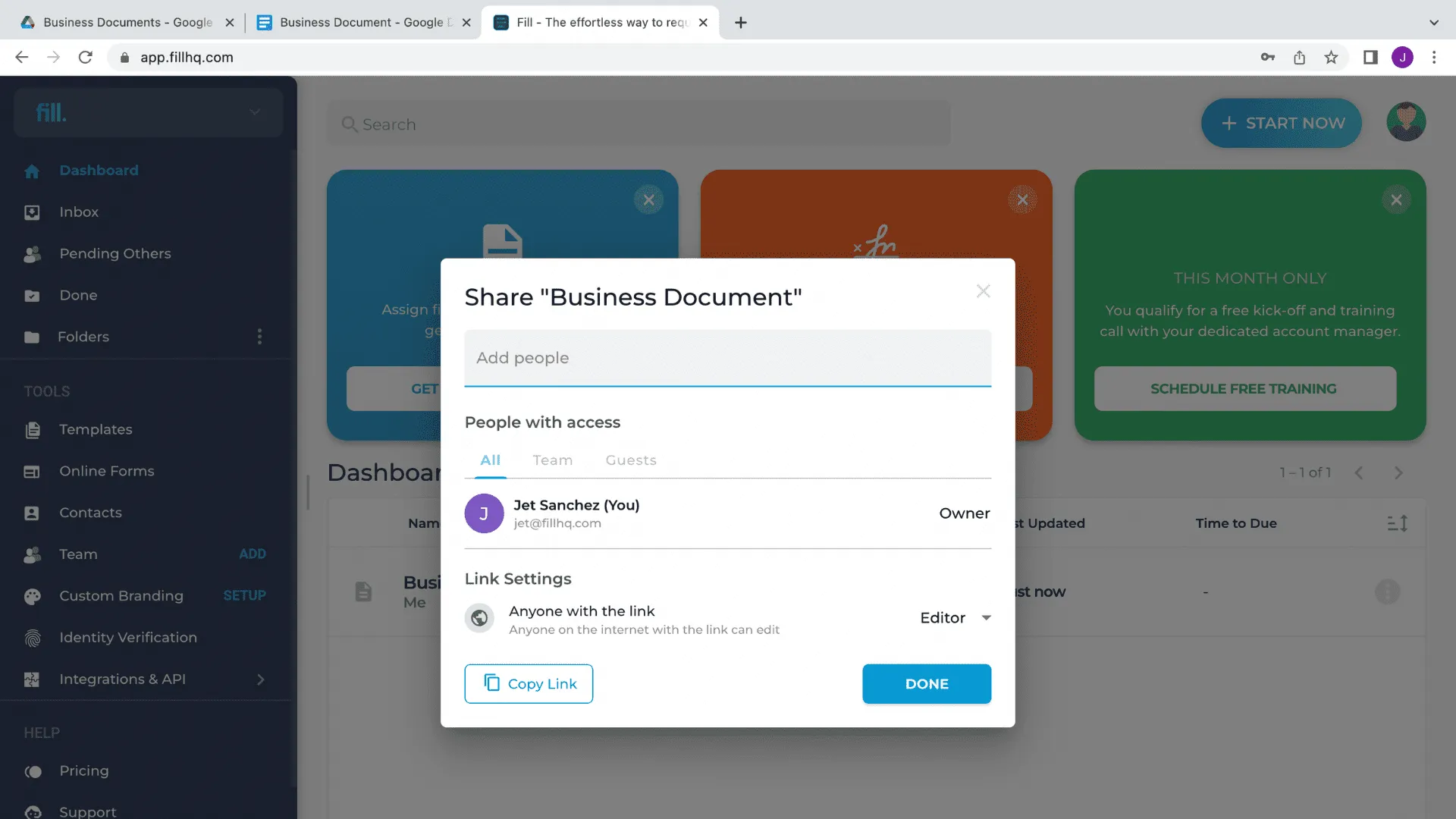
That’s it! With your eSignature now linked to your account, you’ll be able to use it whenever you need to sign a document. You wouldn’t have to draw, type, or upload your signature each time. Your files are also automatically saved and stored in the Fill app. It syncs across your devices, whether you’re using the web, desktop, or mobile apps.
If you're still deciding which approach is right for you, here's a quick comparison of the three methods.
Which method should you choose?
The best way to sign a document in Google Docs depends on how often you sign documents and what you're signing.
How to Sign Documents in Gmail Using Google Workspace
With Fill, it’s now easier than ever to sign a document in Gmail without downloading and re-uploading files.
If you’re using Gmail, the built-in Google integrations allow you to electronically sign PDF, DOC, DOCX, and Google Sheets attachments directly from your inbox.
Follow the steps below to start signing documents from your email account.
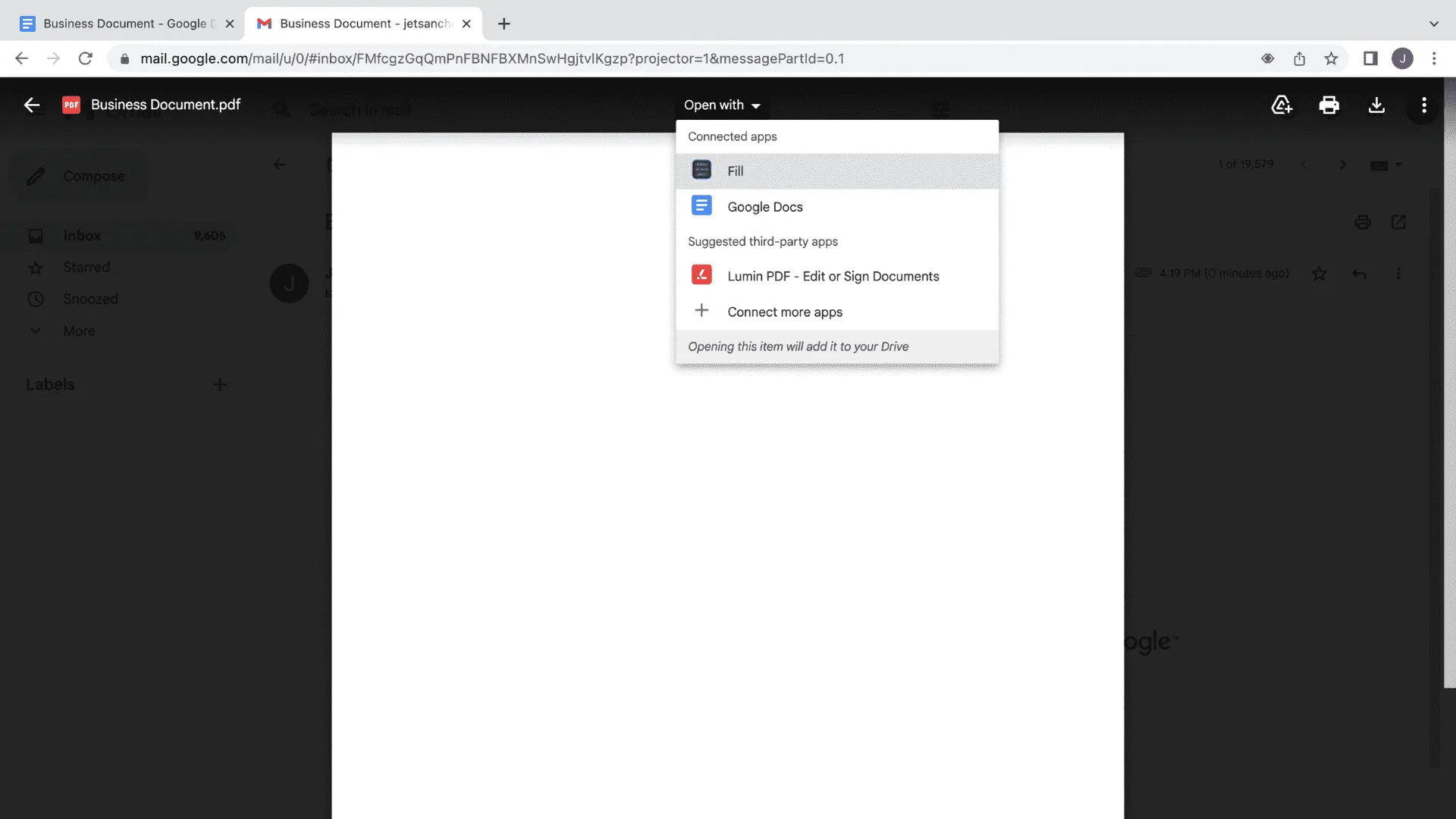
1. Open an email attachment in your Gmail Inbox and select Open with Fill to start signing the document.
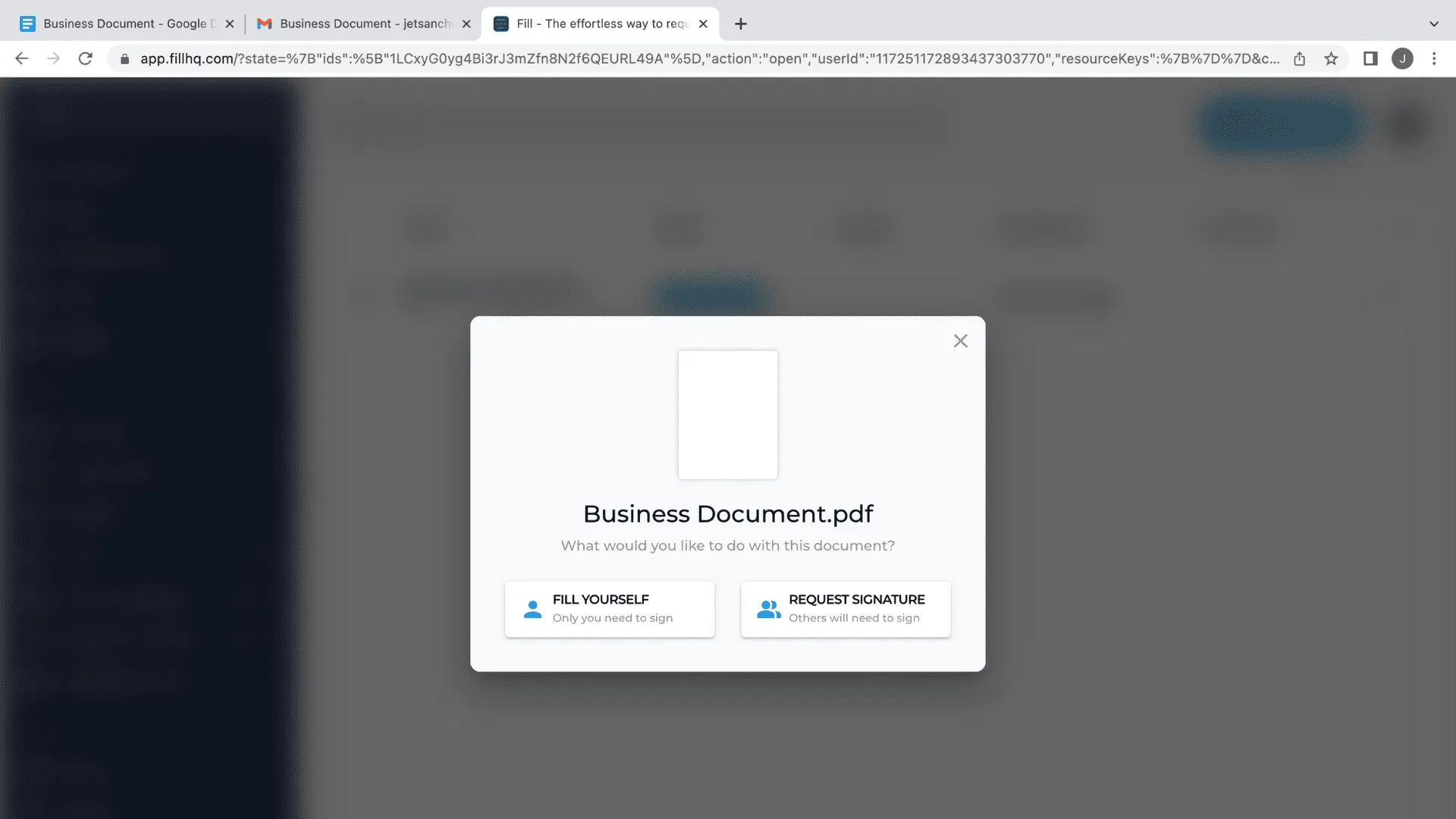
2. You’ll be taken to the Fill dashboard, where you’ll decide if you want to sign by yourself or add other signatories.
3. You can now edit the document and insert your signature with the designated button.
4. Create your new digital signature. You can type, draw, or upload an image of your physical signature to electronically sign the document.
5. Next, save your work and place it wherever you need the eSignature.
6. Finally, save the document and share it with anyone you want. You can also download it as a PDF file if you’re going to send it directly through Gmail.
Fill makes adding electronic signatures to documents in Gmail quick and simple.
This workflow allows you to sign a document in Gmail immediately after receiving it, helping you streamline approvals and reduce manual paperwork. You can also share signed files with the Fill app. Plus, you’ll receive a notification whenever someone else views or signs a shared document.
How to Sign a PDF in Google Drive
If you’re trying to sign a PDF in Google Drive, Google Docs doesn’t provide a full PDF signing experience by itself. A common workflow is to open the PDF with an eSignature tool and then save the signed version back to Drive.
- Open Google Drive and locate the PDF you want to sign.
- Right-click the PDF and choose Open with (or open the file and select Open with at the top).
- Select your eSignature app (for example, Fill).
- Add your signature and place it on the correct line or field.
- Save or export the signed document and store it back in Drive or share it with the recipient.
This workflow is especially useful when you receive a PDF contract and need to sign it quickly without converting formats. You can read our comprehensive guide on how to sign a PDF for more detailed steps.
How to Sign a Google Doc on iPhone or Android
You can sign a Google Doc on your phone using one of these approaches.
Option 1: Insert a signature image (fast and simple)
- Save a photo or scan of your signature to your phone.
- Open the document in the Google Docs mobile app.
- Insert the image and drag or resize it into place.
Option 2: Use an eSignature tool (best for PDFs, reuse, and signing requests)
- Open the document from Google Drive or as an attachment from Gmail.
- Tap Open with and select your eSignature app.
- Create or select your saved signature and place it in the document.
- Save the signed file and share it or store it back in Drive.
If you sign frequently on mobile (especially on iPhone or iPad), an eSignature tool is usually easier than trying to draw a clean signature inside Google Docs.
How to Add a Signature Line in Google Docs
If you need a signature line (a blank line someone will sign), here are two quick options.
Option 1: Insert a line using Drawing (cleaner layout)
- Go to Insert → Drawing → + New.
- Click Line and draw a straight line.
- Click Save and Close, then position the line where the signature should go.
- Add labels like Signature: and Date: above or below the line.
Option 2: Type a simple signature line (fastest)
- Type “Signature:” then add underscores like this: ____________________________________________
- Press Enter and add “Date:” with another underscore line.
This method works well for forms, approvals, and templates where people may print and sign or sign electronically later.

Troubleshooting: Scribble Missing, Background Issues, and Formatting
Scribble tool missing in Drawing
In the Drawing window, click the Line dropdown. The Scribble option is inside that menu. If you still don’t see it, reload the document or open it in Chrome.
Signature image has a white background
If possible, upload a transparent PNG version of your signature for a cleaner look. Otherwise, crop the image closely and place it over a white section of the document.
Signature won’t align with the line
Click the signature image or drawing and adjust text wrapping settings so you can drag it freely. Zoom in if needed to position it precisely.
Signature looks blurry
Use a higher-resolution image and avoid stretching it larger than its original size. If drawing a signature, a stylus or trackpad usually produces smoother results than a mouse.
Frequently Asked Questions
Can you sign a document in Google Docs?
Yes. You can sign a document in Google Docs by drawing your signature with the built-in Drawing tool, uploading an image of your handwritten signature, or using an electronic signature add-on.
Does Google Docs have an electronic signature feature?
Google Docs does not include a full native eSignature system with features like audit trails or signing requests. For advanced electronic signatures, you can use a Google Workspace add-on or integrated eSignature app.
How do you insert a signature in Google Docs?
To insert a signature in Google Docs, click Insert → Drawing → + New, open the Line menu, choose Scribble, draw your signature, and click Save and Close. You can also upload a scanned signature image through Insert → Image.
Can you sign a Google Doc on your phone?
Yes. You can sign a Google Doc on your phone using the Google Docs mobile app by inserting a signature image or opening the document with an eSignature tool from Google Drive or Gmail.
Are signatures in Google Docs legally binding?
A signature added with the Google Docs drawing tool or an uploaded image may be acceptable for informal documents, but it doesn't include features like audit trails, signer authentication, or tamper evidence. If you need legally binding electronic signatures for contracts or business documents, using a dedicated eSignature platform provides additional security and verification.


View our Privacy Policy for more info.