How to Sign a PDF on an iPhone or iPad Using Mobile Esignatures

Apple devices make it easy to sign PDFs, Word documents, contracts, forms, and other files directly from your iPhone or iPad. Whether you're signing an emailed attachment, a PDF agreement, or a Word document, you can do it using built-in iOS tools or dedicated eSignature apps.
In this guide, we'll walk through the easiest ways to sign documents on iPhone and iPad, including PDFs, Word files, and email attachments.
If you want a broader overview of all available methods, you can also read our complete guide on how to sign a PDF.
Can You Sign Documents on iPhone or iPad?
Yes, you can sign a PDF on an iPhone or iPad using several different methods. Apple devices allow you to add electronic signatures directly to PDF documents using built-in tools or third-party apps.
The most common ways to sign a PDF on iPhone or iPad include:
- Using Apple Markup to draw a signature directly in a PDF.
- Using a PDF app like Adobe Acrobat Reader to add a digital signature.
- Using an eSignature app that lets you upload documents and sign them electronically (EASIEST METHOD)
Each method allows you to add a signature to a PDF, place it on the document, and export the signed file for sharing or sending.
Below, we’ll walk through the easiest ways to sign PDFs on both iPhone and iPad.
How to Sign a PDF on iPhone With Fill
If you need a fast way to sign a PDF on your iPhone, using a dedicated eSignature app is often the easiest option. Apps like Fill allow you to upload a document, create a signature, and sign documents directly from your phone.
With Fill, you can add an electronic signature to a PDF on iPhone in just a few steps.
1. Download the Fill App from the Apple App Store.
2. Open the app, then sign up or log in to an existing account. You can do this through Google, Apple, or your email address.
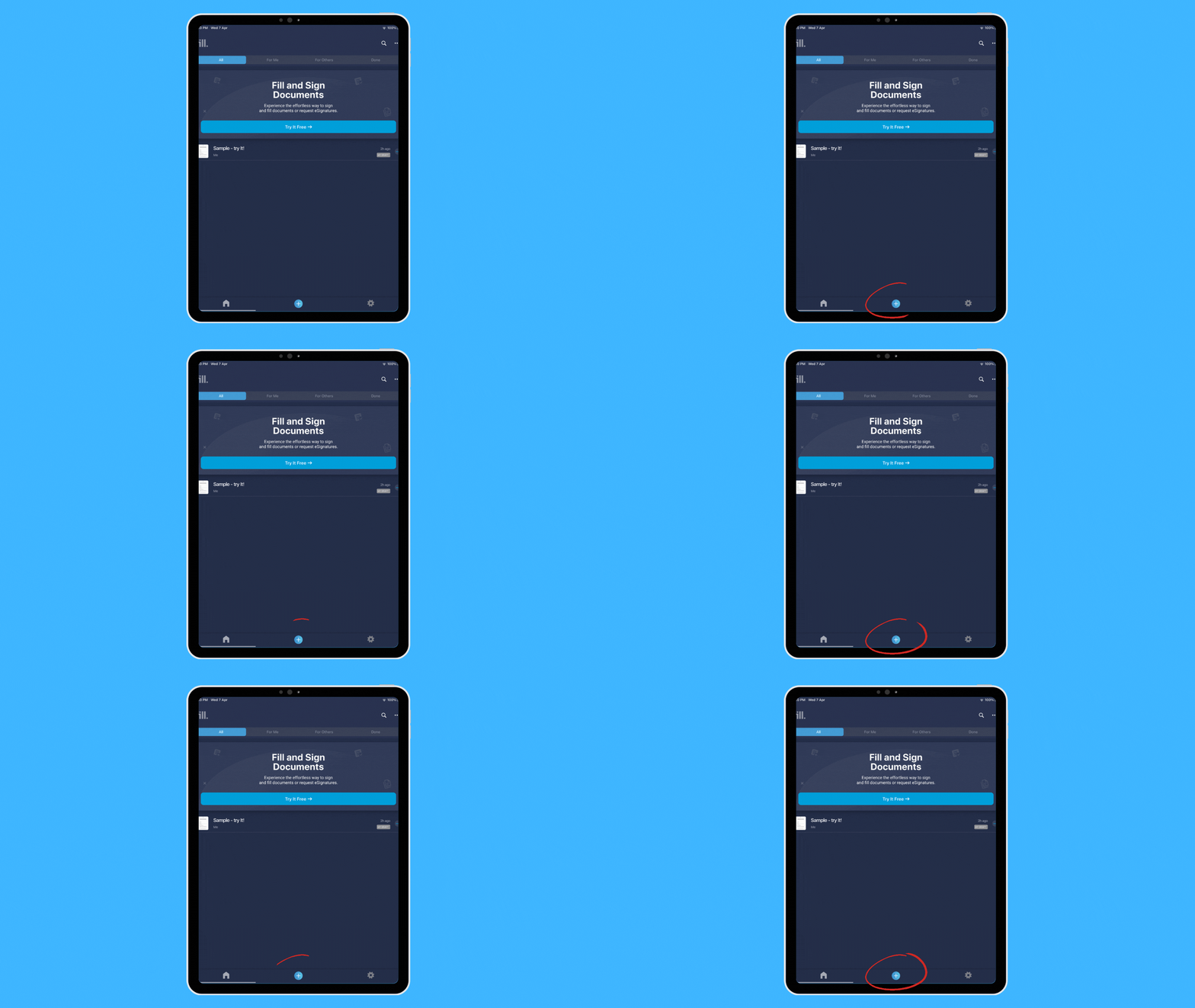
3. From the dashboard, tap on the + button and select a way to add a document.
There are several ways to do this:
- Create a new file
- Use a template
- Scan a physical copy
- Import from the cloud
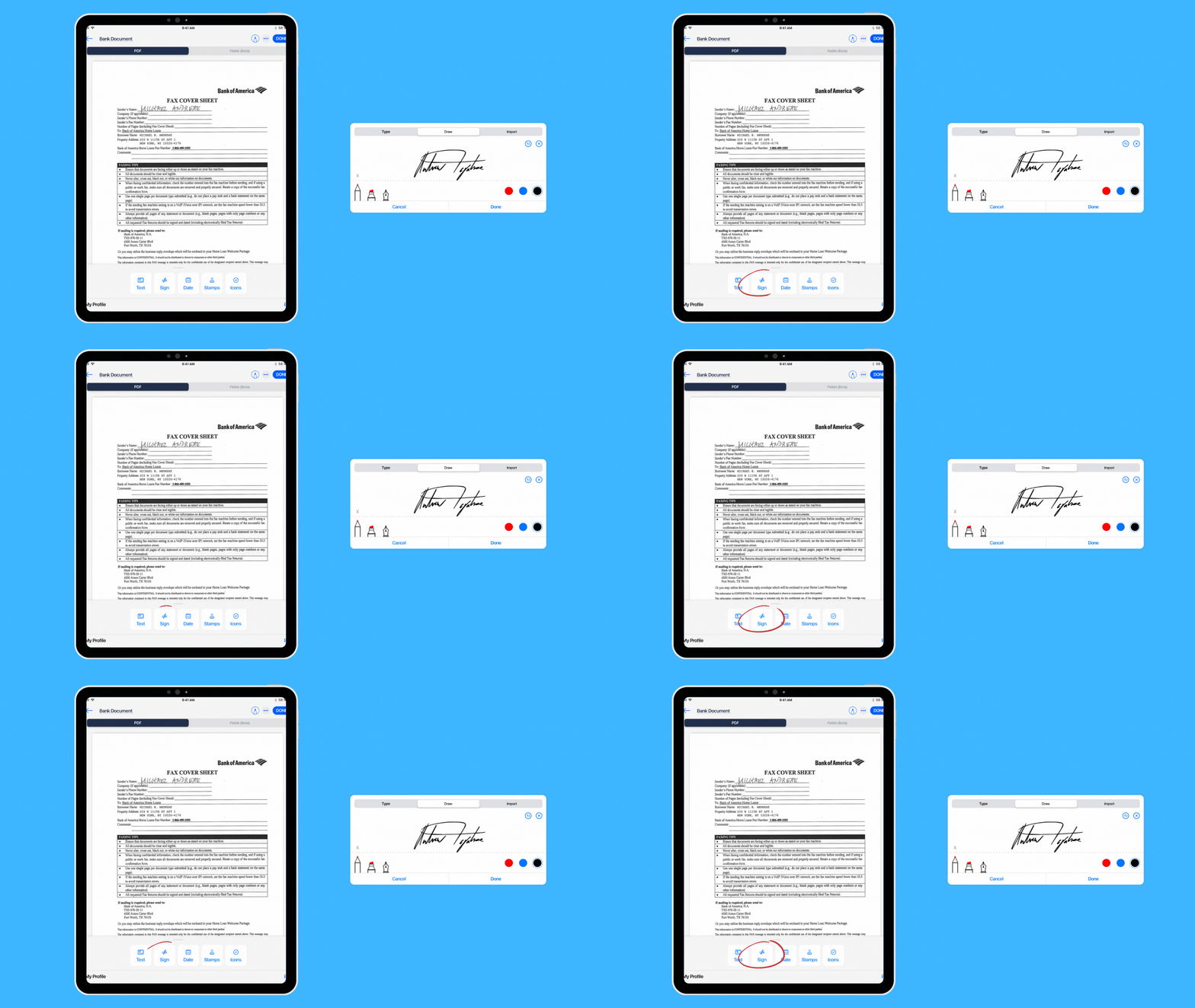
4. The document editor contains esignature tools at the bottom section. Tap the Sign button to add a new signature, which you can accomplish by drawing, typing, or importing an image.
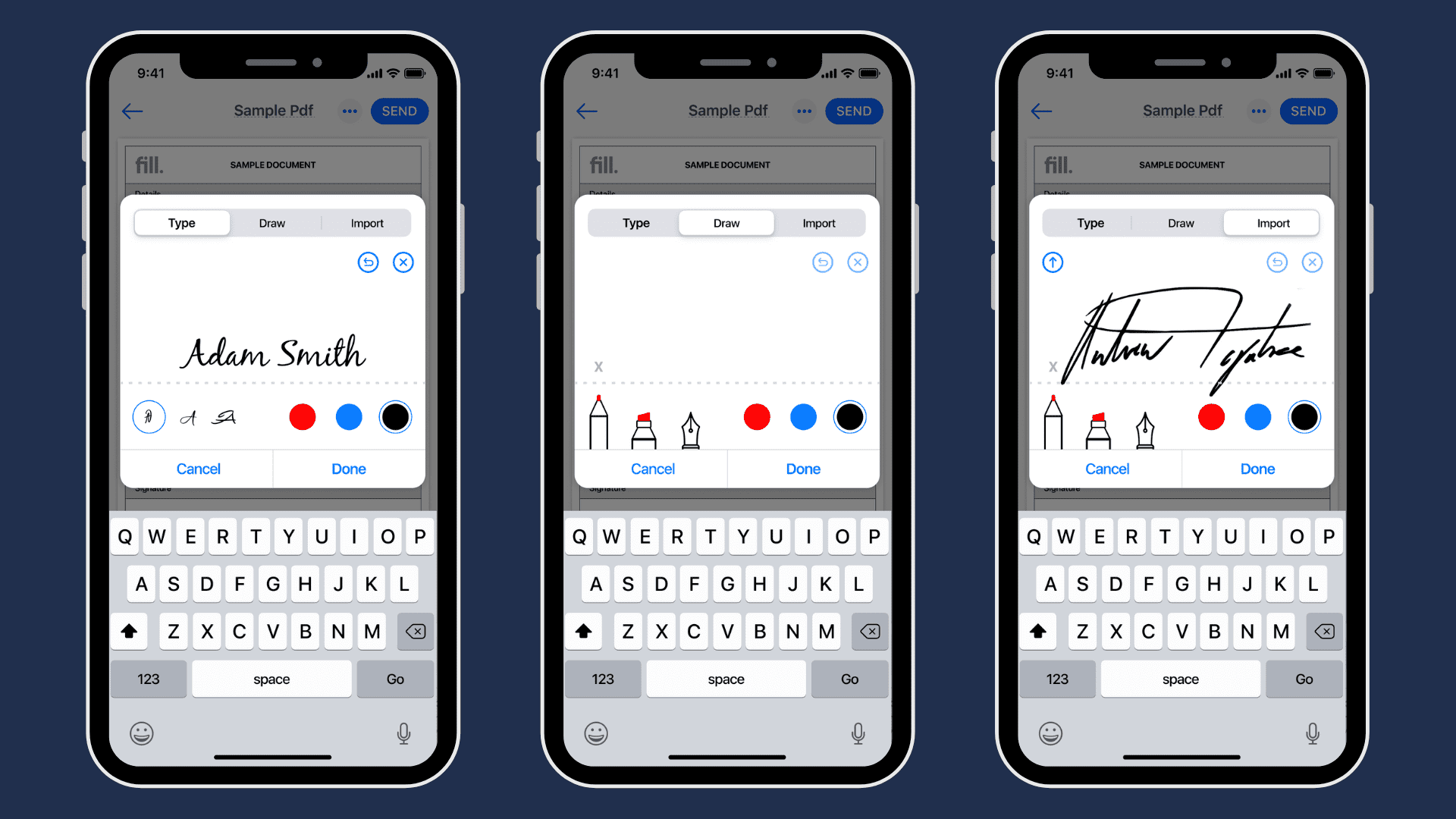
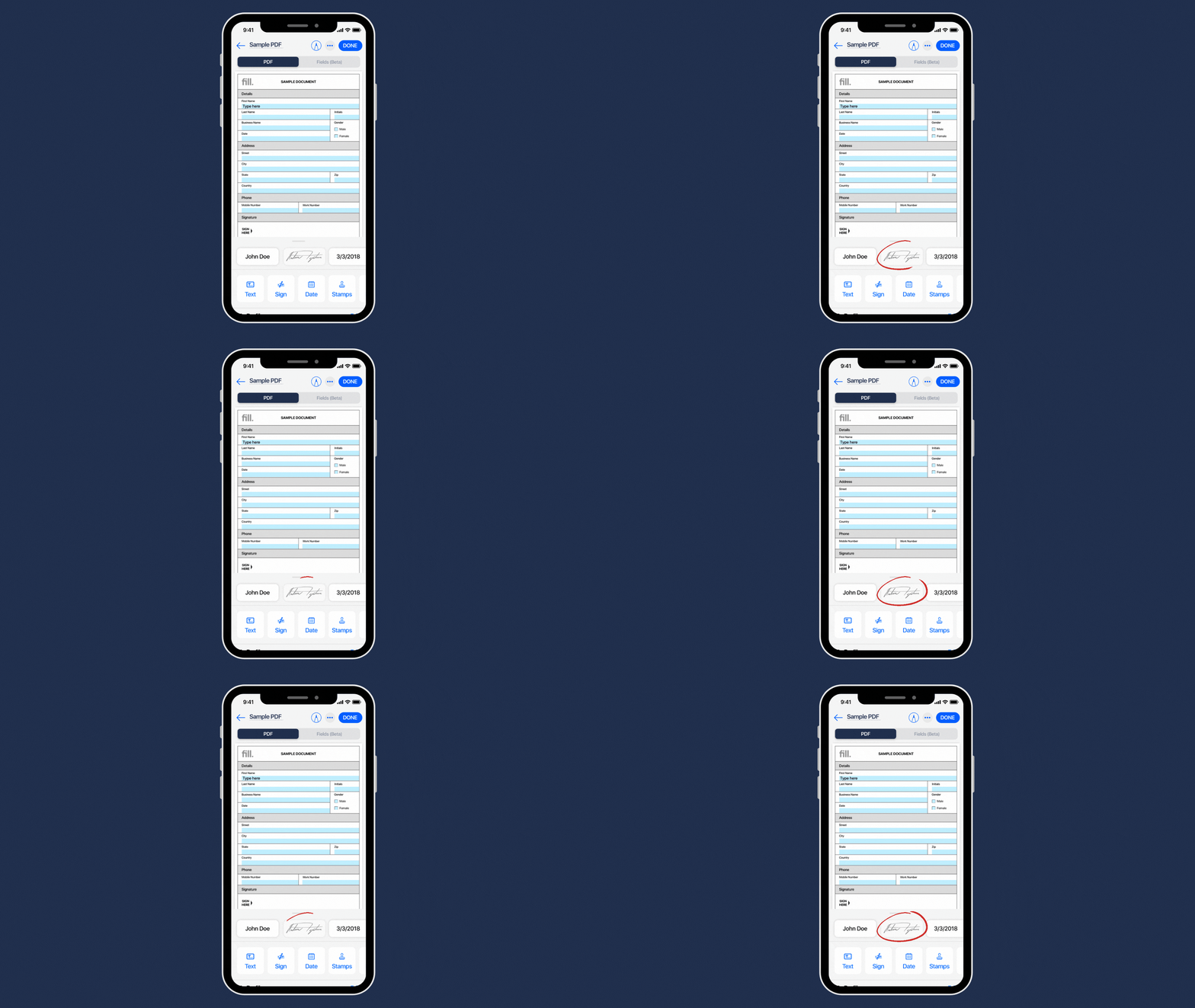
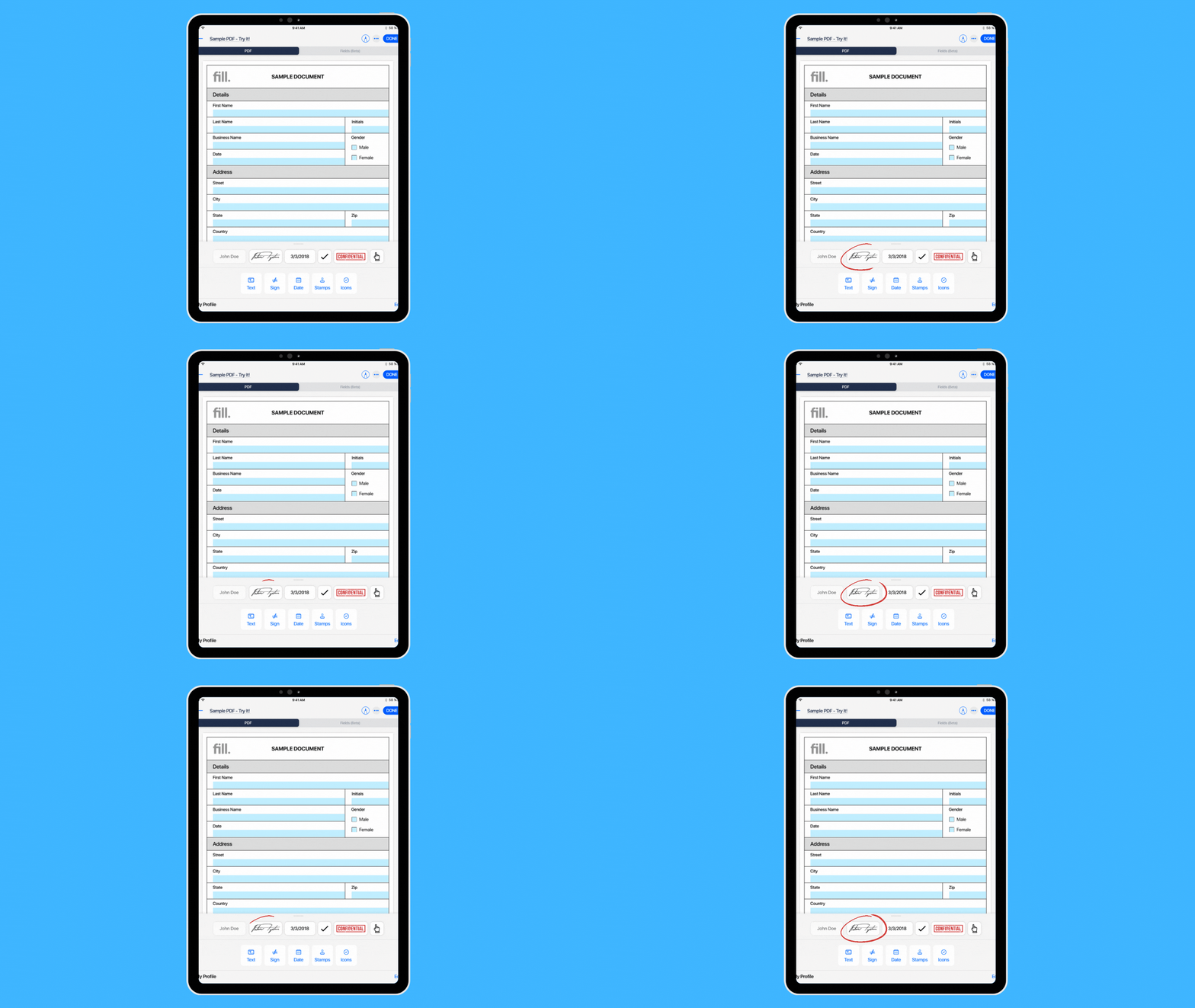
5. Your signature should now be visible on the toolbar. Drag it anywhere inside the document you’re signing.
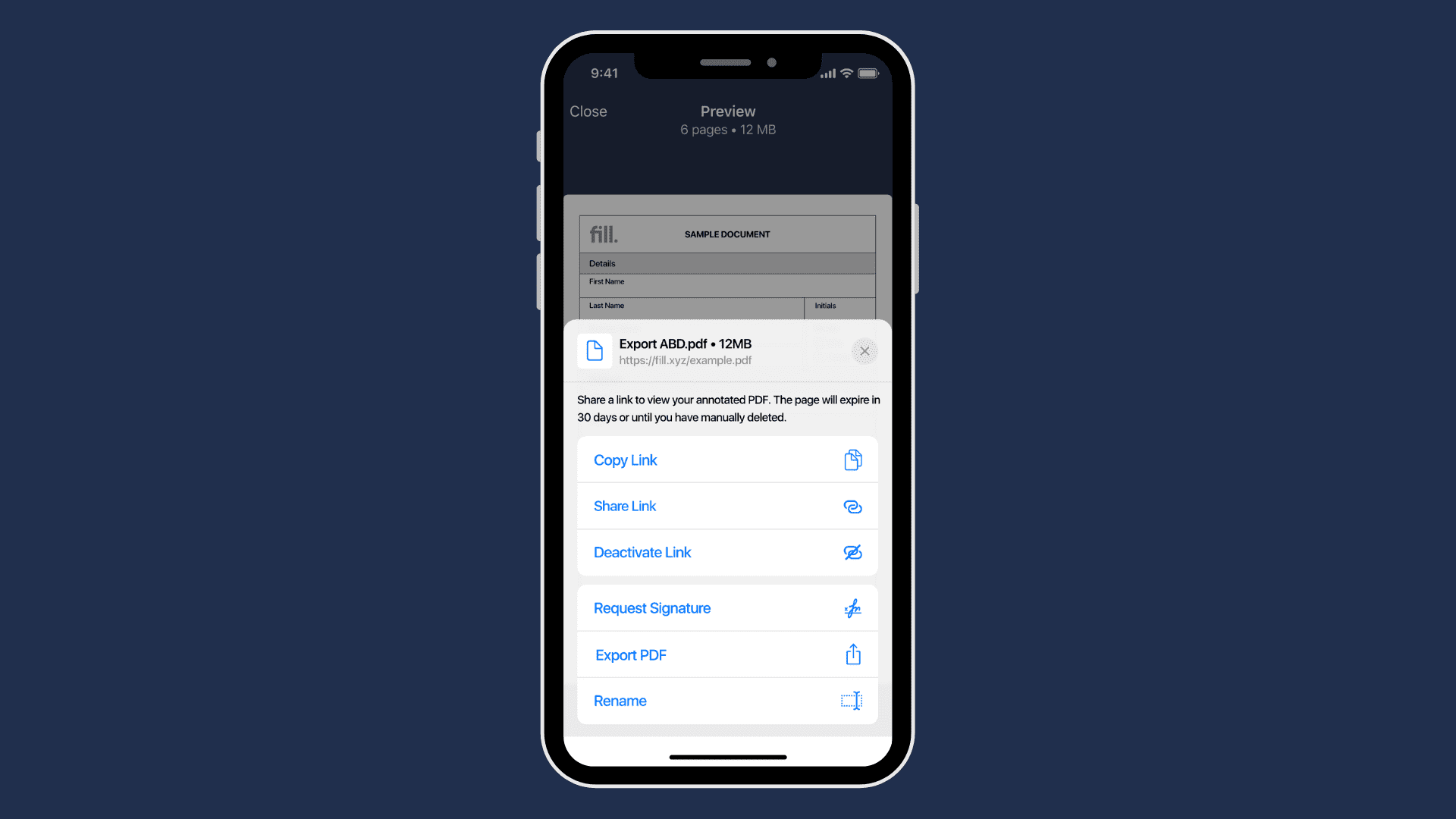
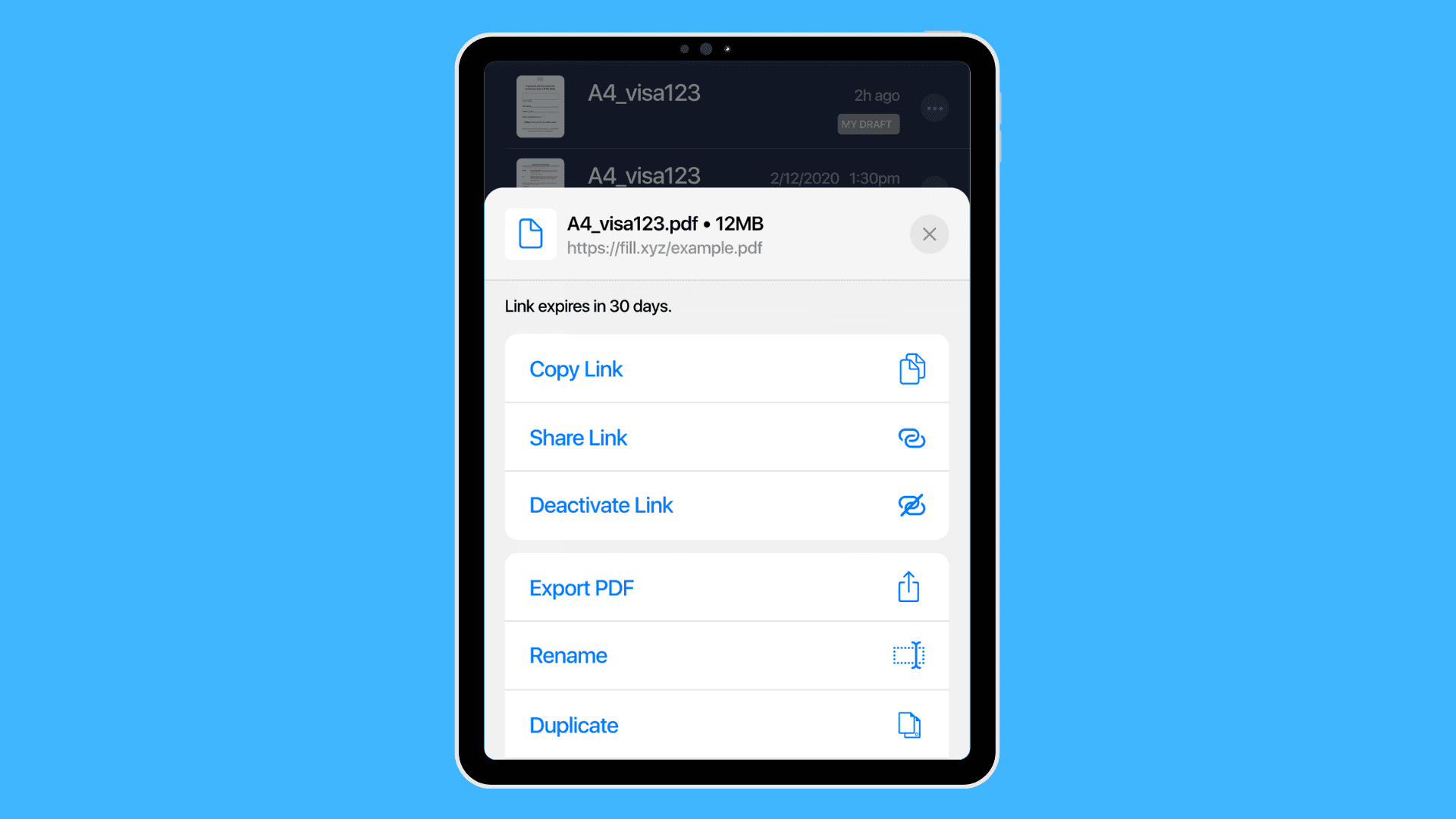
6. Once done, tap the Send button to email a copy or download the file as a PDF.
That’s how simple it can be to sign PDFs with an iPhone. The next time you need to sign anything, your electronic signature will be available on Fill.
How to Sign a PDF on iPad Using Fill
Signing documents on an iPad works almost exactly the same as signing on an iPhone, but the larger screen can make it easier to review and place signatures accurately.
Follow these steps to sign a PDF on iPad using Fill:
- Download the Fill app for iPad from the App Store.
- Open the app and log in or create a new account. You can use your Google account, Apple ID, or email address.
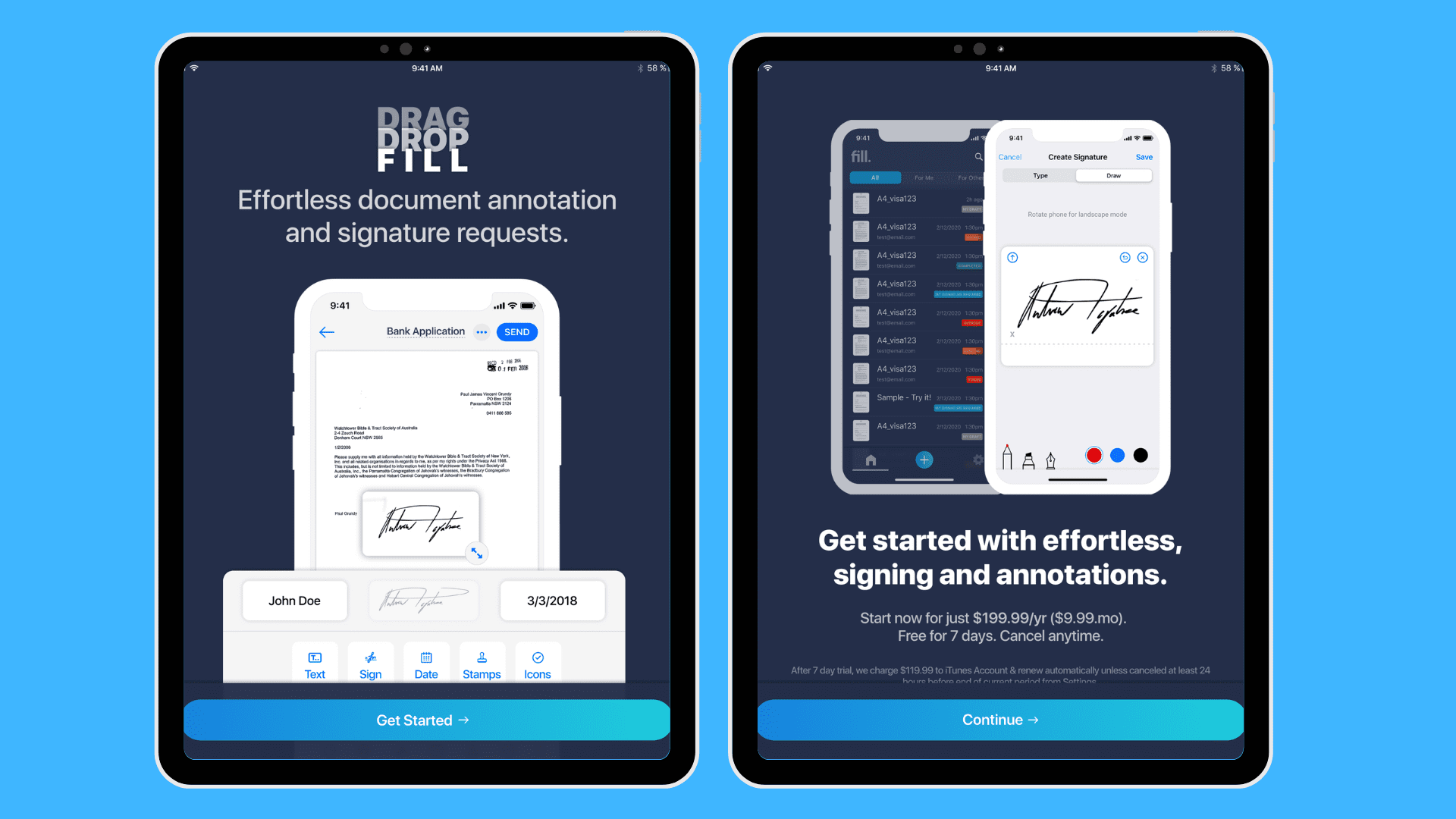
3. You can import a new document from iCloud or your device’s local storage to Fill. You could also scan a copy, create a new file, or use a template.
4. Once you’ve opened the document, tap on the Sign button to create your electronic signature. You can use Fill’s built-in tools to draw, type, or import an existing esignature.
5. Select and drag your new esignature from the toolbar to your preferred location.
6. Complete the process by exporting the document to PDF or emailing it to a recipient. You could also use a shareable link to send signed files directly to your contacts.
Because your signature is saved inside the app, you can sign documents on iPad or iPhone anytime without recreating your signature.
Are There Other Ways to Sign PDFs on an iPhone or iPad?
Apart from using Fill, there are other methods you can use to sign documents with your mobile device. You can use Apple’s built-in signing solution or an app from Adobe. Follow the short guides below to learn more.
Sign a PDF on iPhone or iPad with Adobe Acrobat Reader
Adobe Acrobat Reader is a popular PDF reader available for iOS. It allows you to electronically sign PDFs on iPhone or iPad, though some features are limited compared with dedicated eSignature tools.
1. Download the Adobe Acrobat Reader app for iOS on your device.
2. Sign in using your Adobe ID or register for a new account.
3. Look for the left or bottom navigation pane and select Files. You’ll see the option to upload or import a PDF file from cloud storage or directly from your device.
4. Next, tap the Edit icon and select Fill and Sign. Tap the pen nib button from the menu and select Create Signature or Create Initials. Adobe Acrobat Reader lets you do this in three ways:
- Draw your signature in the Sign Here box.
- Upload an image of an existing signature
- Take a photo of your handwritten signature.
5. Once your signature is ready, tap any document section and wait for the pop-up menu. Then, select the pen nib icon to add the signature.
6. Position and resize the signature however you want. Repeat the process as needed.
Save your changes and export the PDF.
While Adobe Acrobat Reader provides a fast way to sign PDFs, some of its restrictions make it less ideal as an esignature solution. You’ll need to attach the file to an email if you wish to request for other signatures or share a signed document. It also may not have as robust a feature set as other apps.
Sign Documents Using Apple Markup
Apple has a proprietary method for signing and annotating documents. With Markup, you can add text, drawings, and images to PDF files. The following steps will help you get started:
- Open a PDF file preview on the Mail app. You may also open a document through the Files app.
- Once you’ve opened the file or preview, you should see the Markup icon that looks like a pen tip. Tap on it to enter markup mode and start annotating.
- Create a new esignature by tapping the plus icon on the bottom and selecting the Signature button. You should then see an option to create an electronic signature.
- Next, draw your signature on the given space using your finger or an Apple Pencil if you have one for your iPad. You may repeat the process until you’re satisfied with the signature.
- Tap on Done and select your esignature. You may enlarge, shrink, and drag your signature anywhere inside the document.
It’s possible to create multiple esignatures on your Apple device. They will appear as an option inside the Markup interface the next time you need to use them.

Sign Emailed Attachments on iPhone
If someone sends you a contract, form, or agreement by email, you can sign it directly on your iPhone without downloading additional software. Apple's built-in Markup feature lets you add an electronic signature to PDF attachments from the Mail app in just a few steps.
Here's how to sign an emailed document on iPhone:
- Open the email containing the document attachment.
- Tap the PDF attachment to open it in Mail.
- Tap the Markup icon (the pen tip icon) in the upper-right corner.
- Tap the + button and select Signature.
- Create a new signature using your finger, or choose a saved signature if you've used Markup before.
- Drag and resize the signature to the appropriate location in the document.
- Tap Done, then choose whether to reply to the email with the signed document or save a copy to your device.
This method works well for quickly signing PDF attachments from email. If you frequently sign contracts, request signatures from others, or need additional document management features, a dedicated eSignature app may provide a more streamlined workflow.
Need to sign a Word document attached to an email? See the next section on how to sign Word documents.
How to Sign a Word Document on iPhone
Many people receive contracts, forms, or agreements as Word documents rather than PDFs. While iPhone's built-in Markup tool works best with PDFs, you can still sign a Word document using several methods.
Option 1: Use the Microsoft Word App
If you already use Microsoft Word on your iPhone, you can add a signature image directly to the document.
- Open the Word document in the Microsoft Word app.
- Tap the ellipsis (...) menu.
- Select Insert and choose Pictures.
- Insert a saved image of your signature.
- Resize and position the signature where needed.
- Save or share the signed document.
Keep in mind that this method requires a Microsoft account and may require a subscription depending on your plan.

Option 2: Convert the Word File to PDF and Use Markup
If you want to create a handwritten signature directly on your iPhone, converting the document to PDF is often the easiest approach.
- Open the Word file.
- Tap Share and select Print.
- Pinch outward on the print preview to create a PDF.
- Save the PDF to the Files app.
- Open the PDF and tap the Markup icon.
- Tap the + button and select Add Signature.
- Draw, place, and resize your signature as needed.
Option 3: Use an eSignature App
Dedicated eSignature apps such as Fill allow you to import Word documents, create a signature, and sign documents directly from your iPhone without converting files manually.
This is typically the easiest option if you regularly sign documents or need additional features such as document tracking, cloud storage integrations, and signature requests.
iPhone vs iPad: Is There a Difference?
The Easiest Way to Sign Documents on iPhone or iPad
If you regularly sign contracts, forms, or agreements from your phone, using a dedicated eSignature tool can simplify the process.
Fill helps you sign PDFs on iPhone and iPad quickly, while also providing features designed for business workflows, including:
- Secure document sharing
- Real-time signing notifications
- Document scanning from your phone
- Cloud storage integrations
- 256-bit encryption and signer verification
You can create your account in minutes and start signing documents immediately. Get started for free and experience a better way to sign PDFs on an iPhone or iPad.
If you want to explore more methods and tools, you can also read our complete guide on how to sign a PDF, which covers additional ways to electronically sign documents across different devices.
Frequently Asked Questions
Can You Sign a Word Document on iPhone?
Yes. You can sign a Word document on an iPhone using the Microsoft Word app, convert the file to PDF and use Apple Markup, or use an electronic signature app that supports Word documents. The best method depends on whether you need a quick signature or additional features such as document tracking and signature requests.
Can You Sign Documents on iPhone Without Downloading an App?
Yes. Apple's built-in Markup tool allows you to sign PDF documents directly from the Files and Mail apps without installing additional software. Simply open the document, tap the Markup icon, add your signature, and save the signed file.
How Do You Sign an Emailed Document on iPhone?
Open the document attachment in the Mail app and tap the Markup icon. Then tap the + button, select Signature, and either create a new signature or choose a saved one. Once you've placed your signature on the document, tap Done to save or send the signed file.
Can You Sign a PDF on iPhone for Free?
Yes. You can sign PDF documents for free using Apple's built-in Markup feature. Several electronic signature apps also offer free plans that allow you to sign documents from your iPhone or iPad.
Is It Legal to Sign Documents on an iPhone?
Yes. Electronic signatures are legally recognized in many countries, including the United States under the ESIGN Act. In most cases, a document signed electronically carries the same legal validity as a handwritten signature, provided the signing process complies with applicable laws and regulations.
Can You Sign Documents on an iPad?
Yes. You can sign PDFs, Word documents, contracts, and forms on an iPad using the same methods available on iPhone, including Apple Markup, Microsoft Word, Adobe Acrobat Reader, and electronic signature apps. Many users find signing documents on an iPad easier because of its larger screen and Apple Pencil support.
What Is the Easiest Way to Sign Documents on iPhone or iPad?
For occasional use, Apple's Markup feature is often the quickest option because it's built into iOS. If you regularly sign documents, request signatures from others, or manage business paperwork, a dedicated electronic signature app typically provides a more streamlined workflow.
Can You Create and Save a Signature on iPhone?
Yes. Apple Markup allows you to create and save one or more signatures for future use. Once saved, your signature can be inserted into compatible documents without needing to redraw it each time.


View our Privacy Policy for more info.