Best Apps to Fill Out Forms Online (Free & Paid) in 2026
Form-filling apps make completing documents easy on mobile or computer. They save time, improve data accuracy, and ensure strong security, replacing outdated paper-based forms.


Updated: July 2026
Looking for the best app to fill out forms online?
Whether you need to complete a PDF, create a fillable form, or collect legally binding eSignatures, the right form filling app can save you hours of printing, scanning, and manual paperwork.
To help you choose, we tested some of the most popular free and paid form filling apps—including Fill, DocuSign, Adobe Acrobat, Jotform, Signaturely, and more. We compared how easy they are to create fillable fields, complete and sign documents, share forms with others, and manage repeat workflows.
In this guide, you'll find side-by-side comparisons, pricing insights, and our hands-on experience with each platform so you can choose the best solution for your workflow.
Compare the Best Form Filling Apps
Choosing the right form filling app depends on how you work. Some tools are best for filling out a single PDF, while others are built for creating reusable forms, collecting eSignatures, and automating document workflows.
The table below summarizes our hands-on testing. Click any tool name to jump to its detailed review.
Short on time? Here's the quick takeaway:
- Choose Fill if you need reusable forms, eSignatures, and workflow automation.
- Choose DocuSign if you need enterprise-grade signing and compliance.
- Choose Adobe Acrobat if PDF editing is your top priority.
- Choose Jotform if you want a generous free form builder.
Best Form Filling Apps (Detailed Reviews)
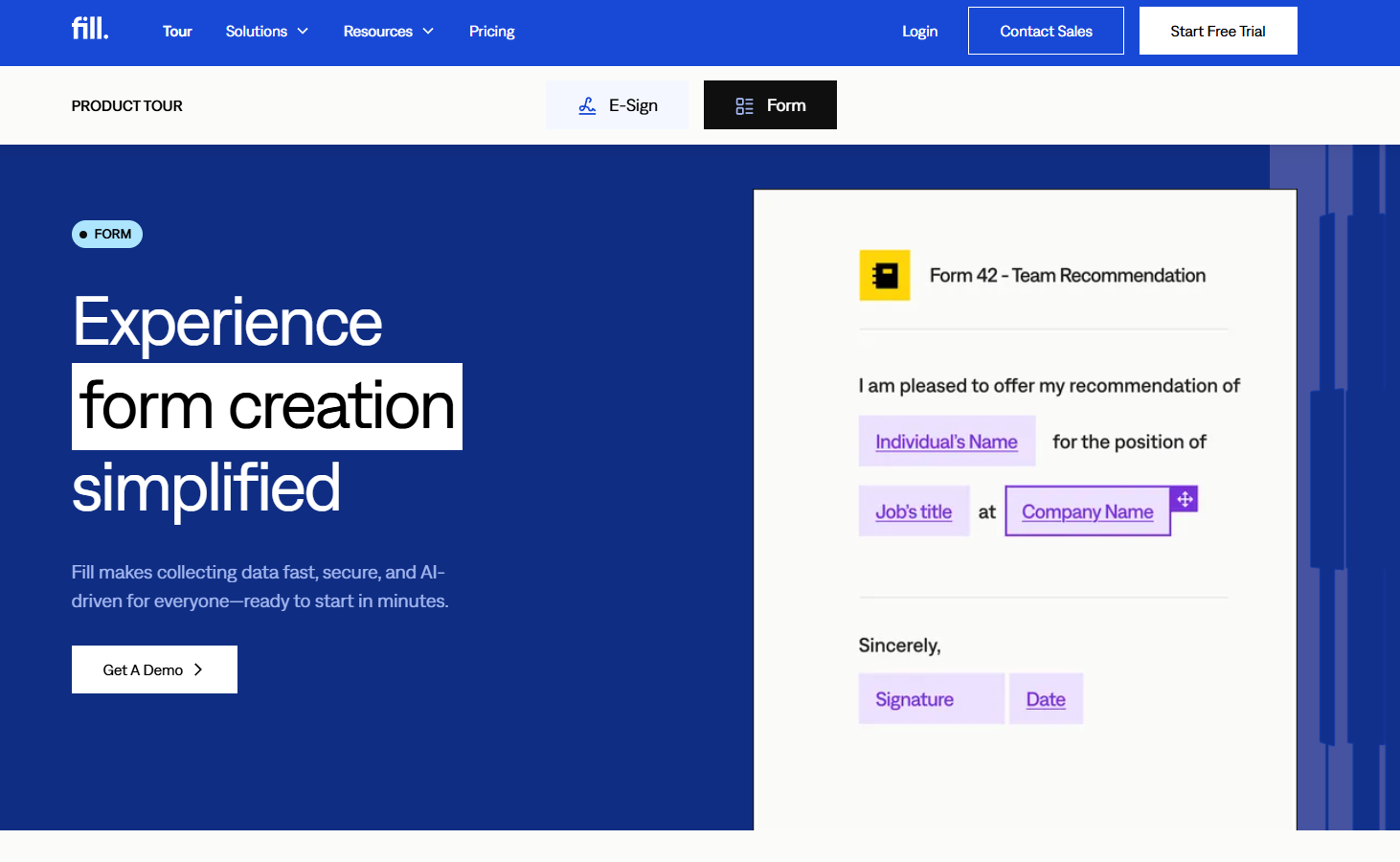
Fill
Best Overall Form Filling App for Workflow Control
My experience using Fill:
Signing up was quick since I could use my Google account, and I was inside the dashboard in under a minute. The interface immediately stood out—it’s clean, minimal, and clearly designed for getting documents out fast.
The START button makes the workflow obvious. From there, I could upload a document and choose whether I wanted to sign it myself, send it out, or turn it into a reusable form.
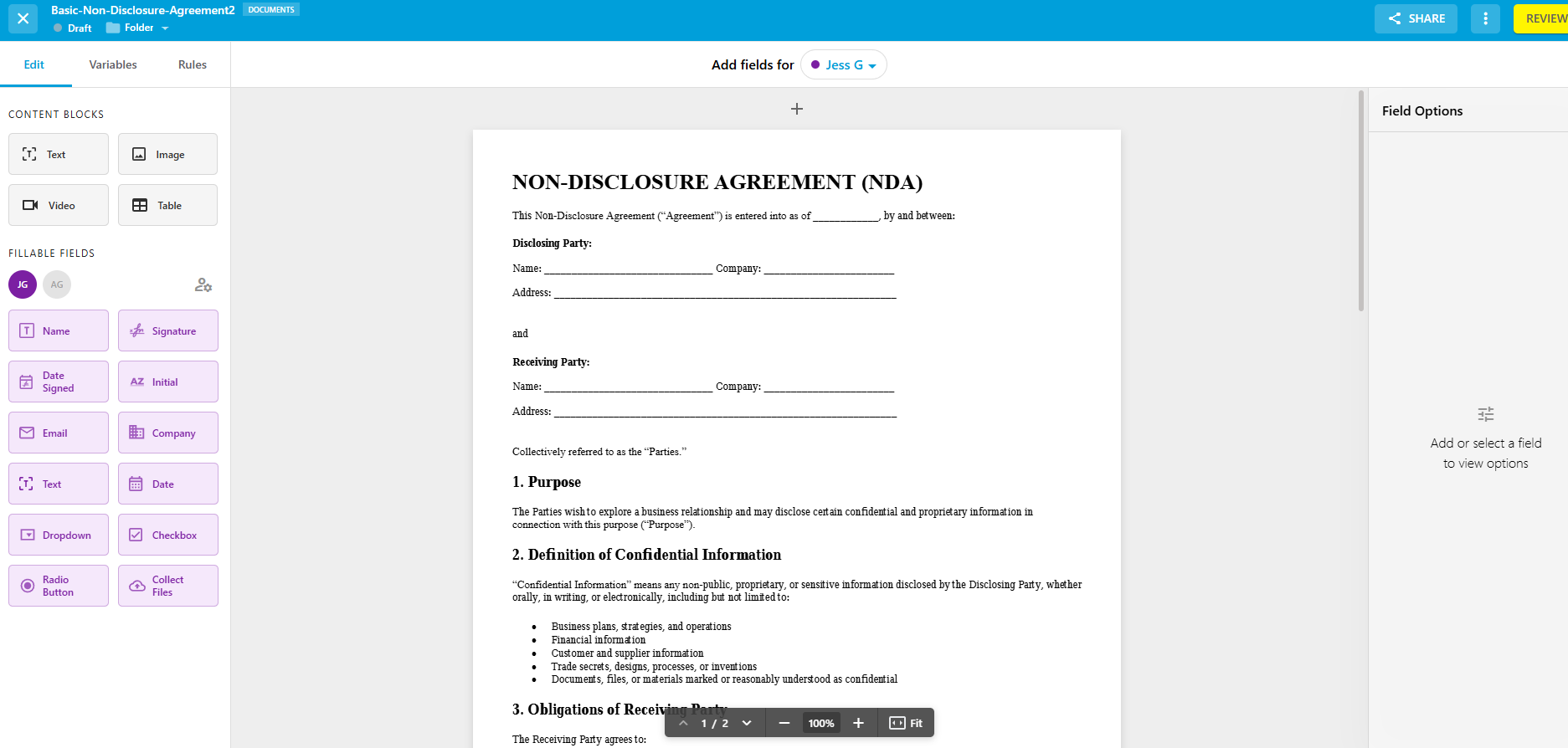
What really impressed me was how easy it was to build fillable fields. Drag-and-drop felt smooth, and the sidebar made it easy to configure each field without guessing. I especially liked the ability to:
- Pre-fill known data (huge time saver)
- Link fields together so repeated info auto-populates across the document
This becomes incredibly useful for long forms where the same details appear multiple times.
Another standout: I could fill and sign my own parts before sending, so recipients receive a partially completed document instead of starting from scratch.
There’s also a “Test as recipient” feature, which is something most tools don’t offer. It let me preview the entire experience before sending—super helpful for catching mistakes.
Once sent, document management felt polished. I could immediately organize files into folders, tag them, or convert them into templates without interrupting my workflow.
On the recipient side, the experience was just as smooth:
- Instant email delivery
- Progress bar for completion
- One-click “Done” submission
There’s even an AI assistant for summarizing contracts, though it requires a login.
Pricing observations:
Starts around the mid-range tier compared to competitors, with a free trial available and paid plans positioned for regular workflow use rather than one-off signing. You can publish live forms with the Pro Plan for $29 monthly (annual subscription), but the Basic Plan at $8 monthly (annual subscription) lets you add fillable fields to documents.
What it does well:
- Fast, intuitive form builder with advanced field controls
- Pre-fill + field linking (great for long or repetitive forms)
- Built-in testing before sending
- Strong document organization (folders, tags, templates)
- Combines form filling + eSignature maker + form creation in one tool
Limitations:
- Signature timestamps can disrupt formatting if not planned
- AI assistant requires login (even for recipients)
Best for: Teams and professionals who regularly send forms and want full control over how documents are filled, shared, and reused
Avoid if: You only need to fill out a single document occasionally and don’t need workflow features
DocuSign
Best for Enterprise-Level Form & Signing Workflows
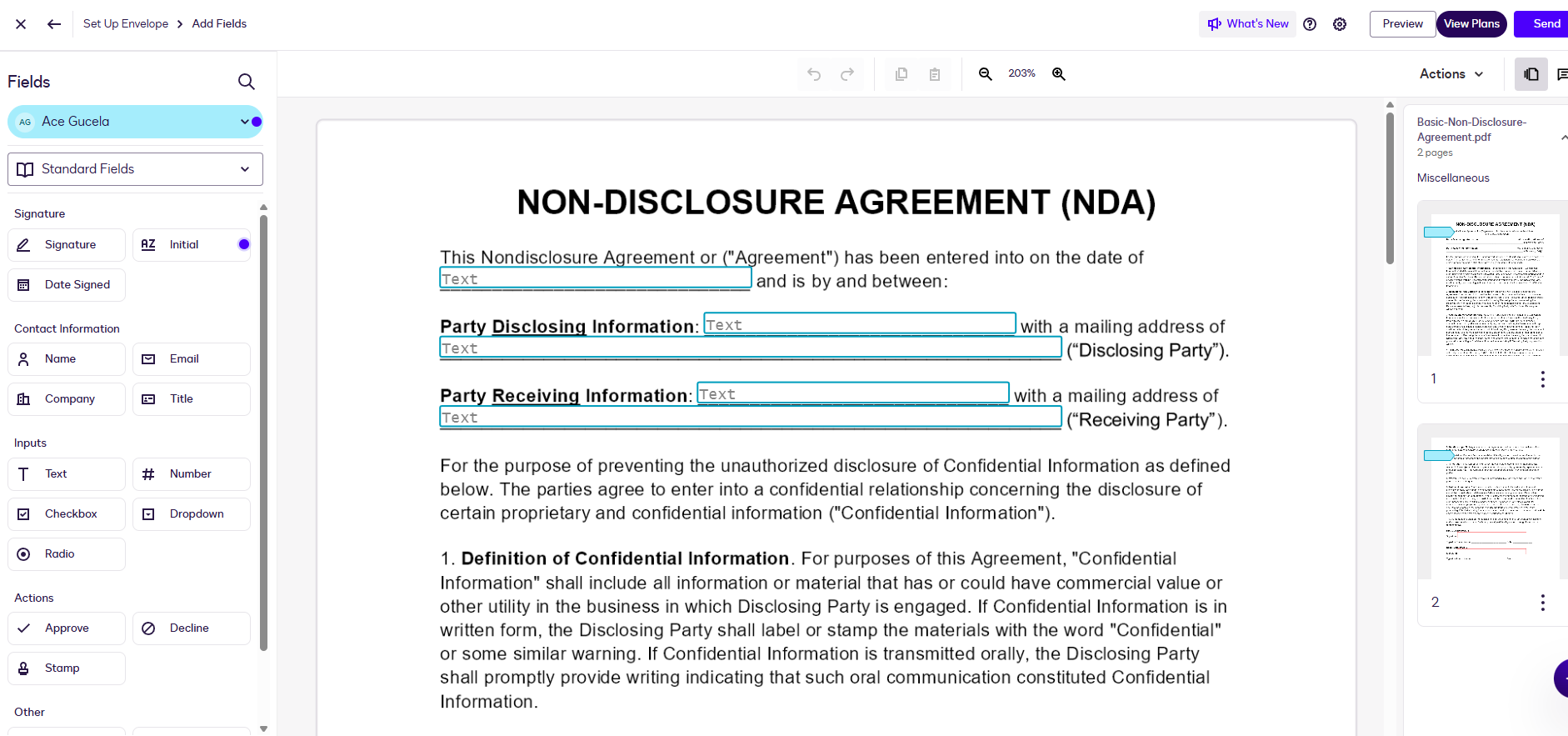
My experience using DocuSign:
Getting started took a bit longer than other tools because of the verification steps and onboarding questions. I had to skip several prompts just to reach the dashboard.
Once inside, the workflow became much clearer.
Uploading a document and setting recipients was fast, and everything is structured around sending documents for signature first. That’s important—DocuSign isn’t really a general form filler. It’s built for formal signing workflows.
Adding fields was smooth. I had access to:
- Standard fields (text, date, checkbox)
- Advanced fields like formula fields, approvals, and validations
This makes it powerful for structured documents like contracts or compliance forms.
One thing I liked: recipients don’t need to log in to sign, which removes friction.
However, one issue stood out—when I hit “Send,” the document was sent immediately with no final review step, which can be risky if you missed something.
Pricing observations:
Sits in the premium tier, with plans that scale based on users and features. It’s significantly more expensive than lightweight tools, especially for teams. Basic plan costs $10 monthly (with annual subscription).
What it does well:
- Extremely fast document sending and signing
- Advanced field types and validations
- Strong tracking and reporting dashboard
- High level of security and compliance
Limitations:
- Overkill for simple form filling
- No true “form builder” outside signing workflows
- Can feel overwhelming for first-time users
- Limited flexibility compared to tools that support standalone forms
Best for: Businesses with structured workflows, contracts, and compliance-heavy documents
Avoid if: You just want a simple way to fill out forms or create reusable fillable documents
Signaturely
Best Simple Alternative to Complex eSignature Tools

My experience using Signaturely:
Getting started was straightforward, especially with Google sign-in, though requiring a credit card for the trial felt like friction.
Uploading documents and adding fields was easy, and the interface felt less cluttered than tools like DocuSign.
One thing I really liked: I could fill out my own fields (including signatures) during setup, instead of reopening the document later. This saved time and made the workflow feel more efficient.
However, the platform is clearly built around basic signing workflows, not advanced form building.
There are no templates available upfront, and form creation is limited to:
- Uploading an existing document
- Adding basic fields
Sharing is also very simple—you just generate a link and send it manually. There’s no built-in distribution or automation.
Pricing observations:
It's positioned as an affordable alternative for individuals and small teams, with plans significantly cheaper than DocuSign. However, creating online forms are available with the Business Plan which costs $50 per month.
What it does well:
- Clean, simple interface
- Fast document setup and sending
- Ability to pre-fill your own fields before sending
- Good for straightforward signing workflows
Limitations:
- No advanced form builder or templates (unless on higher plans)
- Limited integrations beyond cloud storage
- Not ideal for complex or multi-step workflows
Best for: Freelancers and small teams who want a simple, no-frills way to send and sign documents
Avoid if: You need advanced form logic, automation, or scalable workflows
Adobe Acrobat
Best for Advanced PDF Editing + Form Filling
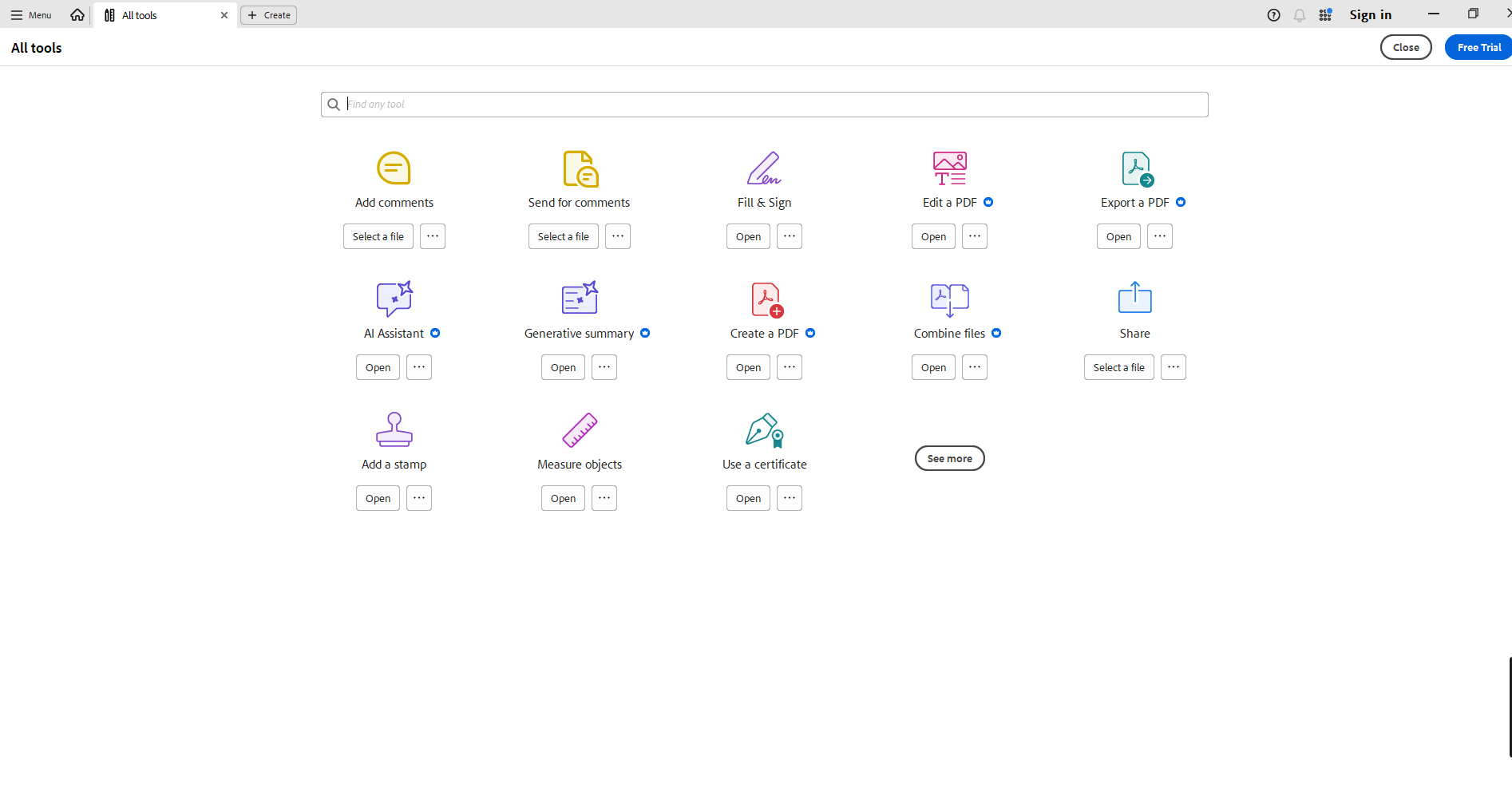
My experience using Adobe Acrobat:
Getting started took longer than expected. Instead of going straight into the tool, I had to navigate through Adobe’s admin console, which felt overwhelming at first.
Once inside, though, the power of the platform became clear.
Uploading documents and assigning fields was easy, but what stood out was the AI-powered field detection. It automatically identified where fields should go, which saved a lot of manual work.
Unlike most tools on this list, Adobe feels like a complete PDF ecosystem, not just a form filler.
However, that also makes it more complex. There are more features than most users need, and it can feel heavy if you just want to fill out a simple form.
Pricing observations:
Premium-priced tool, typically among the more expensive options, especially when bundled with Adobe’s broader document ecosystem. Adobe Pro license starts at $22 per month (annual billing).
What it does well:
- Advanced PDF editing + form filling in one platform
- AI-powered field detection
- Strong tracking, compliance, and audit features
- Deep integration with Adobe ecosystem
Limitations:
- Steeper learning curve
- More expensive than most alternatives
- Overkill for basic form filling needs
Best for: Professionals who need advanced PDF editing + form workflows in one place
Avoid if: You just want a quick and simple form filling tool
Jotform
Best for Turning Forms Into Signable Workflows
My experience using Jotform:
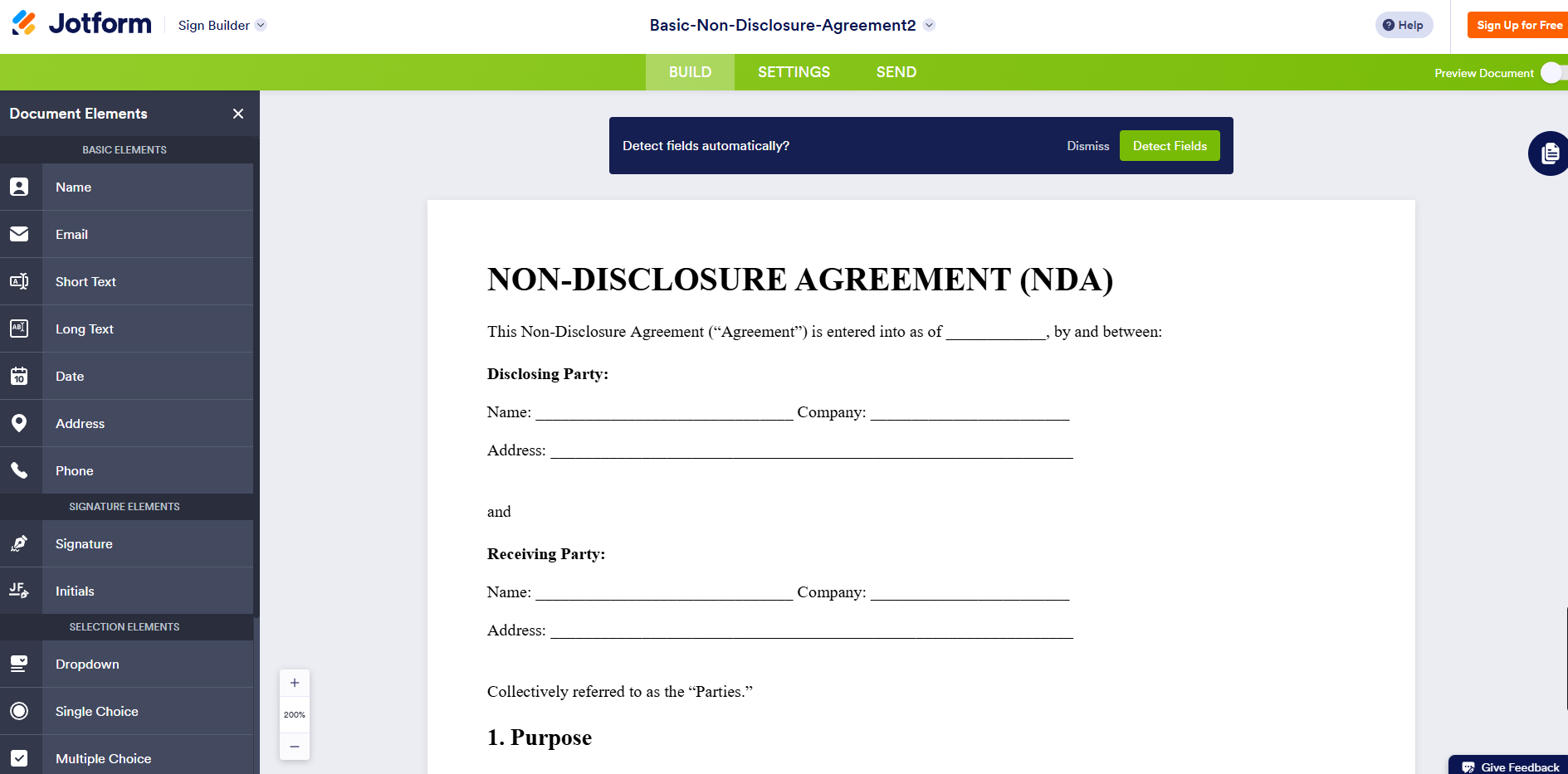
Jotform’s strength clearly comes from its form-building roots. You can create full forms, convert PDFs into interactive formats, and connect them to workflows. These can all be accomplished using different Jotform products. However, if you need a seamless workflow, the different products don't seem to intuitively flow with each other. Each one has its own dashboard and, clearly, its own purpose.
On the signing side, though, things were straightforward, with a clear confirmation prompt before completing the document.
Jotform had one of the fastest starting points. I was able to upload a document and begin adding fields immediately—even before creating an account.
The editor felt intuitive. I could either drag fields into place or click to add them instantly, and there’s also an option to auto-detect fields. However, I still had to manually assign each field to the correct signer, which added an extra step.
Things became confusing after sending the document.
There was no clear confirmation or redirect to a dashboard, so I wasn’t immediately sure if the document had actually been sent.
Pricing observations:
Offers a generous free plan, with paid tiers scaling based on submissions and advanced features. It's generally more affordable than enterprise eSignature tools, with the Free Plan including 5 forms with 100 submissions.
What it does well:
- Very fast document setup and field creation
- Strong form-building capabilities
- Auto-detection of fillable fields
- Free plan available without a credit card
Limitations:
- Confusing sending workflow
- Weak visibility after sending documents
- Feels disconnected from its core form builder
- Email notifications may be easy to miss
Best for: Users who already use Jotform and want to add eSignatures to their existing forms and workflows
Avoid if: You want a clean, straightforward eSigning experience without extra complexity
DocFly
Best for One-Time Form Filling Without Signup

My experience using DocFly:
DocFly is one of the simplest tools in this list. I didn’t even need to create an account—I could just upload a document and start editing right away.
The interface is straightforward, with three main modes: editing, form creation, and document organization. Adding text, signatures, and fillable fields was easy, and everything felt focused on getting the job done quickly.
However, this simplicity comes with major limitations.
There’s no real “send for signature” workflow unless you upgrade. Instead, you’re expected to download or manually share the document after filling it out.
The biggest constraint is the free plan—you only get one export credit per month, which means you need to get everything right the first time.
Pricing observations:
Free usage is extremely limited (a single export per month, and documents are deleted after 24 hours). There's a low-cost paid plan at $7.99 per month that includes unlimited exports.
What it does well:
- No signup required to start
- Simple and focused editing experience
- Easy to add fillable fields and signatures
Limitations:
- No built-in eSignature sending workflow (free plan)
- Extremely limited exports
- Not designed for ongoing document workflows
Best for: Users who need to quickly fill out or sign a single document without creating an account
Avoid if: You need to send documents for signature or manage multiple workflows
PDFescape
Best for Basic PDF Edits (Not Form Filling Workflows)

My experience using PDFescape:
PDFescape feels dated right away, but it gets the basics done.
Uploading a document was easy, and I could start editing immediately without signing up. Adding text, shapes, and simple form fields worked—but the experience felt clunky.
Every action required the page to refresh, which slowed things down significantly.
More importantly, this isn’t really a form-filling or eSigning tool. There’s no proper way to add signature fields or send documents for signing, which makes it limited for anything beyond basic edits.
Pricing observations:
Low-cost entry point, but limited free functionality. The free plan only allows for basic PDF editing.
What it does well:
- Free and accessible without signup
- Simple PDF editing and annotations
Limitations:
- No eSignature workflow
- Very limited form field options
- Clunky, outdated interface
Best for: Users who only need to make quick edits to a PDF
Avoid if: You need to create fillable forms or send documents for signature
Soda PDF
Best for Full PDF Editing (If You Don’t Mind the Paywall)
My experience using Soda PDF:
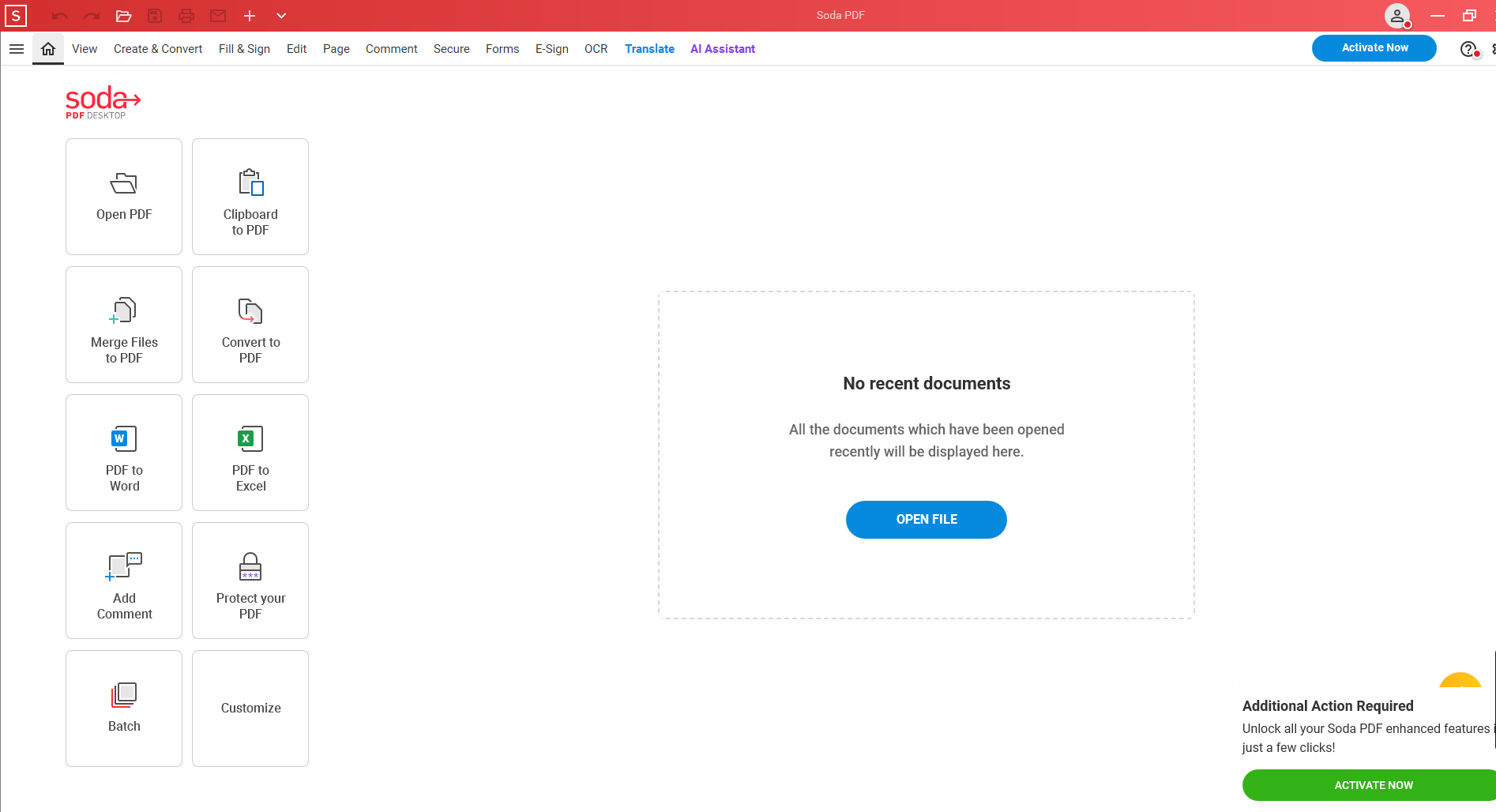
Soda PDF looks modern, but the experience quickly becomes frustrating.
Before I could even use the tool, I had to download the desktop app. After installing it, I found out that most features—including saving my work—required a paid subscription.
The interface is packed with features, but that also makes it harder to navigate. Finding the tools for creating fillable fields took longer than expected.
While it does support eSigning, you need to create an account and activate a paid plan before you can actually use it.
Pricing observations:
Most functionality is locked behind a subscription. You can try the tool's features, but you can't save or send your document without activating a plan. Plans start at $6 monthly.
What it does well:
- Modern interface
- Wide range of PDF editing tools
Limitations:
- Requires download before use
- Paywall blocks most core features
- Confusing navigation due to feature overload
Best for: Users who want a full PDF editing suite and are willing to pay upfront
Avoid if: You’re looking for a quick, accessible form-filling or eSigning tool
pdfFiller
Best for Editing PDFs Like a Word Document
My experience using pdfFiller:
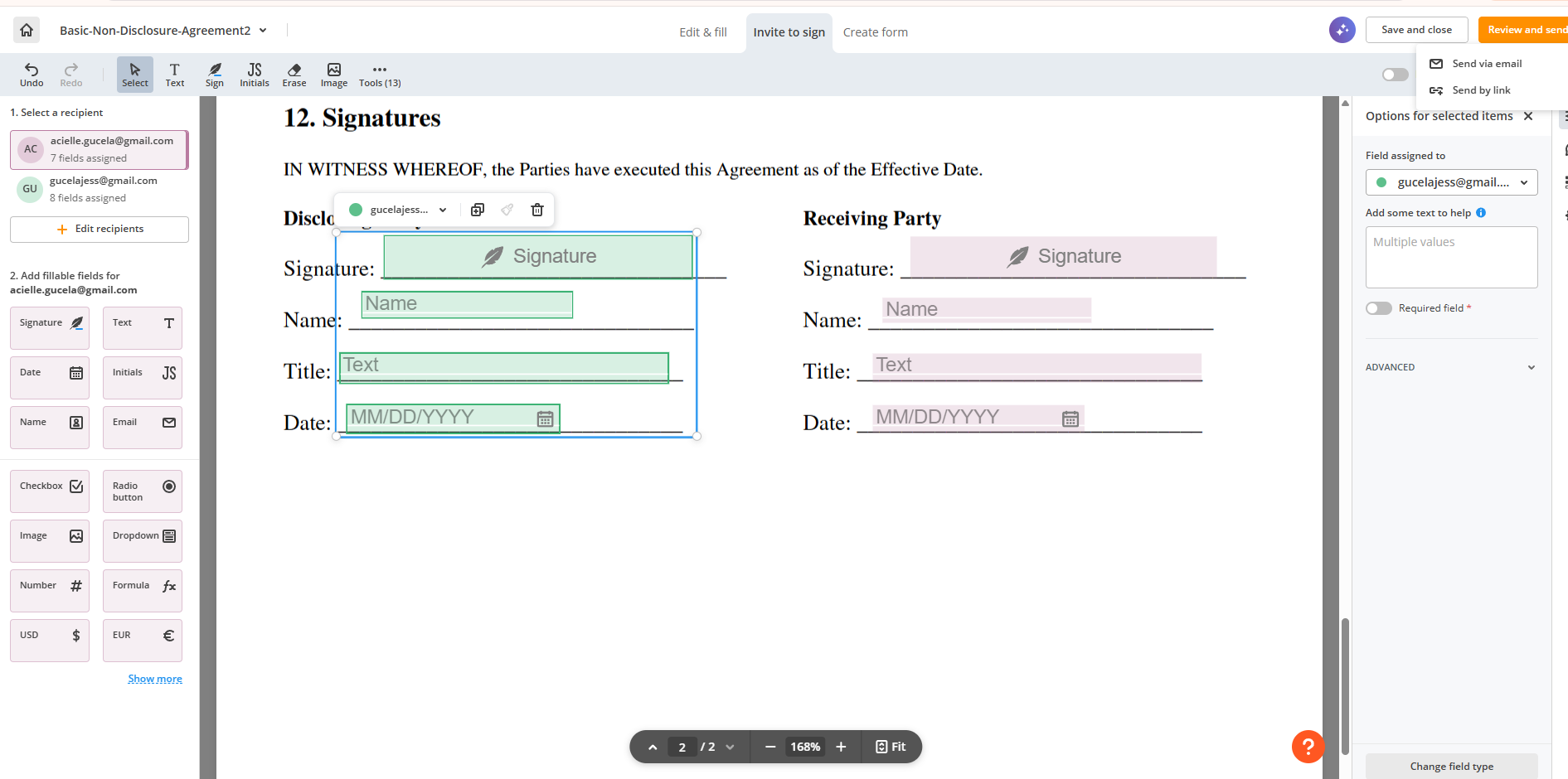
pdfFiller stood out because I could edit the text inside a PDF directly—almost like working in a Word document.
I was able to upload a document and start editing immediately without signing up, which was great. Adding fillable fields was also straightforward once I figured out the interface.
However, the workflow breaks down later.
When I tried to download or send the document, I was suddenly required to create an account and start a trial. After signing up, the document I was working on disappeared, and I had to redo everything from scratch.
Assigning fields to multiple signers also felt repetitive, since I couldn’t fully configure everything upfront.
Pricing observations:
Offers a free trial, but requires a credit card and full signup before exporting or sending documents. Plans start at $8 monthly with an annual subscription.
What it does well:
- Full PDF text editing
- Easy document upload and field creation
- Combines editing and eSigning
Limitations:
- Workflow interruptions (forced signup mid-process)
- Lost progress after account creation
- Repetitive field assignment
Best for: Users who need to heavily edit PDFs before sending them for signature
Avoid if: You want a smooth, uninterrupted document workflow
Smallpdf
Best for General PDF Tasks (Not Form Filling Workflows)
My experience using Smallpdf:
Smallpdf is very upfront—you need to start a free trial and enter your credit card before using most features. I actually appreciated this because it doesn’t waste your time.
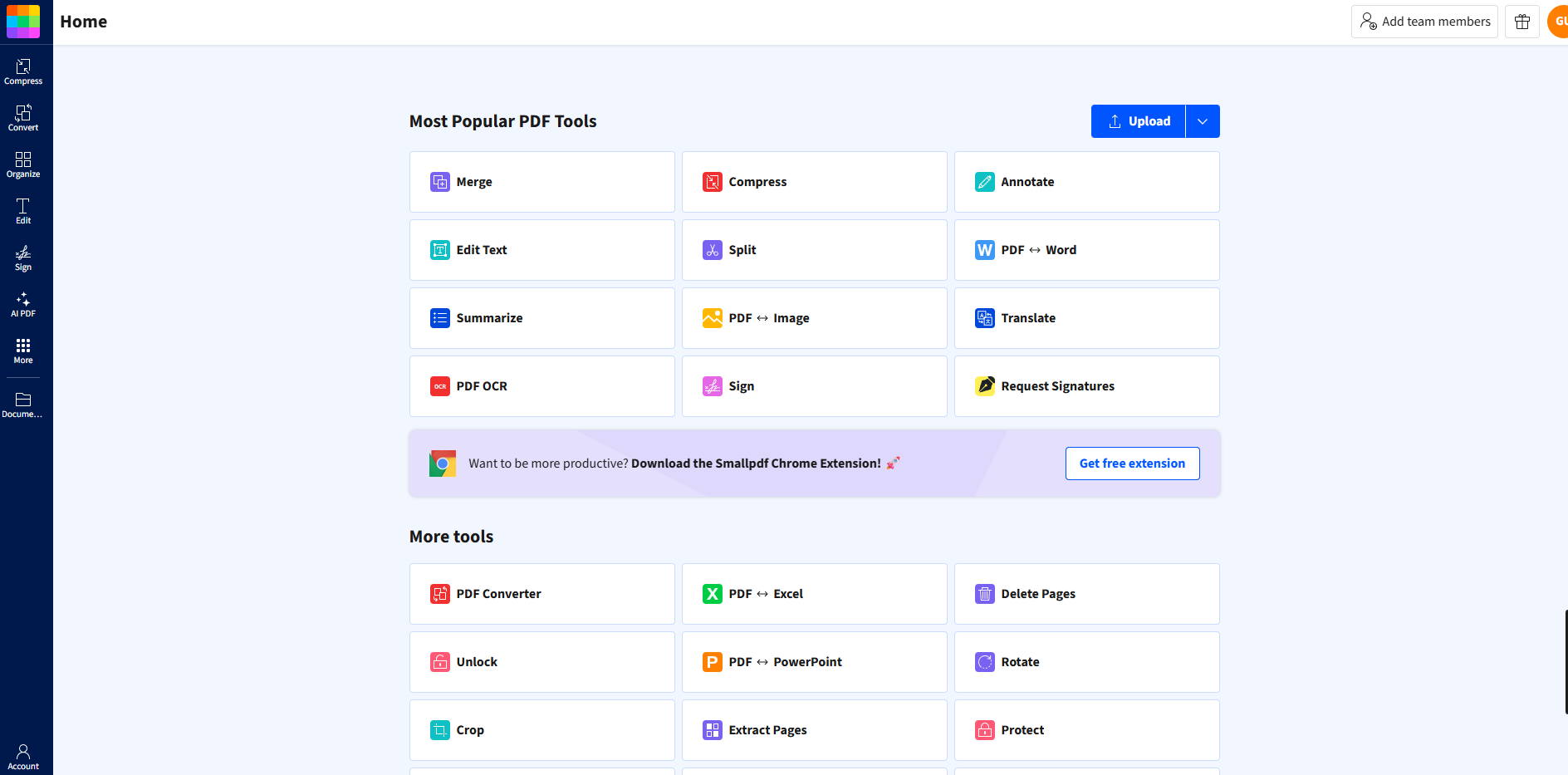
The dashboard is clean and modern, with a grid of tools for different PDF tasks. Uploading and editing documents was straightforward.
However, when it comes to form filling and eSigning workflows, it falls short.
There’s no native way to create fillable fields for collecting signatures. Instead, you’re redirected to a separate product (Sign.com), which breaks the workflow.
Pricing observations:
Freemium entry with a paid subscription model; most eSignature functionality is handled through a separate product. Paid plans start at $12 monthly.
What it does well:
- Clean, modern interface
- Wide range of PDF tools
- Transparent trial requirement
Limitations:
- No built-in form filling or eSigning workflow
- Redirects to external product for signatures
- Not designed for structured document workflows
Best for: Users who need general PDF tools like compression, conversion, and editing
Avoid if: You specifically need a tool for creating fillable forms or collecting signatures
What to Look for in a Form Filling App
Before comparing tools, it helps to understand what a form filling app actually does. These apps let you complete, create, and share digital forms without printing. More advanced platforms also include eSignatures, reusable templates, workflow automation, and document tracking—making them useful for both personal and business use.
A good form filling app needs drag-and-drop field creation, pre-fill and auto-populate for repeated data, a sending workflow with recipient tracking, reusable document templates, and an audit trail for signed files. Advanced tools add AI contract summarization, field linking across long forms, and a recipient preview mode.
How to Create a Fillable PDF Form Online
Most form filling tools follow the same basic process. Here’s how it typically works using a tool like Fill:
- Upload your document: Start by uploading a PDF or choosing a template.
- Add fillable fields: Drag and drop fields like text, date, or signature into the document.
- Pre-fill your information (optional): Some tools let you complete your own fields before sending, which saves time for recipients.
- Assign recipients (if needed): Enter the email addresses of people who need to fill or sign the document.
- Review and send: Double-check the document, then send it out for completion.
- Track progress and receive the completed form: Once finished, you’ll get a copy of the completed document.
The exact steps may vary slightly depending on the tool, but the overall workflow is very similar. For two complete workflows, see how to create electronic forms from scratch or from an existing file.
How to Fill Out a Form Online Without Printing
You don’t need to print, scan, or manually sign documents anymore. If you just need to complete a form someone sent you, the process is usually simple:
- Upload the PDF into a form filling tool
- Click into the existing fields and type your answers
- Add a digital signature if required
- Download or send the completed form
In most cases, you don’t need to design anything—just fill and submit. This not only saves time, but also reduces errors and keeps everything organized in one place.
If you regularly deal with forms, switching to a digital workflow can significantly speed things up.

How to Choose the Right Form Filling App (Based on Your Workflow)
Not all form filling tools are built the same—and choosing the wrong one usually leads to frustration later.
Here’s a quick way to decide based on how you actually work:
If you just need to fill out a form once: Go with simple tools like DocFly or PDFescape. They’re fast, require no signup, and get the job done quickly.
If you regularly send documents for signature: Choose a tool like Fill, Signaturely, or DocuSign. These are built for repeat workflows, not just one-off edits.
If you need advanced workflows or compliance: Fill, DocuSign or Adobe Acrobat are better suited for structured processes, contract signing, approvals, and audit trails.
If your workflow starts with forms (not PDFs): Jotform makes more sense since it’s designed around form creation first, then signing. Better yet, Fill works as a great Jotform alternative because it lets you build forms from scratch and eventually migrate them to an esigning workflow.
The key takeaway: Don’t just look at features—choose based on how often you send documents and how much control you need over the workflow.
You can also read our extensive review of the top electronic signature software to help you decide better.
What Actually Matters in a Form Filling Tool
Most tools advertise the same features—but in practice, these are the things that made the biggest difference during testing:
1. Speed from upload → send
If it takes more than a few minutes to send your first document, it slows down your entire workflow.
2. Field control and flexibility
Basic tools let you add text and signatures. Better tools let you:
- Pre-fill fields
- Link repeated data
- Add validations or logic
3. Sending experience
Some tools guide you through review steps. Others send instantly (which can lead to mistakes).
4. Recipient experience
This is often overlooked. A good tool should:
- Not require login
- Be easy to complete on any device
- Clearly show progress
5. Workflow vs. one-time use
Some tools are built for quick edits. Others are designed for repeatable processes with templates and automation.
This is why tools that look similar can feel completely different when you actually use them.

When You Should Use a Form Filler vs an eSignature Tool
This is where a lot of confusion comes from.
Use a form filler if:
- You just need to complete a document yourself
- You don’t need to send it to others
- You’re making quick edits
Use an eSignature tool if:
- You need others to sign
- You want tracking and notifications
- You’re managing multiple documents or workflows
Some tools (like Fill) combine both—but many tools lean heavily toward one side.
Related Reading: Free eSign Software: Top Picks
Free vs Paid Form Filling Apps: What Do You Actually Get?
If you only need to fill out and sign the occasional document, a free tool like DocFly or PDFescape is often enough. But if you regularly send forms to clients, employees, or customers, paid platforms like Fill and DocuSign save time with reusable templates, legally binding eSignatures, audit trails, and automated workflows.
Bottom line: Free apps work well for one-off documents. Paid platforms are worth it when you need repeatable, professional document workflows.
Final Verdict: Which Tool Should You Choose?
There's no single "best" form filling app—only the one that best fits your workflow.
If you only need to fill out the occasional document, a free tool like DocFly or PDFescape will likely do the job. If PDF editing is your primary focus, Adobe Acrobat remains one of the most capable options. And if your organization depends on enterprise-grade signing workflows and compliance, DocuSign is a proven choice.
However, for most small businesses and growing teams, Fill strikes the best balance. It combines fillable forms, legally binding eSignatures, reusable templates, and workflow automation in one intuitive platform—without the complexity or higher cost of many enterprise solutions.
Whether you're sending contracts, onboarding new hires, collecting client information, or managing internal approvals, Fill gives you the tools to build repeatable document workflows that save time and scale with your business.
Frequently Asked Questions
What is the easiest way to fill out a PDF form online?
The easiest way is to use a form filling tool that lets you upload a PDF, click to add or complete fields, and save your changes digitally. Platforms like Fill let you fill out, sign, and share documents online without printing or installing desktop software.
Can I fill out a PDF form without printing it?
Yes. Most modern form filling apps let you upload a PDF, type directly into existing fields, or add text boxes where needed. Once you're finished, you can download the completed document or send it electronically for signatures.
Can I create my own fillable PDF form?
Yes. Many form filling apps let you upload a PDF and add text fields, checkboxes, dropdown menus, signature fields, and date fields. You can then save the document as a reusable template for future use.
What is the difference between a form filler and an eSignature tool?
A form filler helps you complete or create fillable documents, while an eSignature tool focuses on collecting legally binding electronic signatures. Many platforms, including Fill, combine both features so you can create, complete, send, and sign documents from one place.
What is the best free app to fill out forms?
If you only need to complete an occasional document, free tools like DocFly, Jotform, and PDFescape are good options. However, free plans often limit the number of documents, storage, or advanced features. If you regularly send forms or collect signatures, a paid platform like Fill can save time with reusable templates and workflow automation.
Which form filling app is best for businesses?
The best choice depends on how you use forms. If you only fill out occasional PDFs, a free tool may be enough. If you need reusable templates, legally binding eSignatures, and workflow automation, choose a platform designed for recurring business use. For most small businesses and growing teams, Fill offers the best balance of ease of use, functionality, and value.
Is it safe to fill out forms online?
Yes, provided you use a reputable platform that encrypts your documents and protects your data. Look for features like secure cloud storage, encrypted file transfers, audit trails, and compliance certifications if you're handling sensitive information.
Can I fill out forms on my phone?
Yes. Most modern form filling apps work on desktop and mobile devices, allowing you to complete, sign, and send documents from your browser or a dedicated mobile app. This makes it easy to fill out forms whether you're in the office or on the go.
Related Stories
Best Free eSign Software in 2026: Top Picks for Signing Documents Online

Form Analytics: Understanding and Optimizing Online Forms