Convert TIFF to PDF for free
How to convert TIFF to PDF
Change your file format from .TIFF to PDF in these simple steps

Upload

Order

Save
Online TIFF to PDF Converter
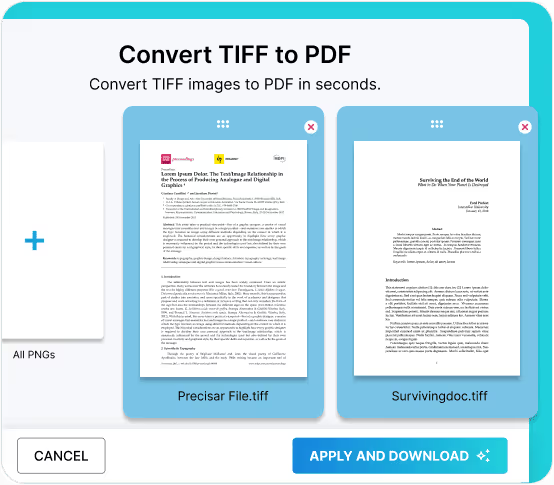
Convert your document format from .tiff files to PDF online hassle-free; no software installation or sign-up is required. Simply upload your TIFF files to the Fill converter and download them as PDFs within seconds.
Compatible Across Devices
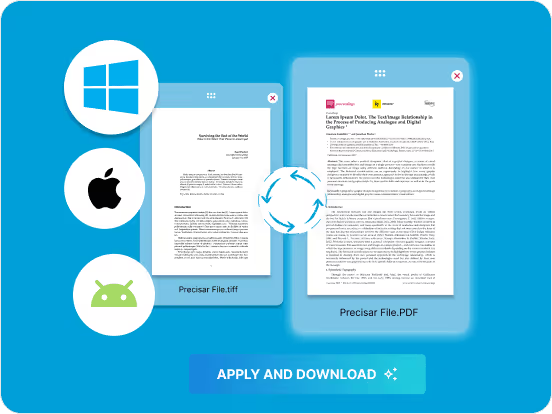
Convert TIFF to PDF on Android, Windows, Mac, or any device using the Fill tool on any browser. Fill automatically saves your converted TIFF file as PDF, making it easy to view your file the same way on different devices.
Enhance TIFF File Shareability
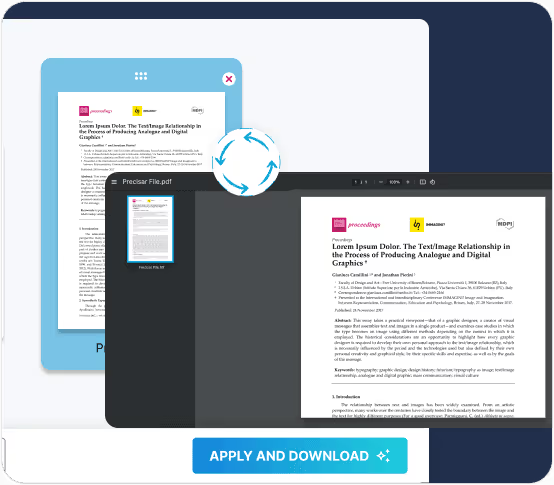
Make it easy to share your TIFF files by converting them to PDF format. While TIFF excels at storing high-resolution images, converting to PDF simplifies sharing. The compressed PDF format ensures recipients can effortlessly receive and view the files on any device.
Preserve Content Integrity During Sharing
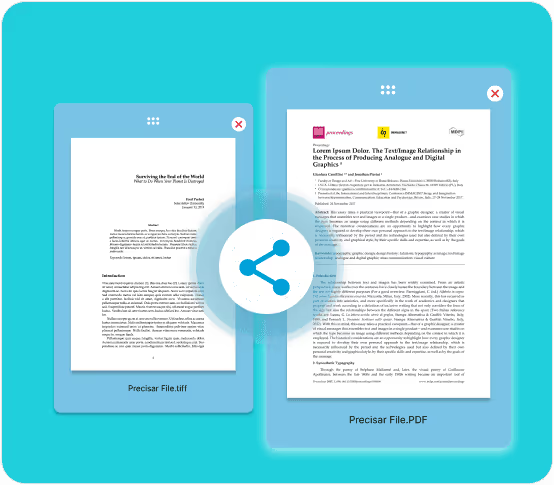
Safeguard your image licenses by converting TIFF files to PDF. This ensures that while others can view your creative work, intricate design details remain difficult to edit.
Frequently Asked Questions
How do I convert TIFF to PDF on iPhone?
To convert TIFF to PDF on your iPhone, follow these steps:
- Open the Fill tool in any browser on your iPhone. While Safari is a great choice, you can use any browser.
- Click on the “Select Files” button, and Fill will prompt you to choose whether to upload the TIFF file from your photos or your file folders.
- Select your preferred location and choose the TIFF file you wish to convert.
- Organize your images in the order you want your PDF pages to appear. First picture is first PDF page and so on.
- Click “Apply & Download” to begin the conversion process, which typically takes less than 10 seconds.
- Once the conversion is complete, the PDF file will be automatically saved to your downloads folder.
You can now open this PDF file and save it in your preferred folder on your iPhone.
What is a TIFF file?
- The TIFF file format, short for Tag Image File Format, is a file format employed by Apple to store visuals such as Live Photos. In 2017, Apple switched from JPG to TIFF to reduce the storage space occupied by JPG files by up to 50% without compromising image quality.
- TIFF files open by default on any Apple-related device, including Mac OS and iOS. However, the need to convert from TIFF to PDF often arises when viewing TIFF files on Windows and other operating systems.
How to convert TIFF to PDF on Mac?
- Yes, you can. Here is how to convert TIFF to PDF on your Mac:
- Open any web browser on your Mac computer and access the Fill TIFF to PDF converter online (You do not need additional software for this). Next, click ‘Select Files‘ and upload the TIFF file(s) you wish to convert. Order your images how you want them to appear on your PDF pages. Then select ‘Apply & Download‘ to initiate the conversion and have the PDF files automatically saved to your computer.
- The Fill TIFF to PDF converter functions similarly on any browser and various devices, including Mac, iOS, Windows, Android, and even Linux operating systems.